




Disclosure: The Surfans F20 was purchased by me, thanks to readers like you supporting this site. HiFi Oasis only uses affiliate links to generate revenue, no ads or sponsored content.
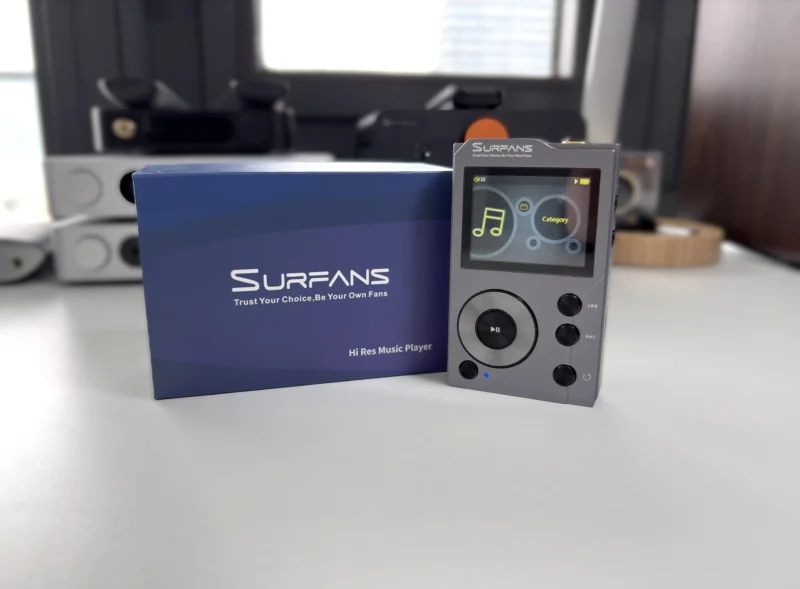
The Surfans F20 is an entry-level audio player (DAP) aimed squarely at casual listeners and beginner audiophiles who want good sound quality in a portable device. Priced around $125 USD, it aims to deliver features usually found in pricier players, such as a USB DAC mode, bi-directional Bluetooth with support for LDAC, and a premium build quality. It doesn’t run Android or support streaming apps (there’s no Wi-Fi at all), which means no Spotify or Tidal, but also no notifications or distractions to interrupt your listening. The focus here is on pure audio playback
If you’re an audiophile on a budget or someone who misses the days of music-first devices like the iPod and just wants to carry your music in a capable little device, the F20 looks to be designed for you. While it is not the cheapest option in the budget DAP category, it’s still a budget audio player. One thing to note is that this device is also sold as the HIFI WALKER H2 and AGPTek H3. They have the same internals and only minor cosmetic differences. They have also been silently upgraded through the years with additions such as a USB-C port instead of micro-USB. There’s a lot to talk about with this DAP, so let’s get into it.
Key Specifications
- Product Page: https://www.surfans.net/products/surfans-f20
- MSRP: $123.99 USD
- Core Processor: Ingenic X1000
- Internal Components: ES9018K2M DAC, HT97220 amp
- RAM: 32MB
- Storage: MicroSD card slot (supports up to 512GB)
- OS: Unknown
- Display: 2 inch IPS LCD display, 320×240
- Connectivity:
- 3.5mm SE (70mW @ 32ohms)
- 3.5mm Line Out
- USB-C for charging and data transfer (USB 2.0)
- Bluetooth 5.2 (SBC, aptX, LDAC codecs supported)
- Battery :
- 1500mAh, up to 12 hours of playback
- Supported Sample Rates and Formats:
- Up to 32-bit/384kHz PCM, DSD64/128
- FLAC, WAV, WMA, M4A, MP3, AAC, APE, ALAC, OGG, AIFF, DFF
- Notable Features:
- Bi-directional Bluetooth
- USB-DAC functionality
- Dimensions:
- 68mm x 121mm x 17mm
- Weight: 193g
In the Box
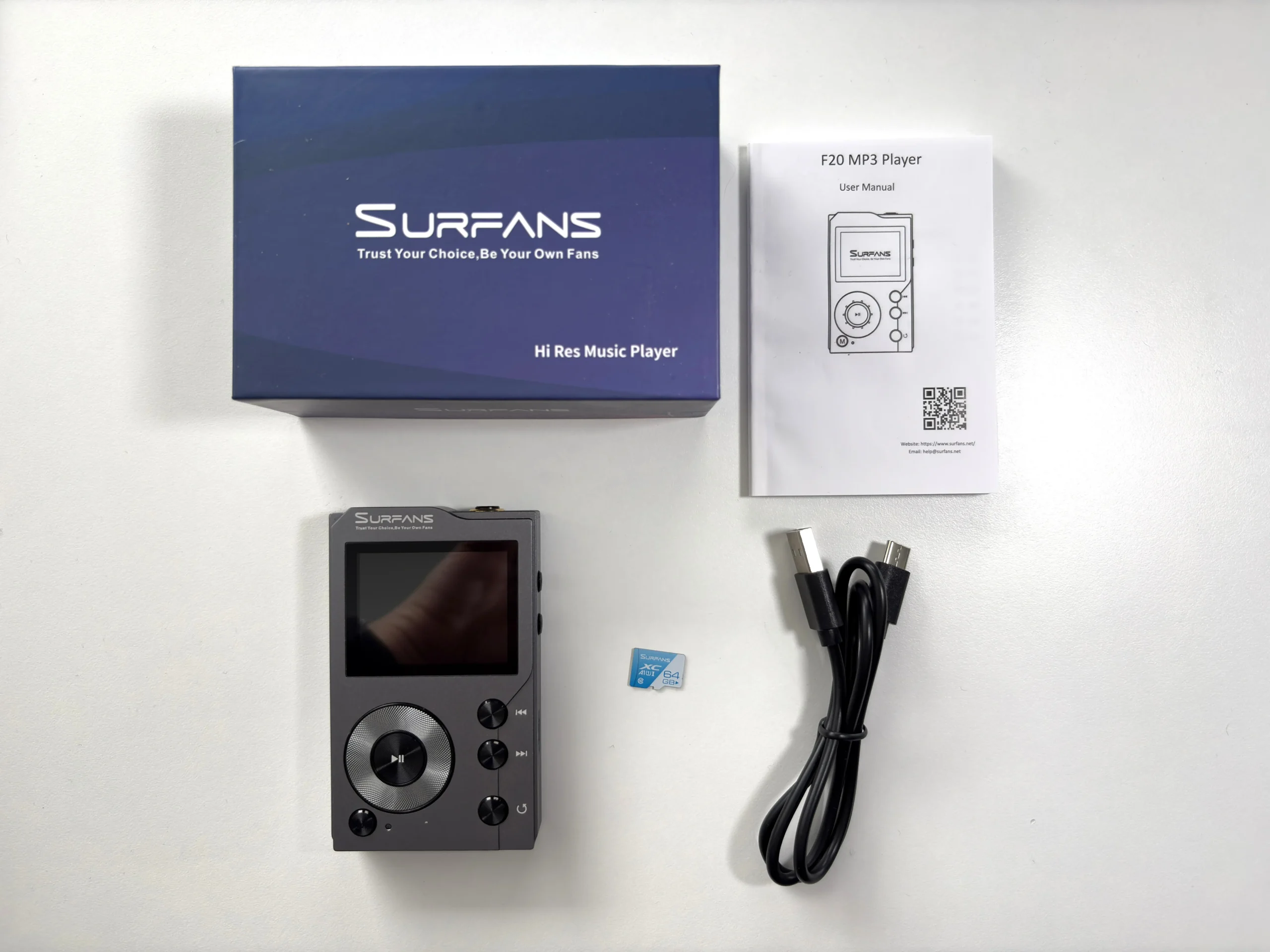
- Surfans F20
- USB-C to USB-A cable
- 64GB microSD card
- Manual
Design & Build Quality
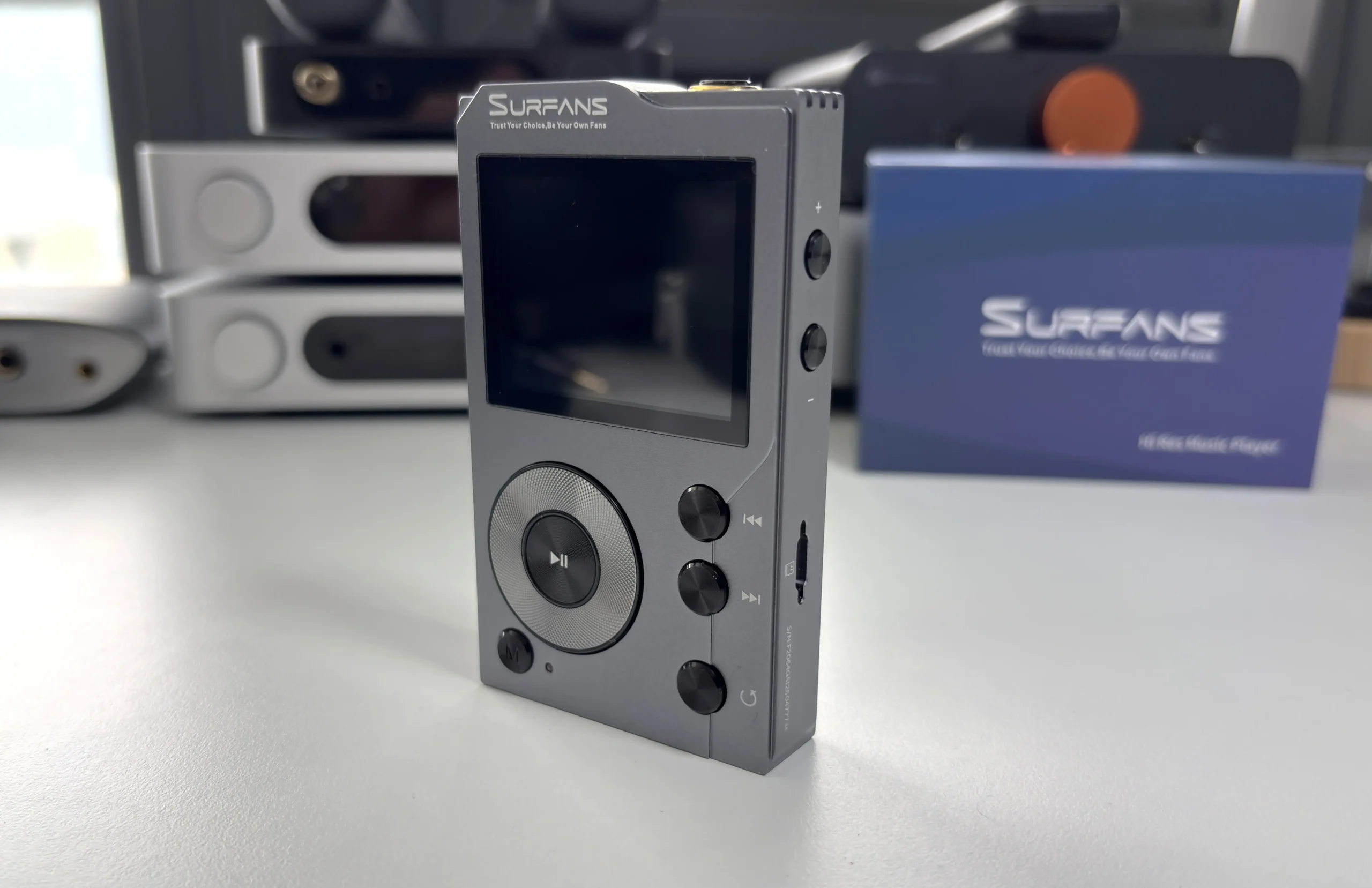
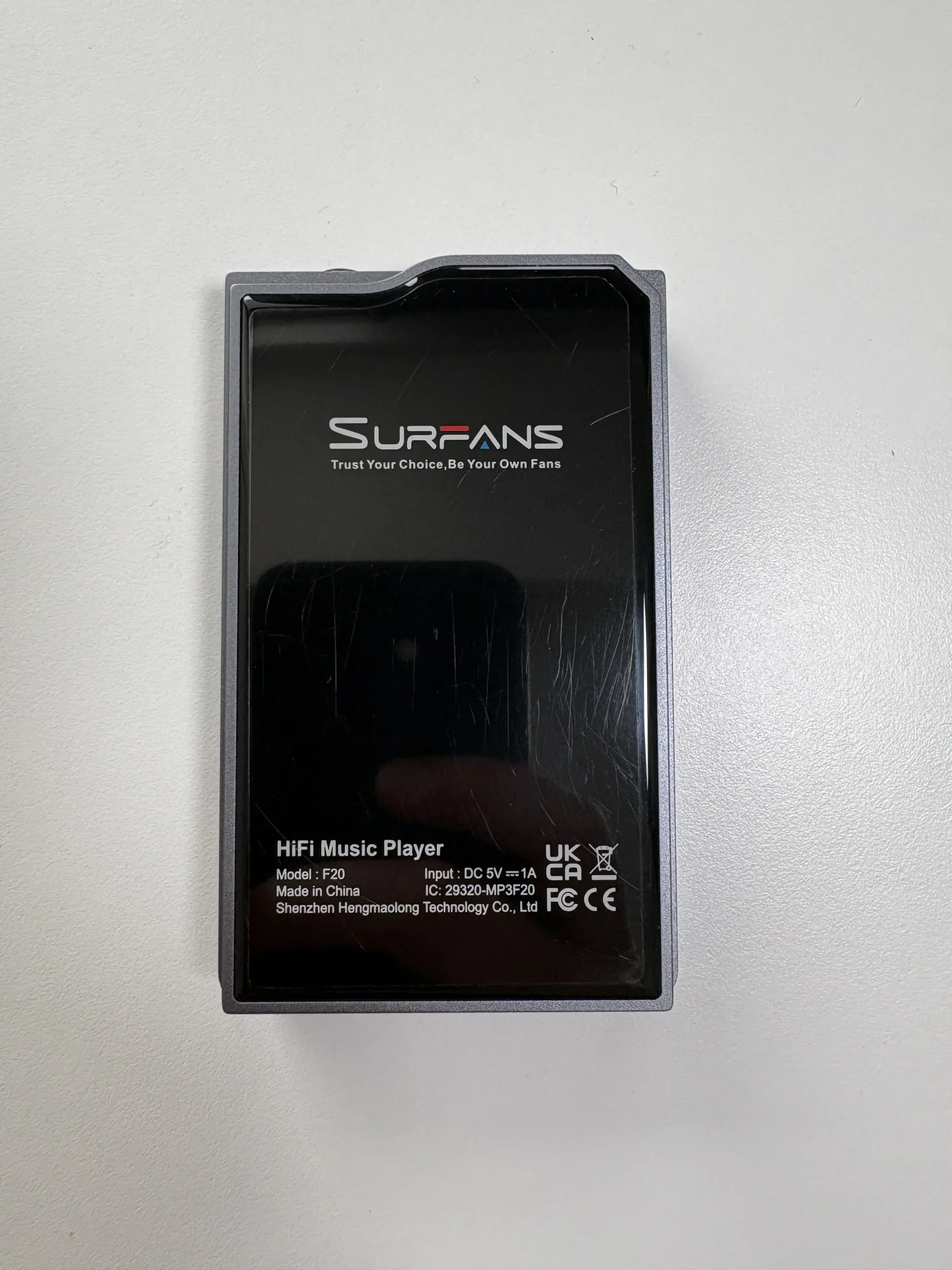
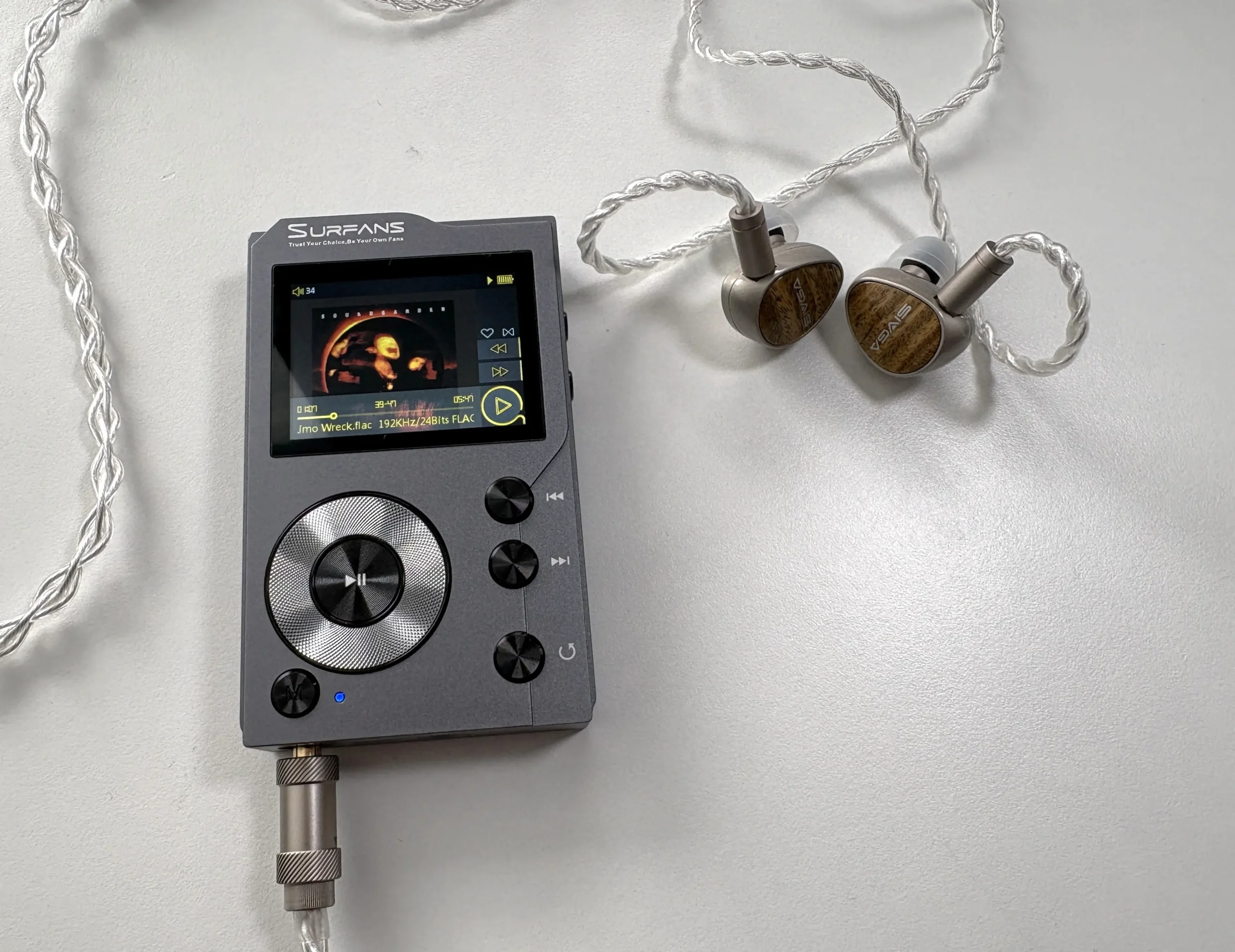
The Surfans F20 embraces a retro-inspired design that will feel familiar to anyone who used older iPod Classics or early FiiO audio players. It has a solid, premium-feeling CNC aluminum body with a cool-to-touch glass-like back panel, which has a plastic protector pre-applied. The F20 is compact and lightweight (~110 grams), and fits comfortably in the hand, making it easy for one-handed use. The front features a 2.0-inch IPS LCD color screen (320×240 resolution), which is relatively small by today’s standards, but sufficient for browsing menus and seeing track info and album art.
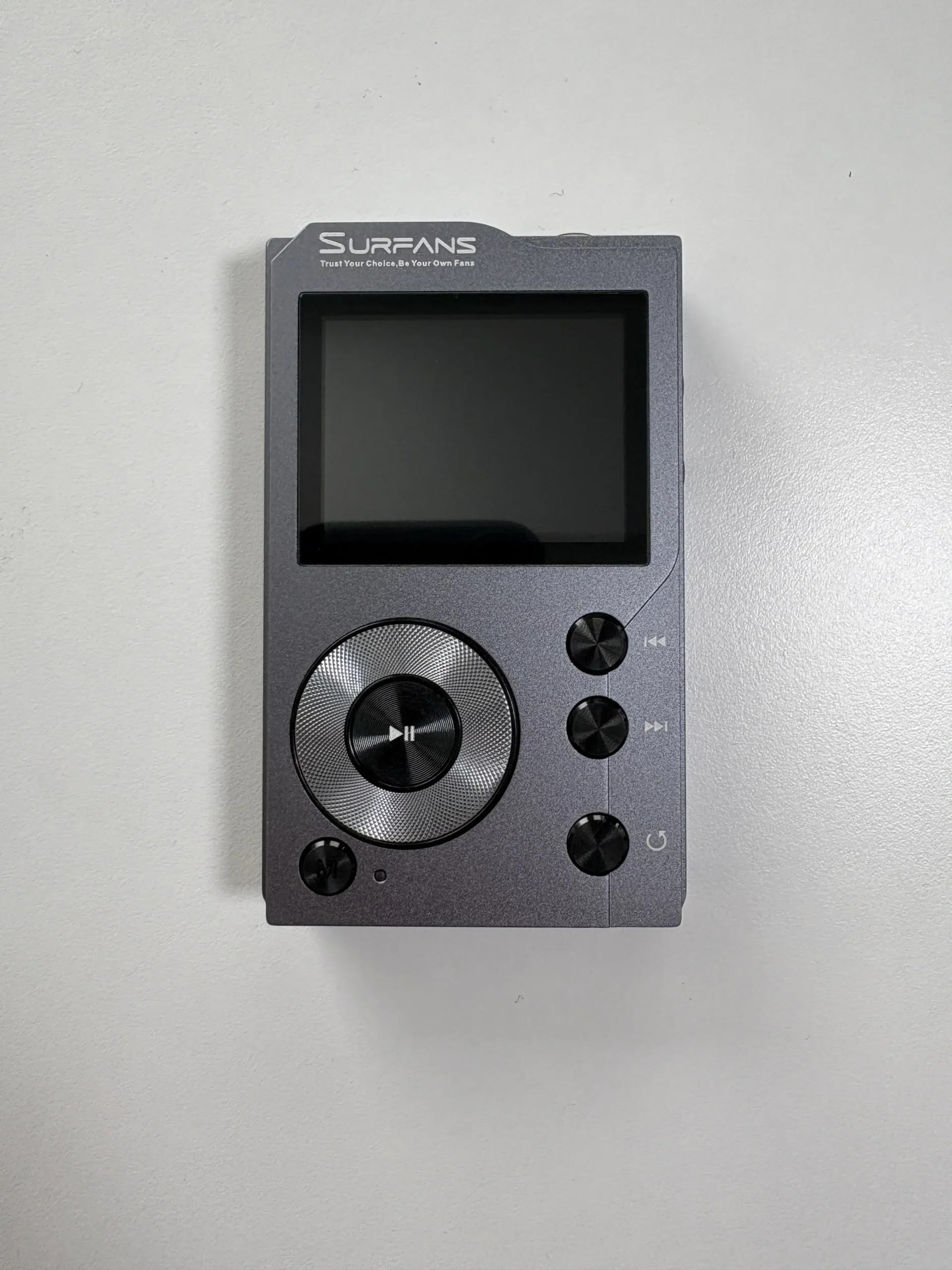


Below the screen is an ALPS scroll wheel surrounded by playback control buttons. The play/pause/enter button sits in the middle of the scroll wheel, with the next track, previous track, and back buttons to the right. The “M” button is below the scroll wheel, the power button is on the very top right, and the volume buttons are along the right side.
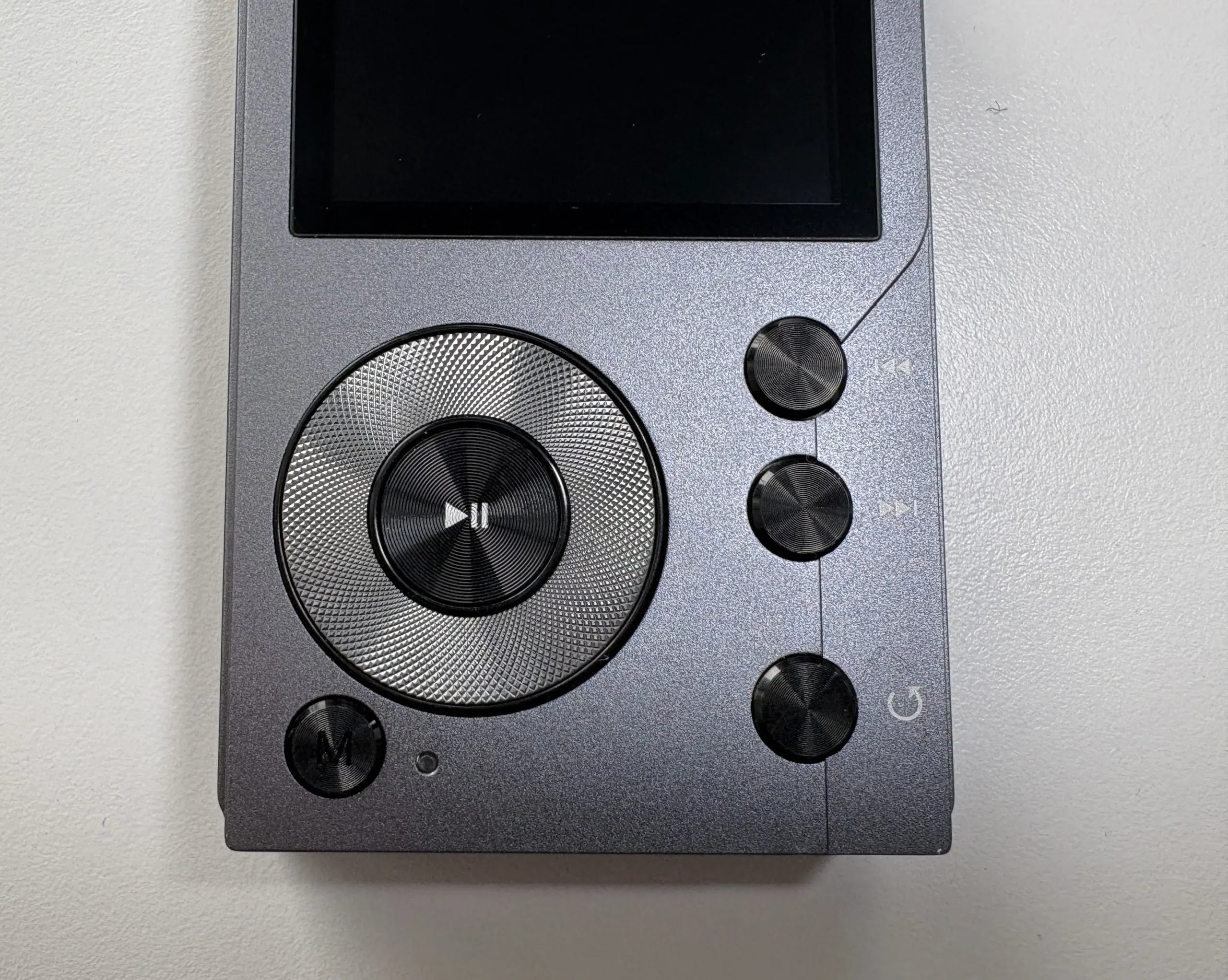
The wheel has a tactile clicky feel, making navigation smooth and intuitive despite the tiny display. This throwback control scheme, combined with the metal build, gives the F20 a charming “classic” audiophile look that many will find appealing. The buttons themselves are also audibly clicky with excellent tactility. Despite the budget price, nothing about the buttons or the build feels cheap.
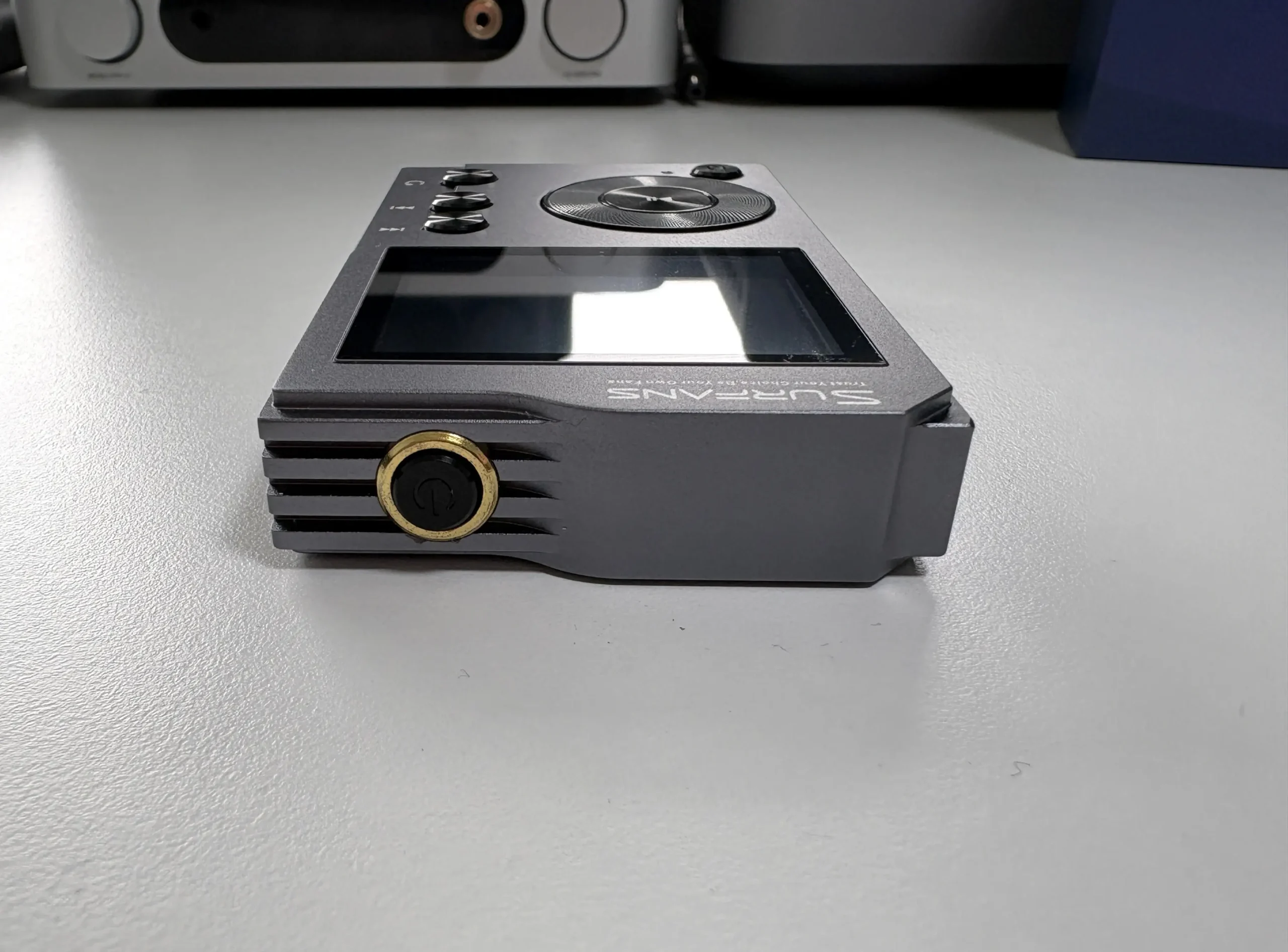
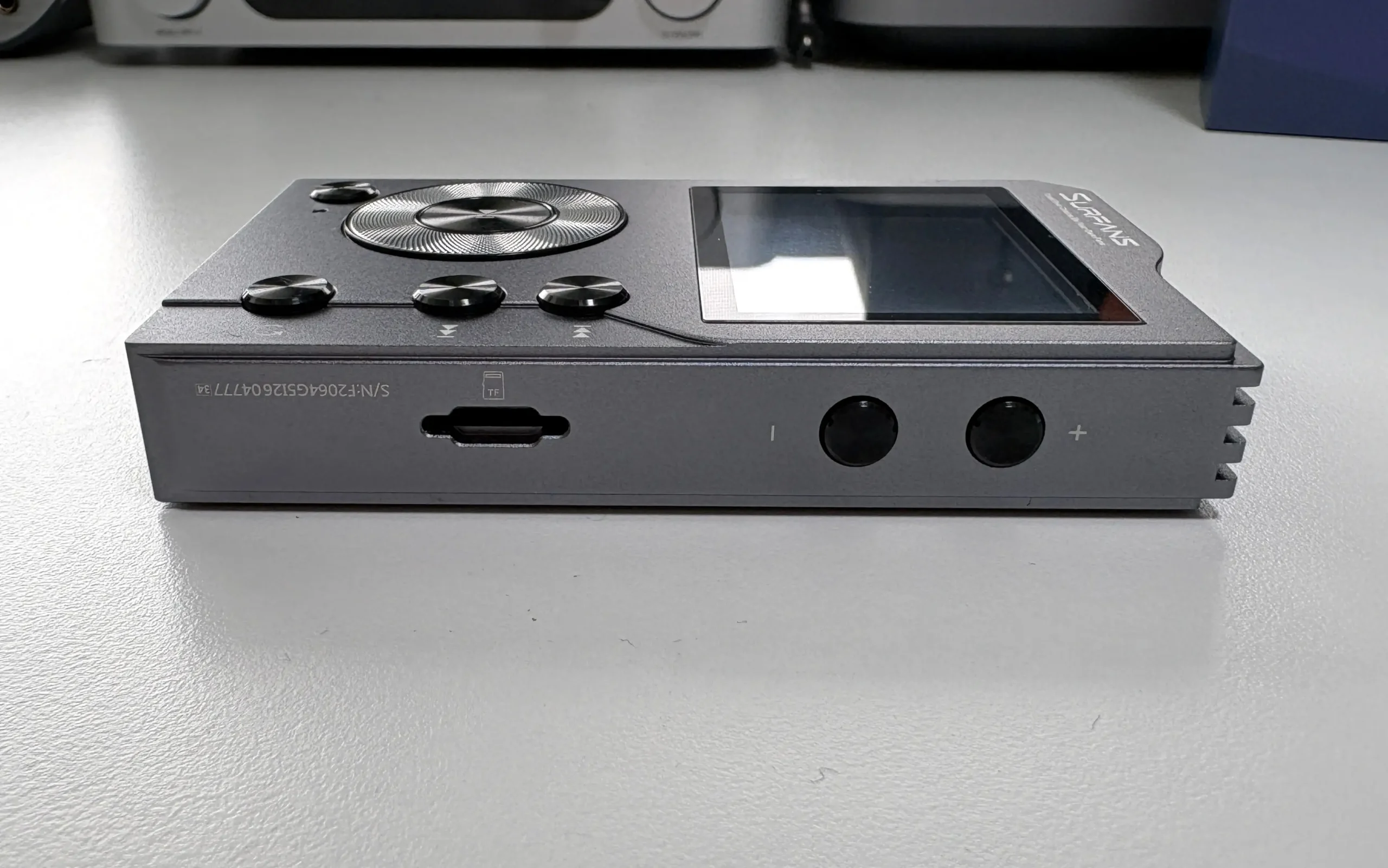
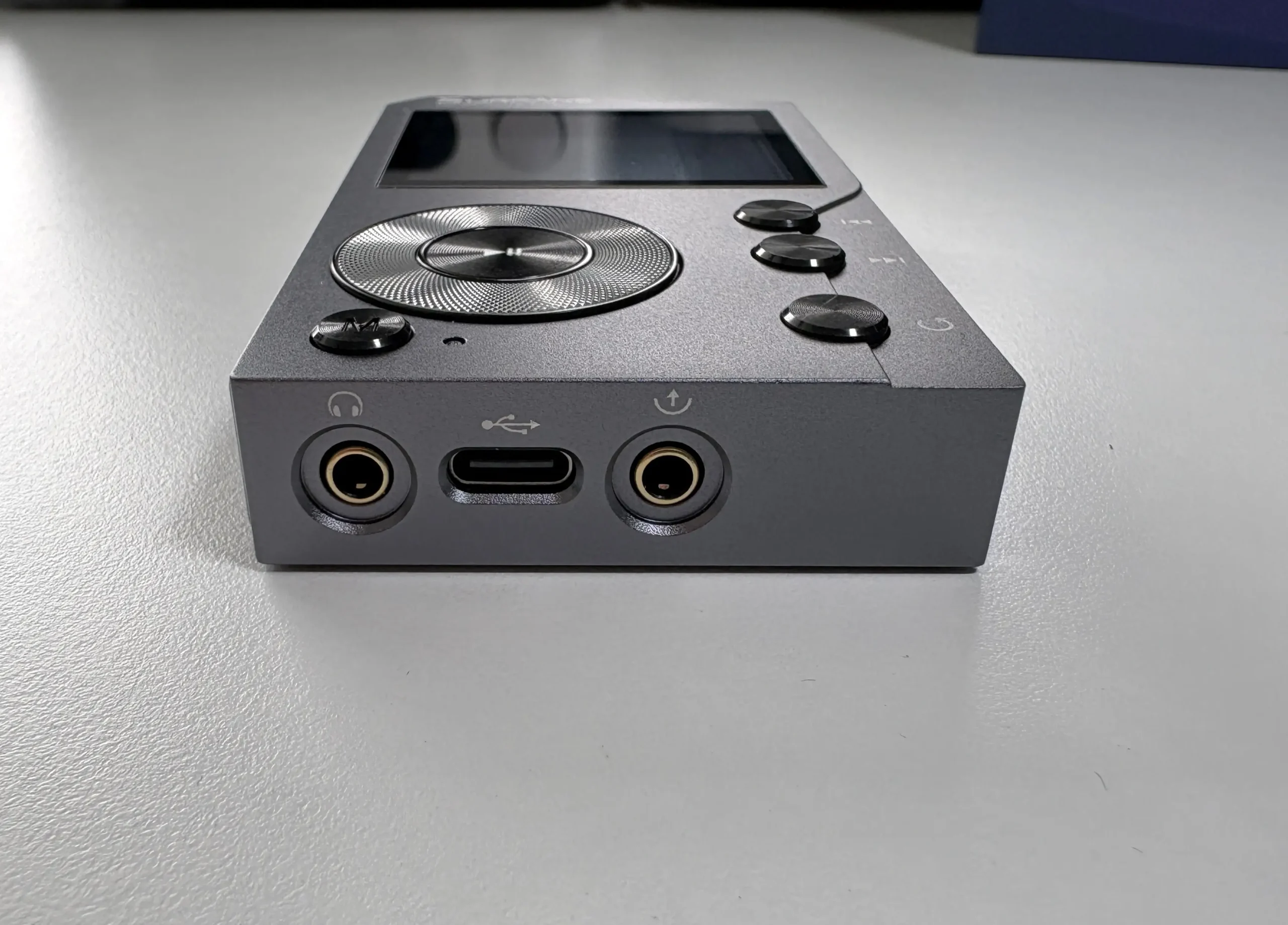
On the bottom, the F20 offers both a standard 3.5mm headphone jack and a true 3.5mm line-out jack for connecting to external amps or AUX inputs (this separation is great if you want to use it as a source for other audio systems). On the right side, there’s a microSD card slot, as the player has no internal storage, but it comes with a 64GB memory card included and supports cards up to 512GB (older models only supported up to 256GB).
Also on the bottom is the USB-C port. Early units of the F20 used a micro-USB connector (a bit dated in the 2020s), but newer production runs have thankfully switched to a USB Type-C port for charging and data transfer.
OS and UI
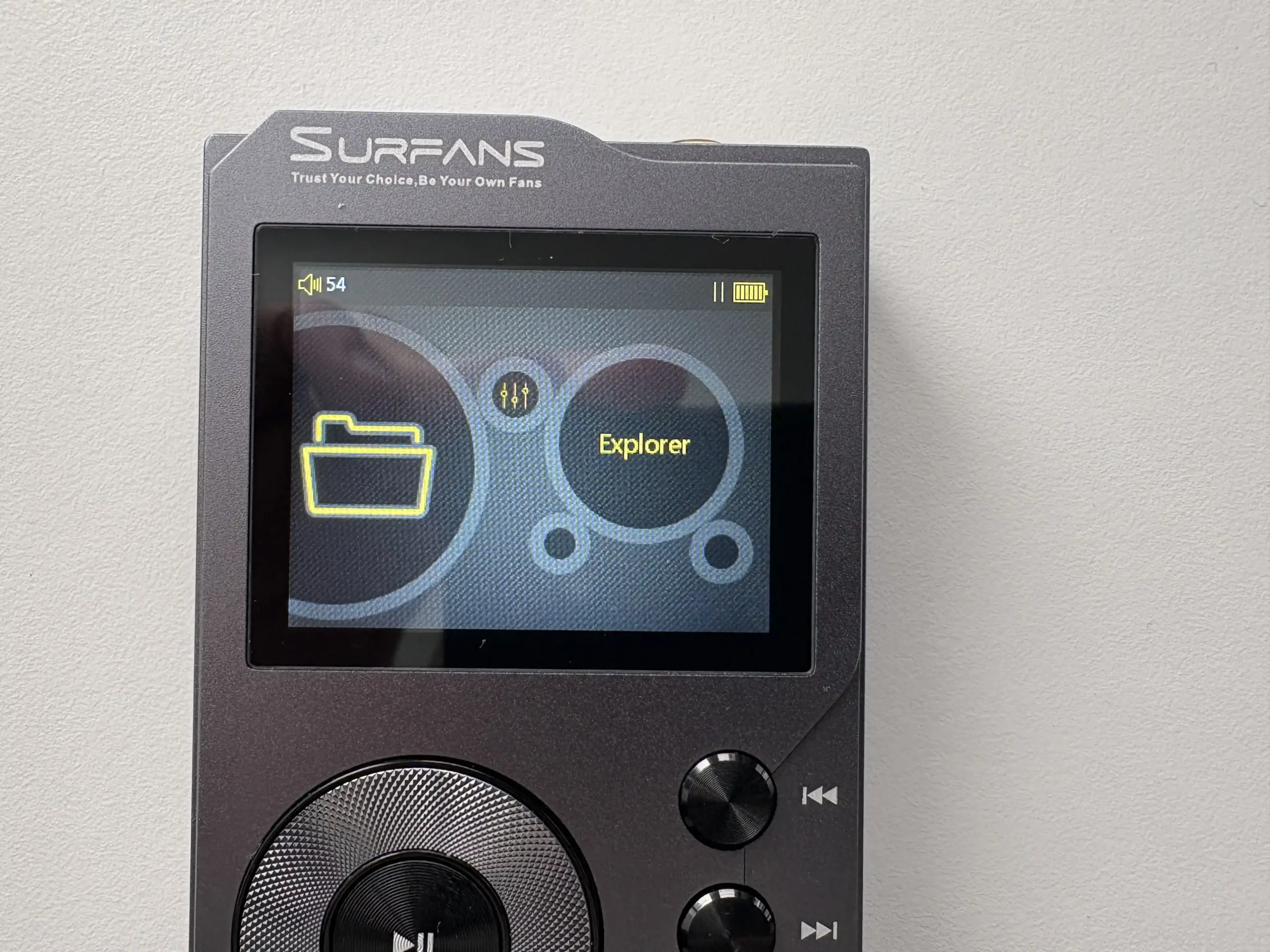
The F20 runs a proprietary operating system that is simple and utilitarian. Navigation is done through a mostly text-based menu system, where you use the scroll wheel to move through the various menus and options, with the play/pause button serving as the enter/confirm selection function. The small screen means graphics are minimal, but you do get basic album art display on the Now Playing screen, but don’t expect smartphone-level visuals. In use, the UI is responsive and straightforward. There’s a slight learning curve, but within an hour, I was comfortable with it. In fact, I was able to load a microSD card and start playing audio files within a minute of powering it on (through the file browser), it’s pretty much plug and play for basic music playback.
Now Playing screen
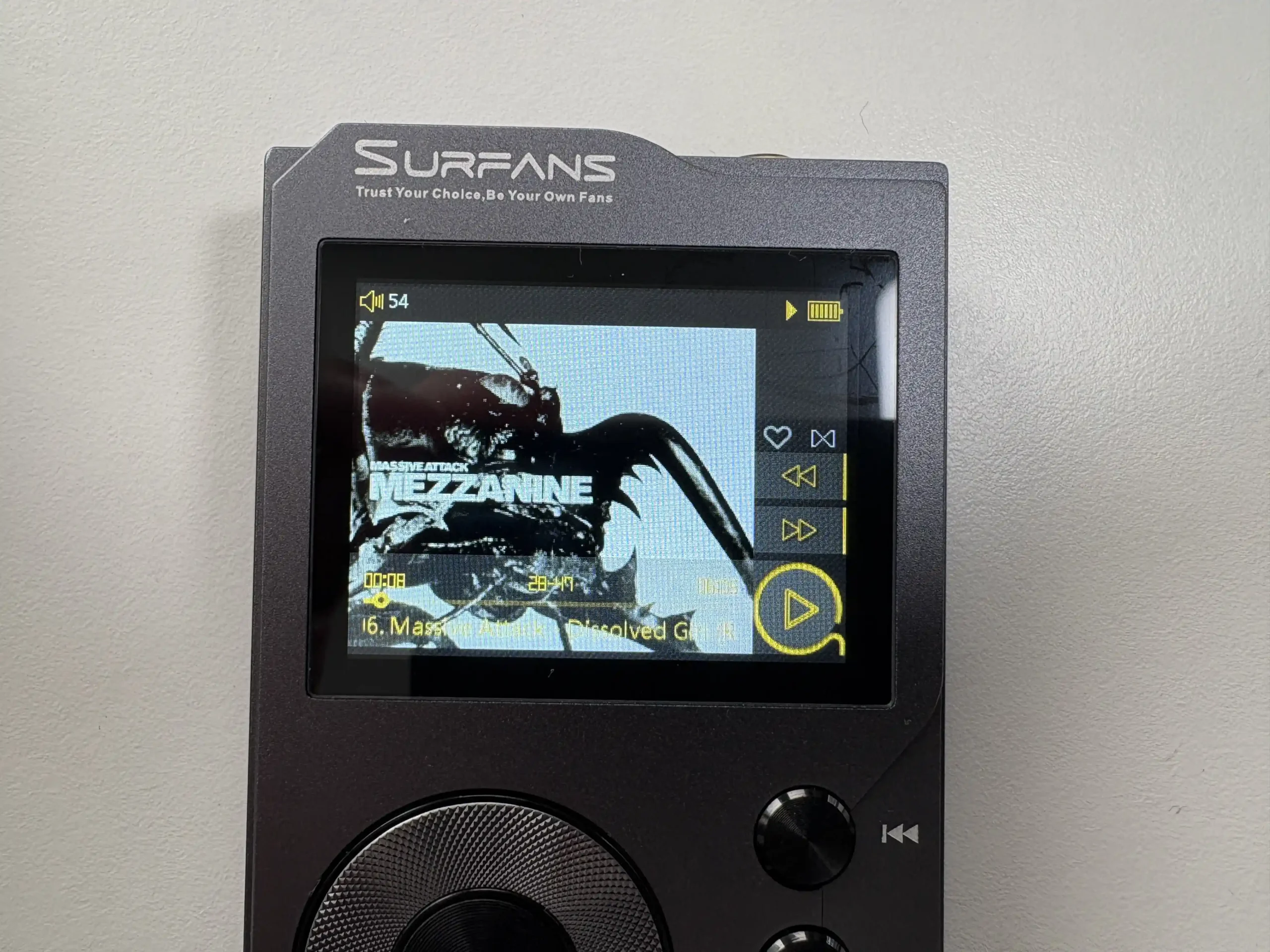

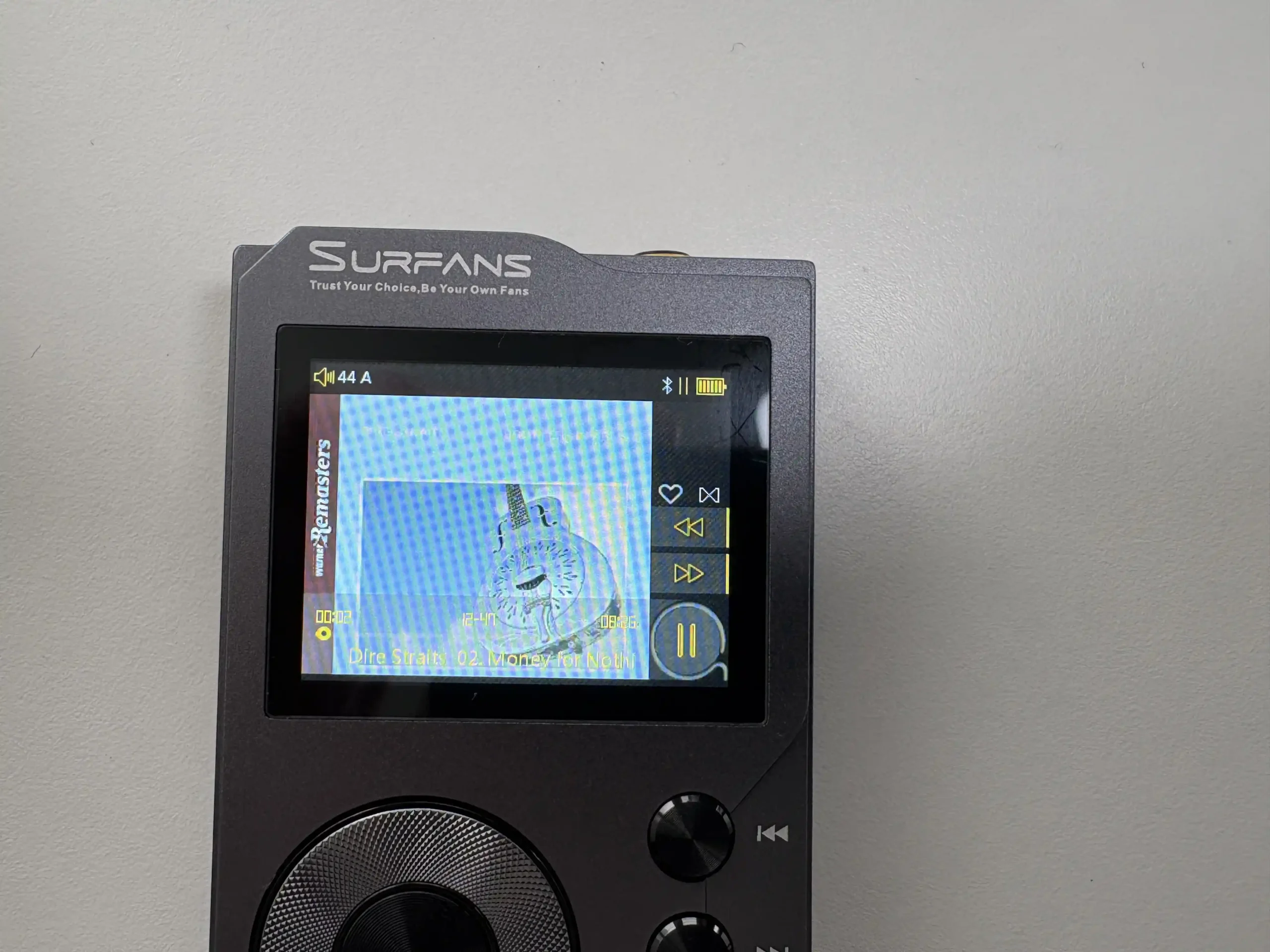
The now-playing screen definitely tries to put as much information as possible on the tiny 2-inch display. The very top of the screen has a volume indicator on the far left, and on the far right, the playback status (play/pause) as well as the battery indicator. The majority of the space contains the current track’s album art (can be turned off in the settings). At the bottom of the screen is a seek bar with the currently played time, track number, and total track time. Below that is the artist and track name (or filename if played through the file browser) followed by the sampling rate and file type. The right side displays the favorite status, current play mode (list, repeat, shuffle, etc), and playback status.
If you press the “M” button, you gain access to a menu where you use the scroll wheel to navigate and the Play/Pause button to confirm the selection. From here, you can add/remove from the track favorites, change the playback mode (Order, List Repeat, Single Play, Single Repeat, Random), access the EQ section, enable/disable Bluetooth, and enable/disable Wallpaper.
This screen is very, very hard to read most of the time. The color of the text tends to blend in with the album art if it’s too bright, making it unreadable. You can turn off the album art, but that’s no fun, really.
The main menu contains four options: Category, Explorer, Settings, and System Settings.
Category
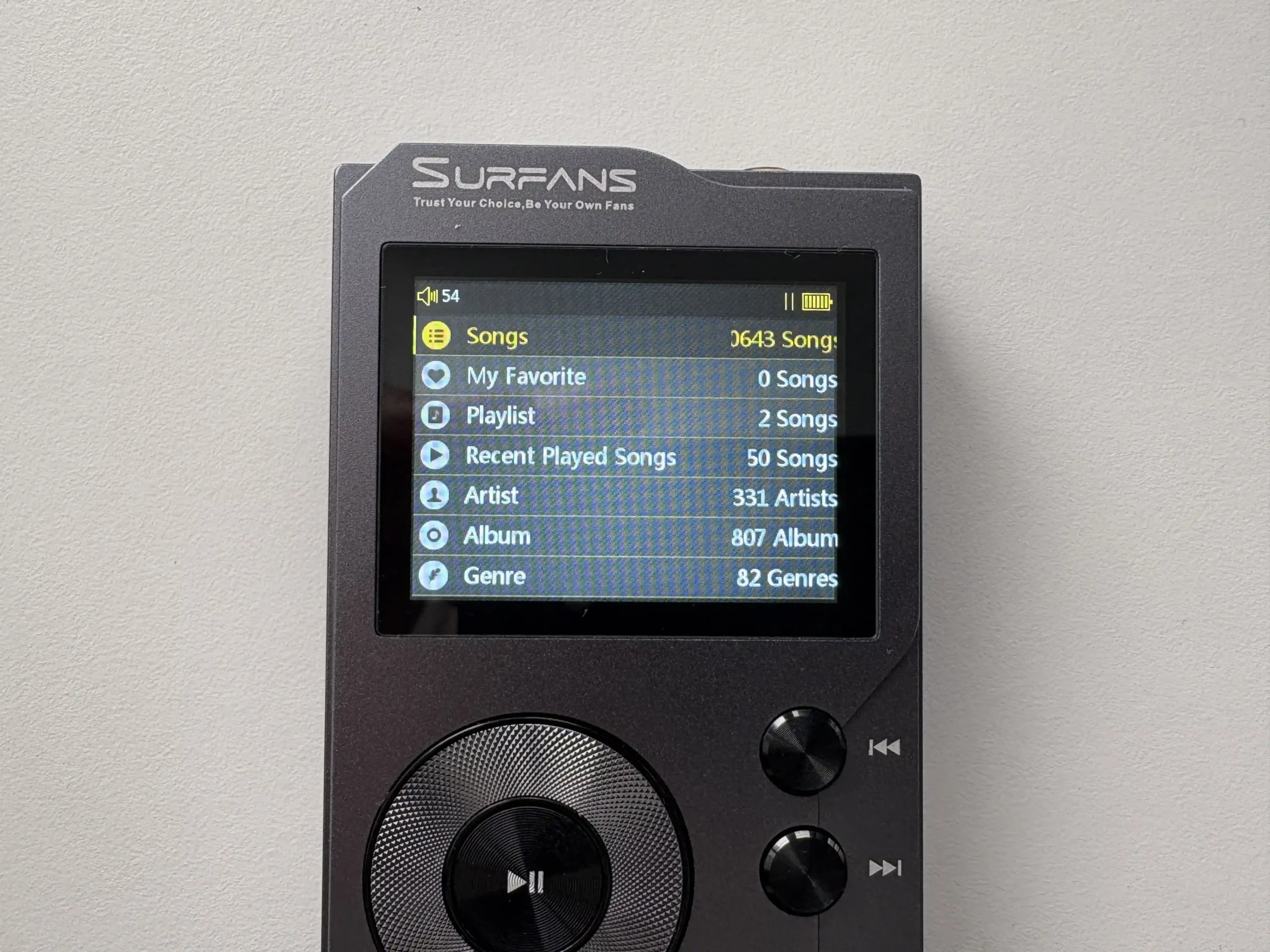
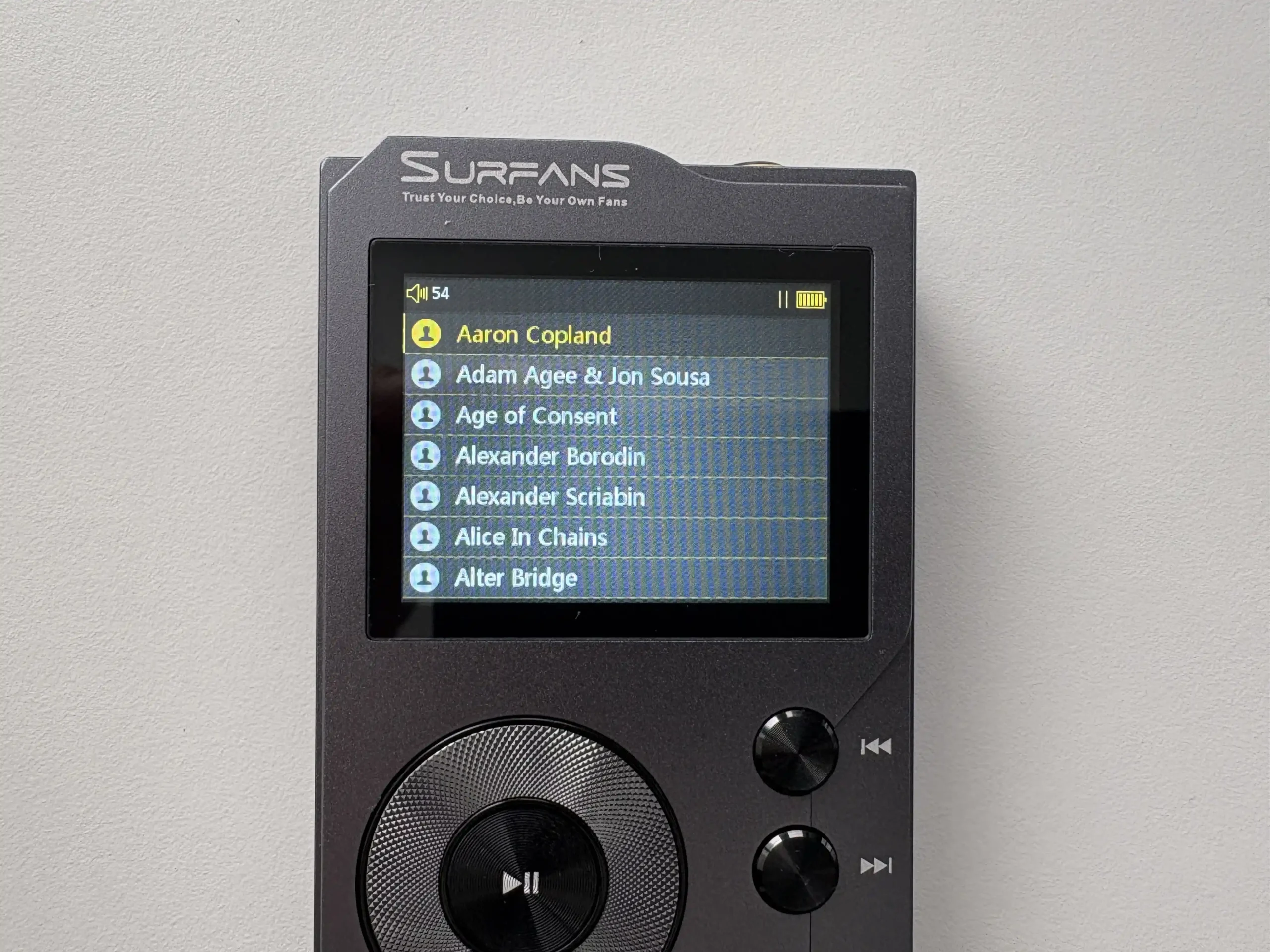


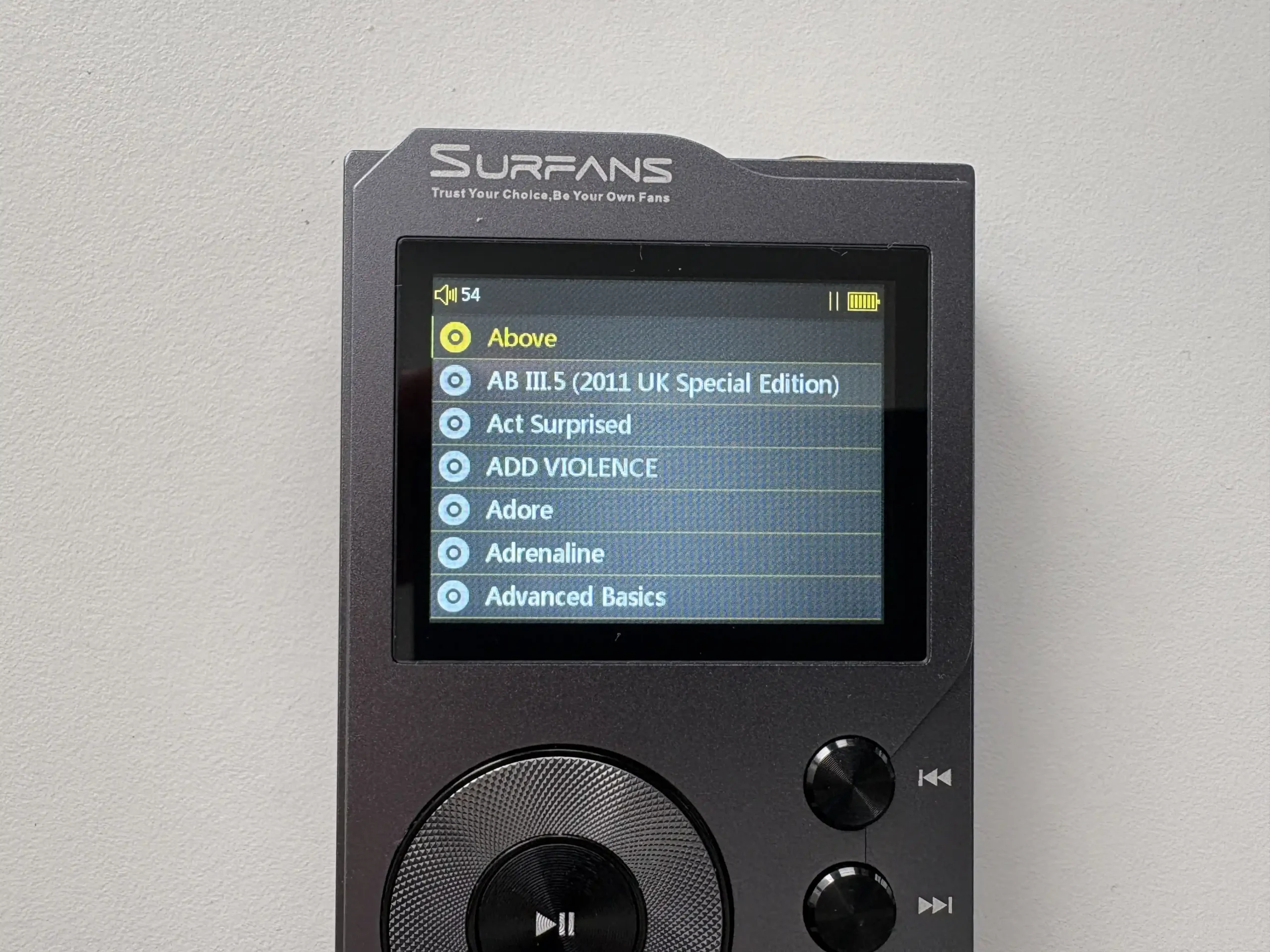
This is where all of your music appears after the player has scanned the microSD card and built its database. You have all of your usual options like Songs (all songs), Favorites, “Playlist” (more on this in a bit), Recently Played, Artists, Albums, and Genres. There’s even an option at the bottom of the screen to clear the most recently played tracks.
It’s worth noting that the F20 uses the Artist tag from your file’s metadata, and there’s no option to select Album Artist. Artists are sorted alphabetically, and there is no setting to ignore things like “The” or “A” at the beginning of an artist’s name, if you prefer sorting your artists in that way. As well, once you select an artist, it will list every song by that artist alphabetically, not by album. You need to use the Album view to play if you want to listen to an album. Also worth noting is that if you have albums with multiple discs, the UI ignores the disc # tag and will lump all of the tracks into one album, so the first track of both albums will appear first, and so on.
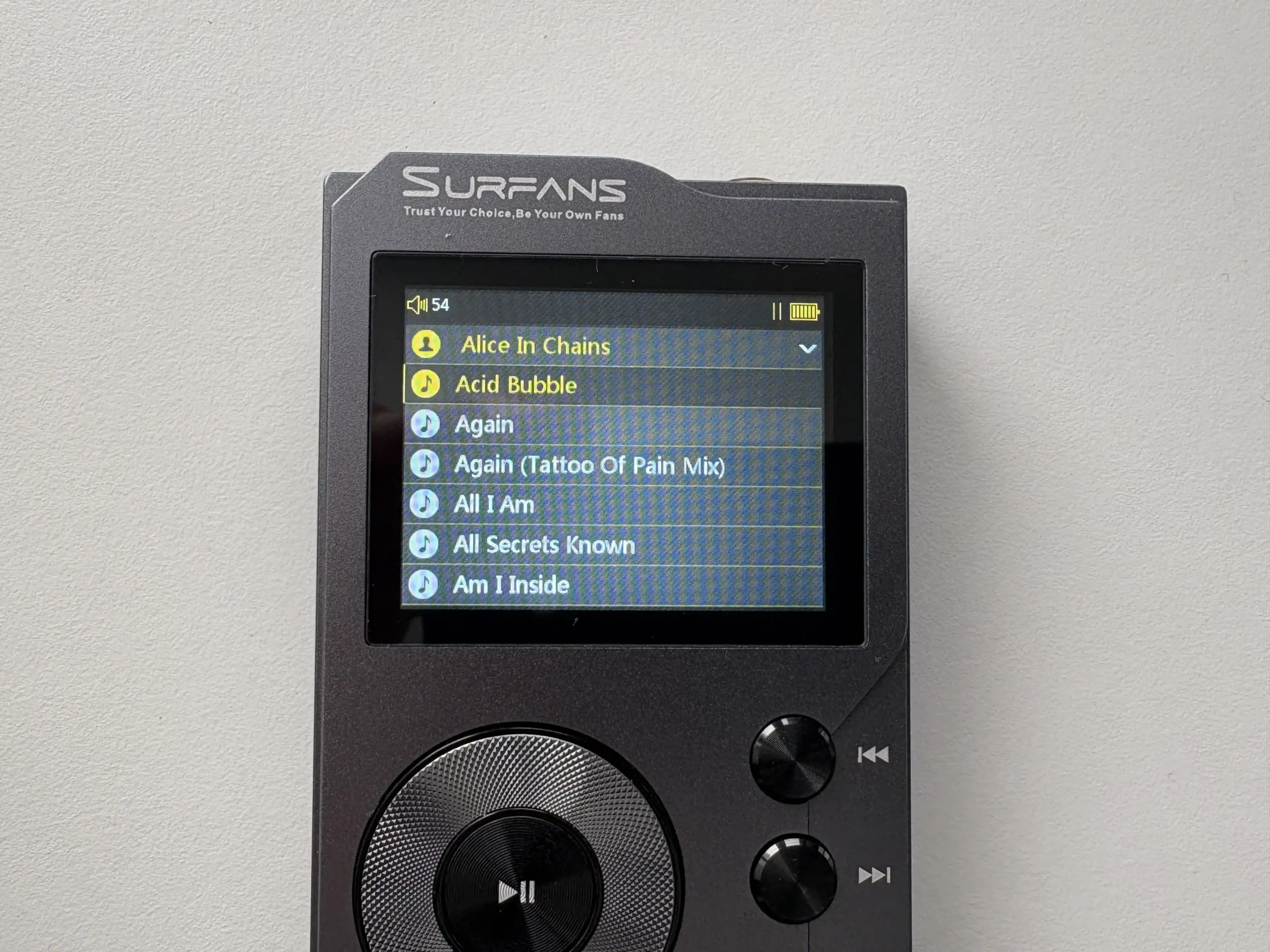


When selecting a song, you can press the play/pause button to play it, but also the “M” button to bring up a menu. From this menu, you can “Add to My Favorite”, “Remove from My Favorite”, and “Add Playlist”.
The Playlist section is not your traditional M3U playlists, but instead custom ones made on the device. When selecting a song, press the “M” button to bring up the sub-menu and select “Add Playlist”. From here, you can select “New Playlist” and choose from one of seven pre-named lists. These lists are essentially playlists that you can make on the F20 but cannot be exported.
Explorer
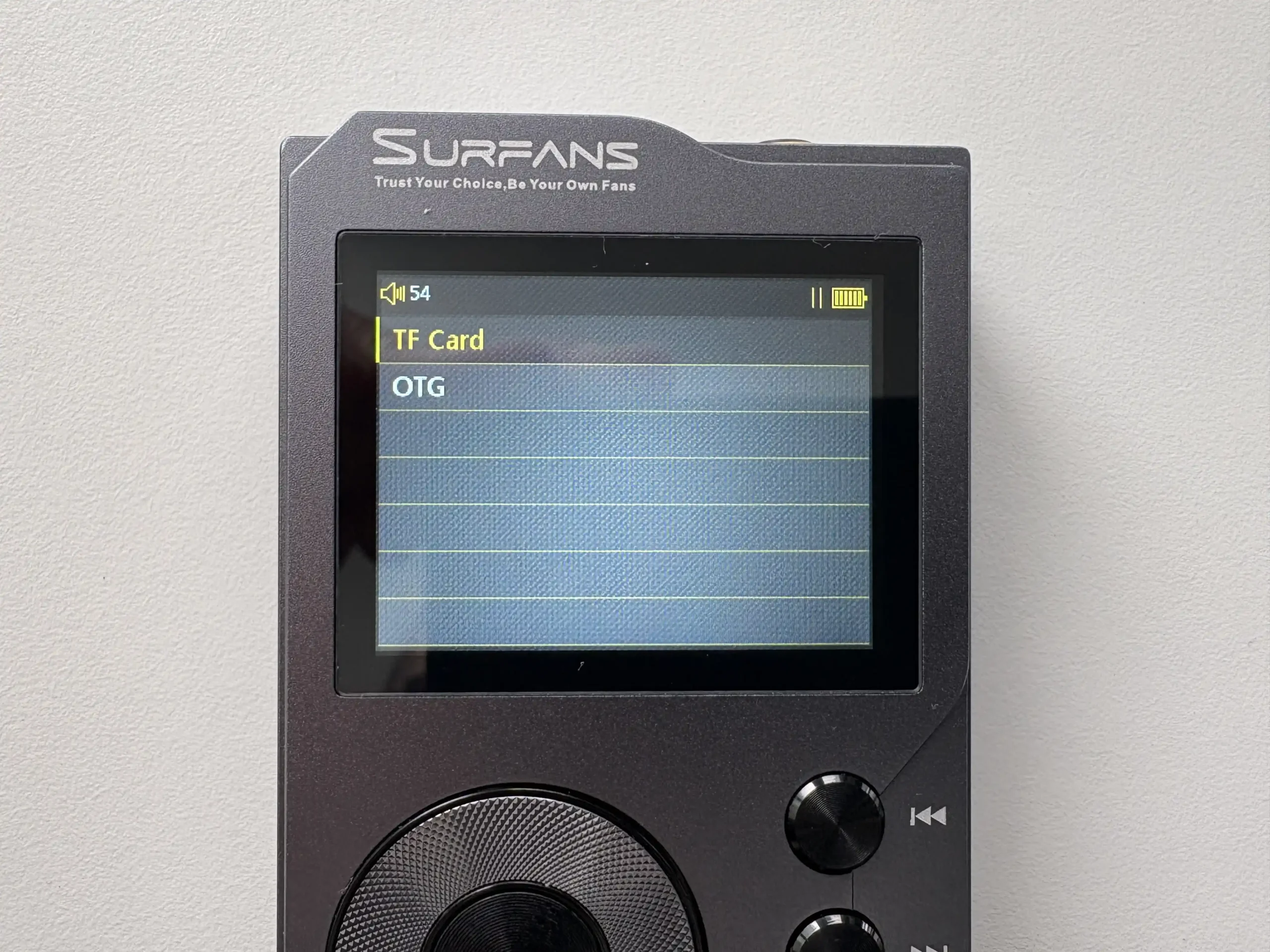
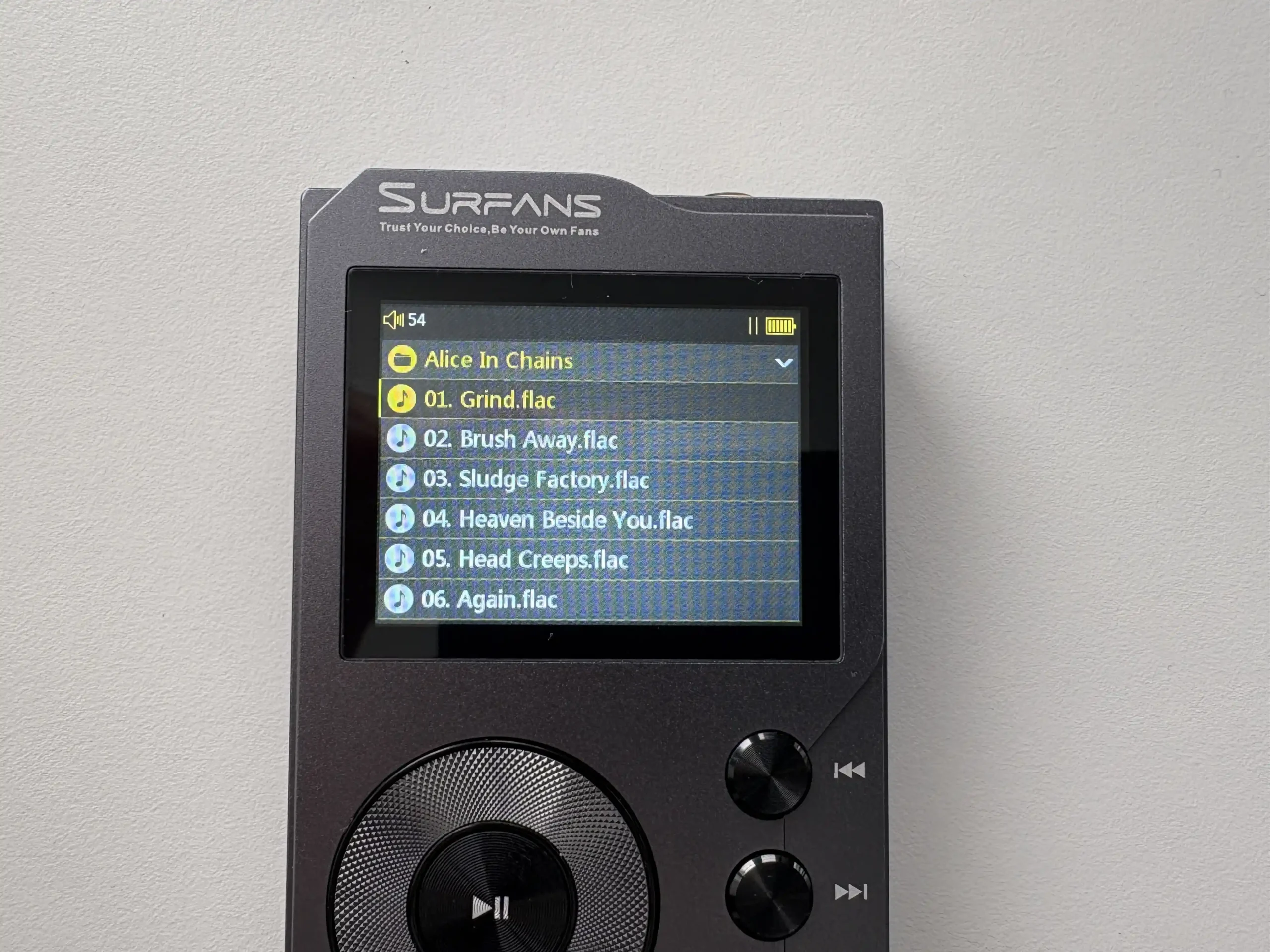


This is essentially a file browser. From here, you can navigate the inserted microSD card or select a connected OTG storage device. Interestingly, if you have playlists in the M3U format, you can select them from here and play them as you would expect to. Why can’t you import them into the Category UI? Must be a software limitation, but at least you can still enjoy your playlists in this way.
Settings
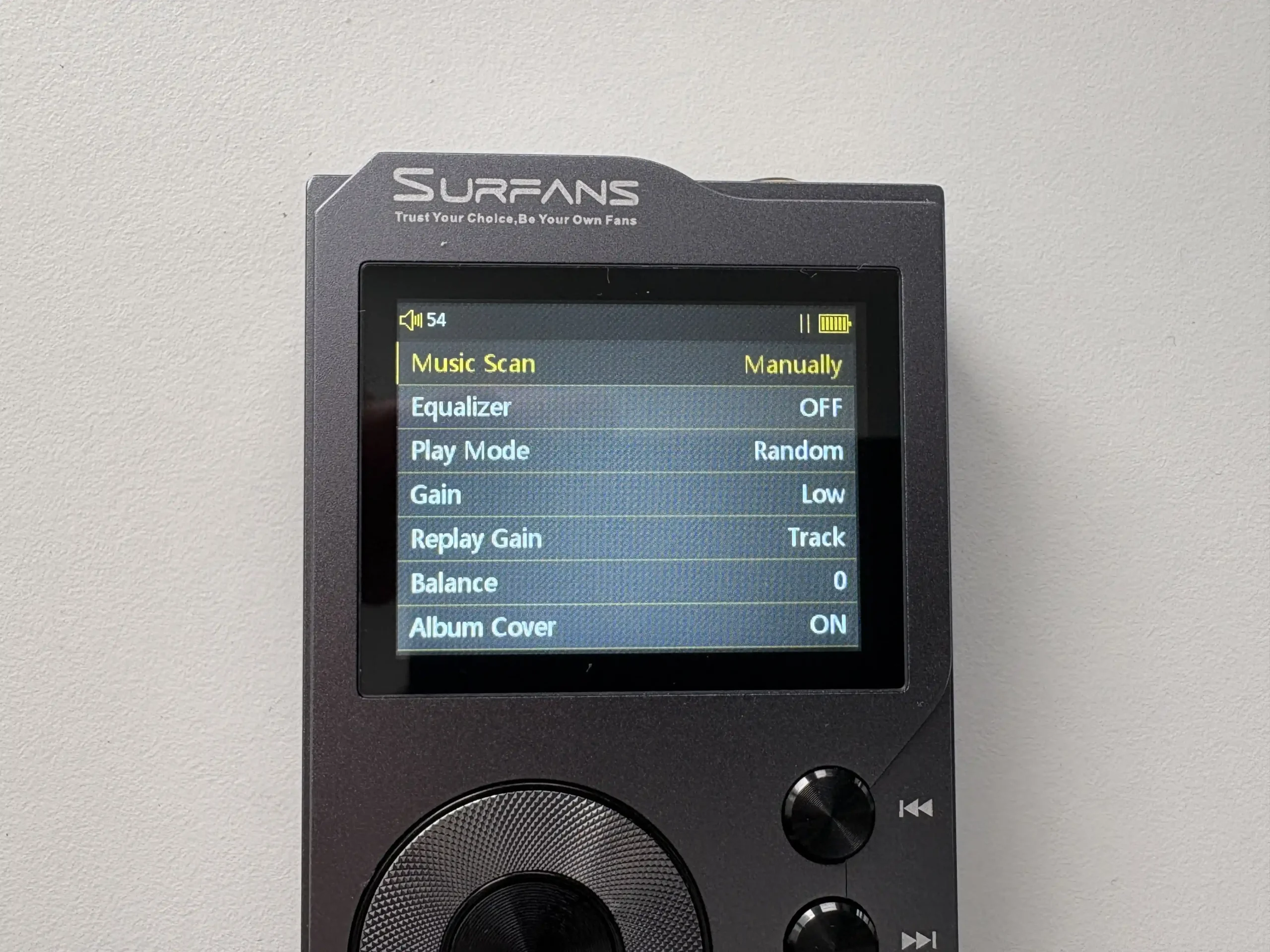
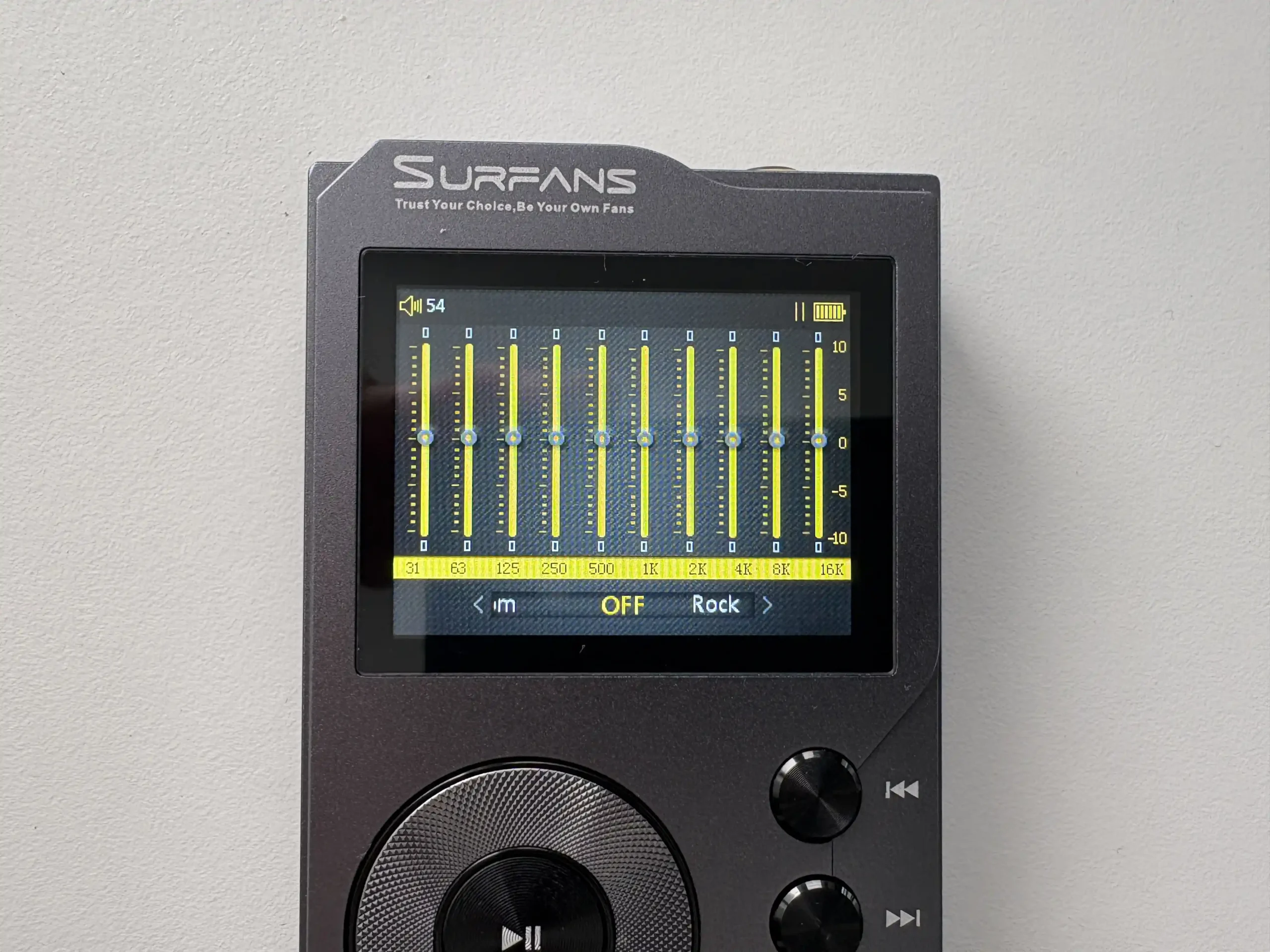
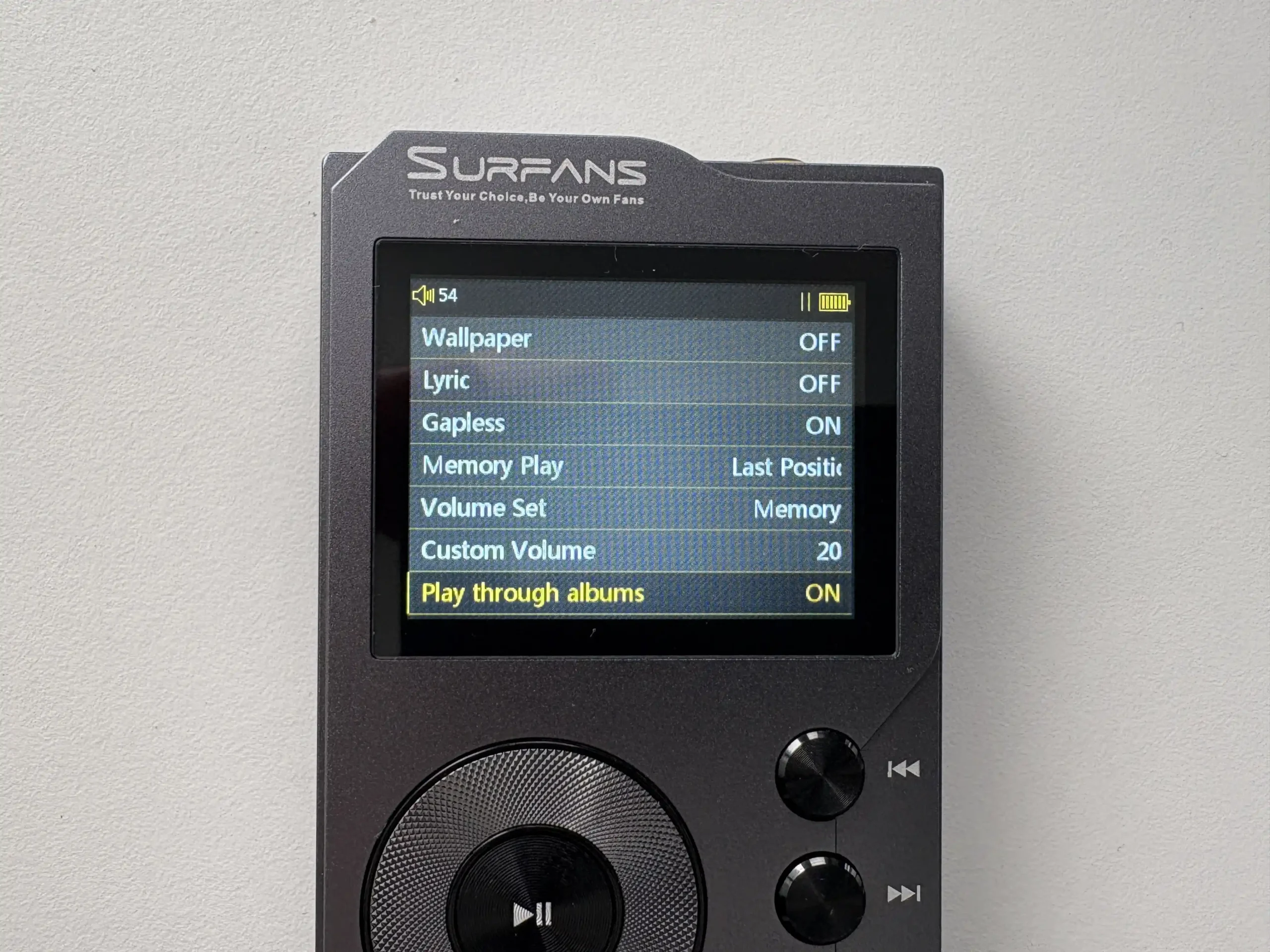


Settings that impact music playback are located here. This is also where you will scan your microSD card. The “Music Scan” setting can be set to Automatic or Manual. Automatic means that whenever you insert a microSD card or disconnect the F20 from a computer, it will automatically start scanning the inserted card.
There’s an Equalizer, which is a simple 10-band GEQ with many presets and one custom slot.
You also have various options like your gain mode (low or high), replay gain, L/R balance, ability to display an album cover on the Now Playing screen, lyric support, gapless playback, and play through albums.
Despite including support for gapless playback, I encountered issues with it not working properly when playing tracks through the Album category. With 16-bit/44.1Khz files, it generally worked, but not every time. With anything that had a higher sampling rate (such as 24-bit/96Khz), there was a noticeable gap or popping sound. When playing the same tracks using the file browser or by using the built-in playlist functionality, gapless worked perfectly.
System Setting
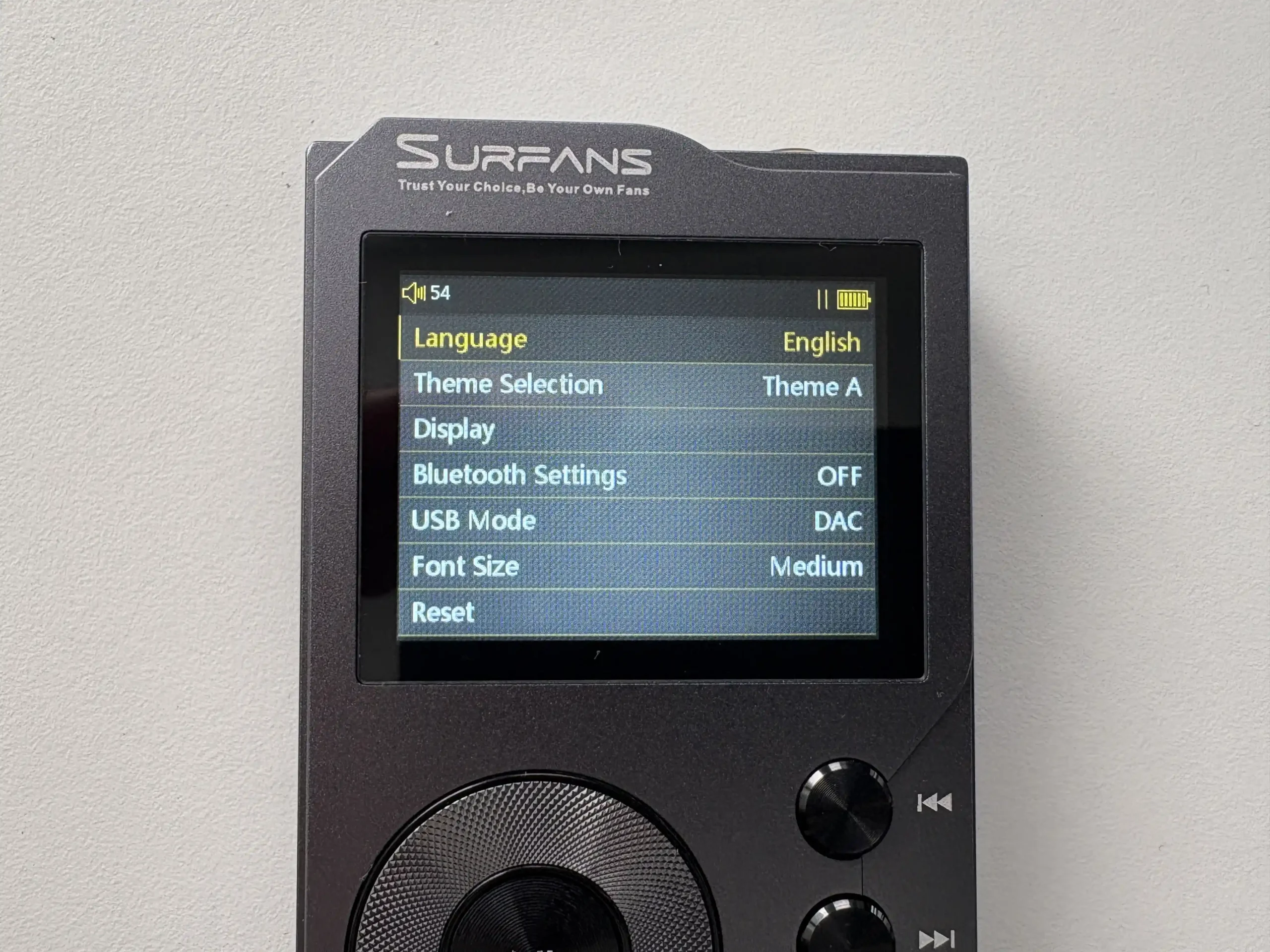
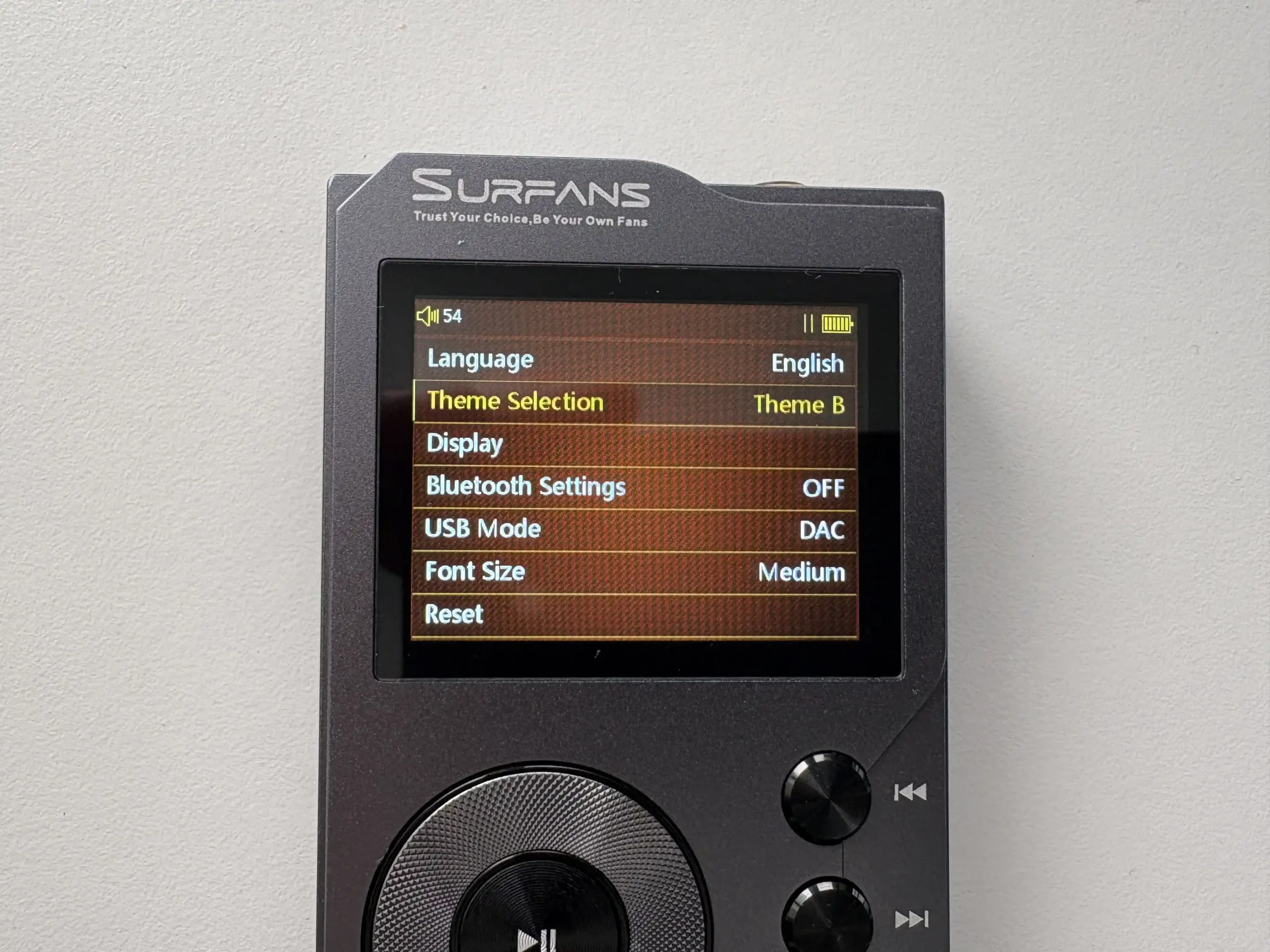
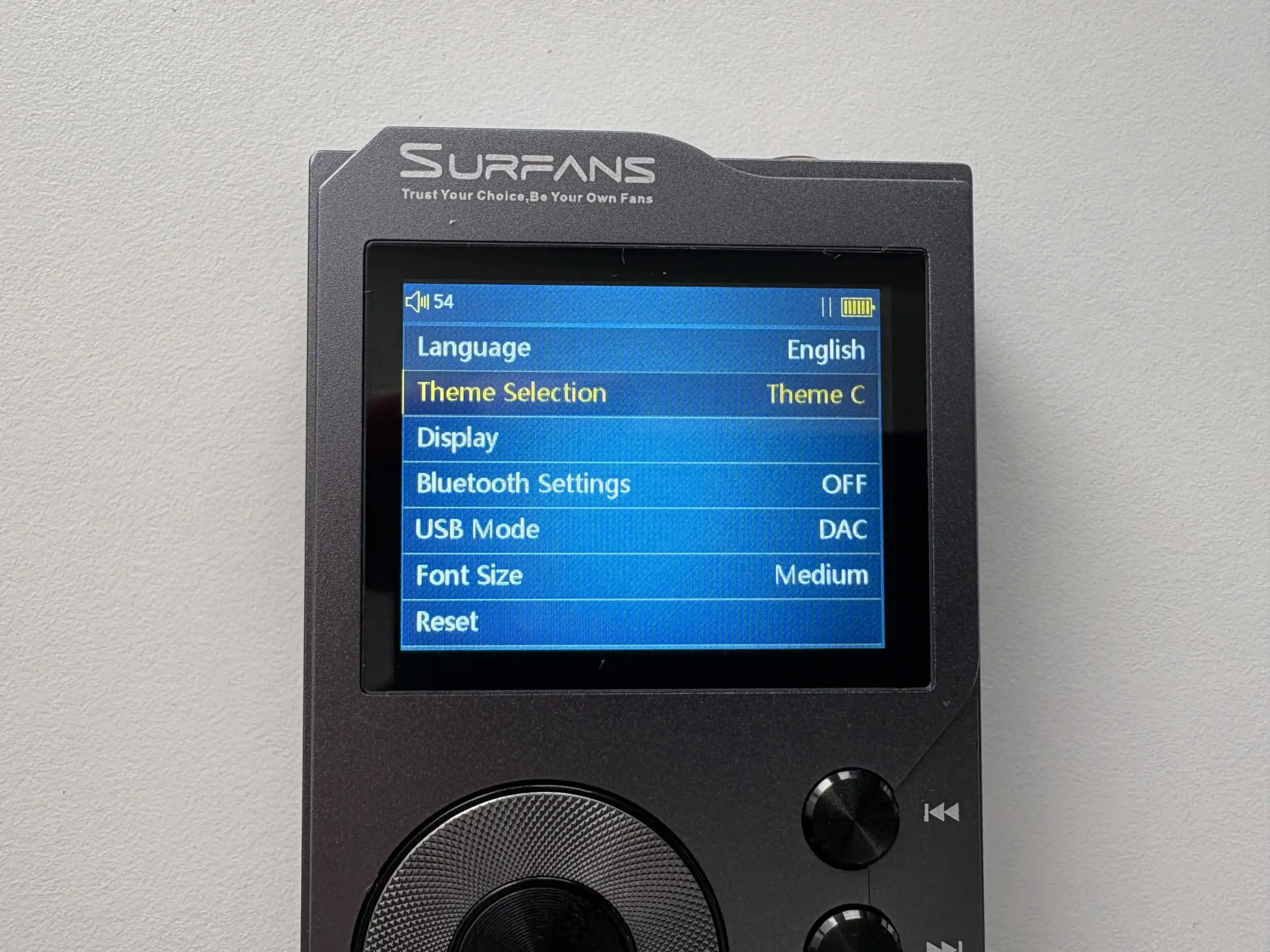


The final section contains all of the device-related settings. Here you can select one of three different themes, modify display settings (brightness, screen timeout, etc), enable Bluetooth, change the USB mode (DAC or USB storage mode), change the font size, format the microSD card, and reset the device.
Syncing Music and Playlists
Like most DAPs, the Surfans F20 will appear as a USB storage device when connected to a computer. As long as you have a microSD card inserted, you can copy music to the card in this way (either through the file explorer or a program like MusicBee). Generally, I recommend using a microSD card to USB 3.0 adapter when copying files, as it is much faster and more reliable, especially since the F20 only supports a USB 2.0 connection.
A specific file structure is not needed for the F20, but it’s a good practice to have your music files organized under a “Music” folder by Artist, and then Album, and properly tagged with metadata using MP3tag or MusicBrainz Picard.
As previously mentioned, the F20 does not support importing M3U playlists, but it you can browse to them using the F20’s folder explorer and play them back this way, as long as M3U files contain relative paths and not absolute ones.
To scan for music on the F20, it is not at all obvious how to do this. You need to go to Settings, then make sure the Music Scan option is highlighted, and then press the “M” button to initiate the scan. The 512GB microSD card I used for the majority of my testing contains roughly 10600 tracks and took roughly four and a half minutes for the F20 to scan. You will need to scan the card every time you add or remove any files. The F20 also seems to only support up to 15,000 tracks, but I believe this is limited to the library scan and not the file browser.
Bluetooth Performance
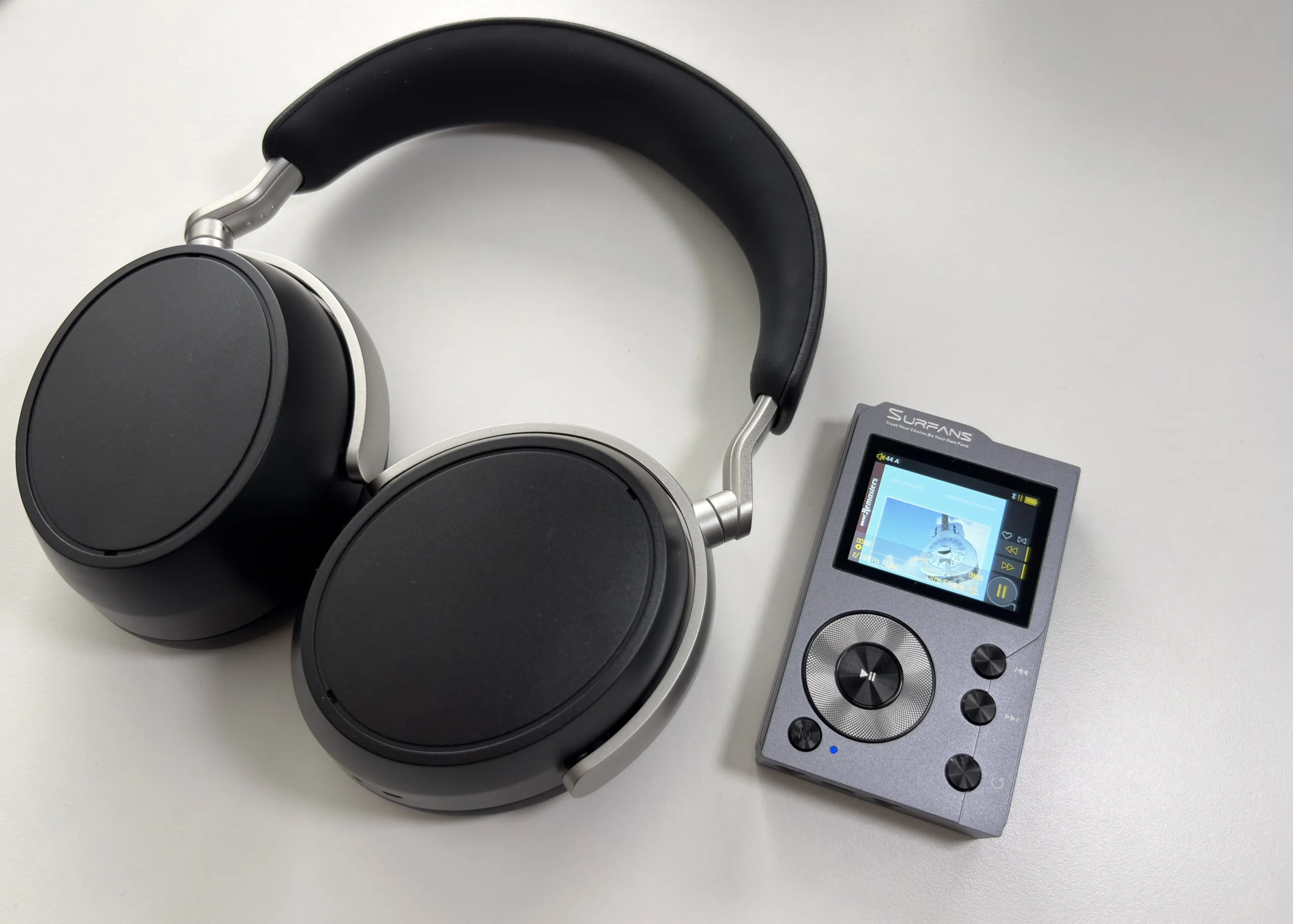
One of the standout features of the Surfans F20 is its bi-directional Bluetooth 5.2 capability. In plain terms, that means it can function as a Bluetooth transmitter (to send music from the F20 to your wireless headphones or speakers) and also as a Bluetooth receiver (to take audio from another source, like your smartphone, and play it through the F20’s DAC and headphone output).
The F20 supports SBC, aptX, and LDAC, which is quite impressive at this price. Bluetooth range is about what you’d expect for Bluetooth 5.2, meaning up to roughly 10 meters of reliable range, more if line-of-sight.
For testing, I used the Sennheiser HDB 630, Sony WH-1000XM5, and EarFun Air Pro 4+. I tried using the F20 with my Apple AirPods 4, but they only connect via SBC as AAC is not supported here, and playback was extremely unreliable. I do not recommend using AirPods with the F20.
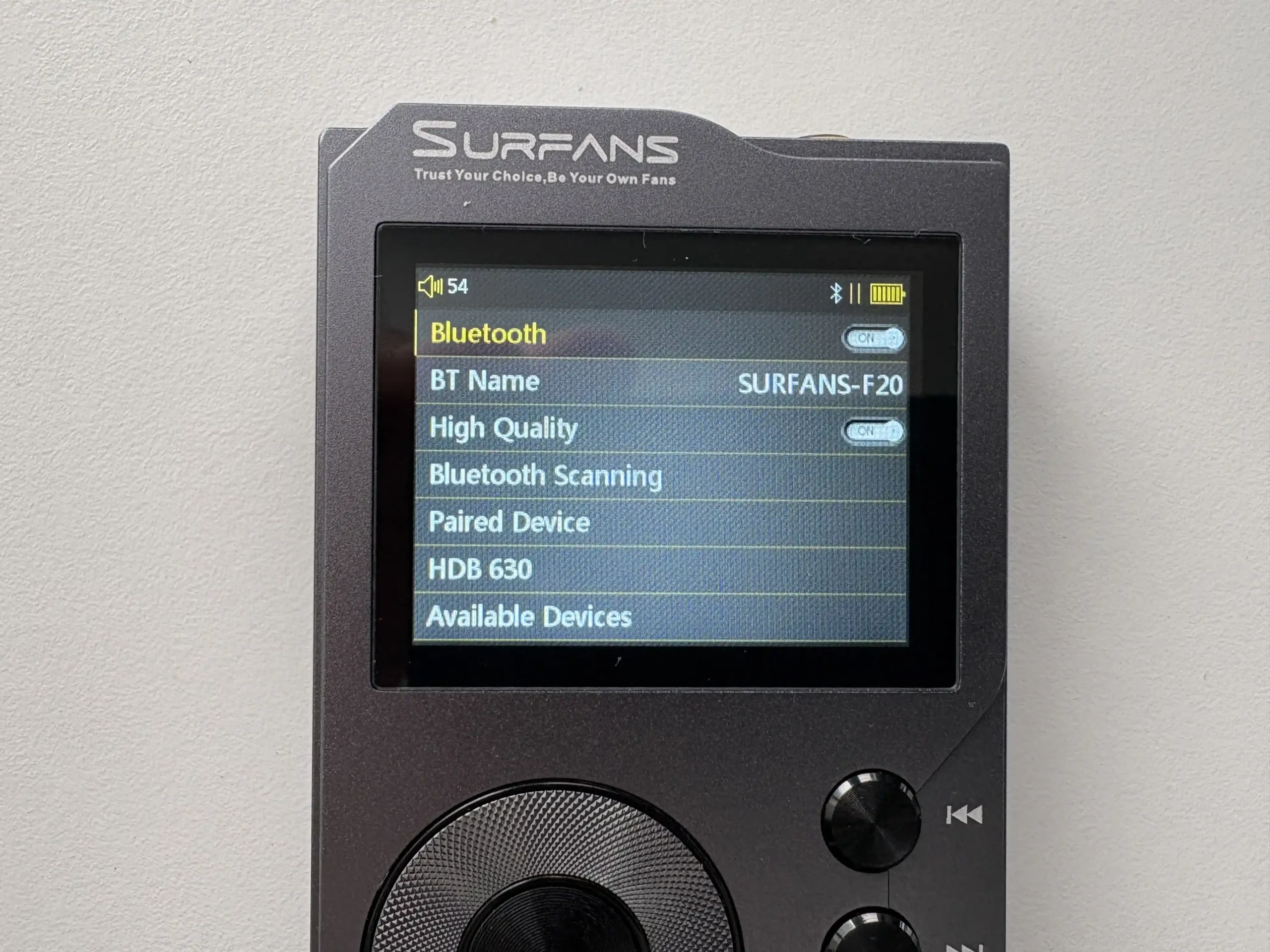
The player lets you select between a “Normal” and “High Quality” Bluetooth mode in settings. Switching between them requires you to restart the device to take effect. From my testing, there is no discernible difference between either mode. The same codecs are used at the same bitrates. Even the range appears to be the same to me.
It’s also very difficult to know which codec is currently being used. The top right of the screen has a Bluetooth symbol when Bluetooth is turned on, then on the top left side beside the volume indicator, either an “A” or “S”. Even when connected via LDAC, it shows an “A” there, so it’s possible there’s a UI bug that needs to be fixed. I only saw “S” when SBC was being used.


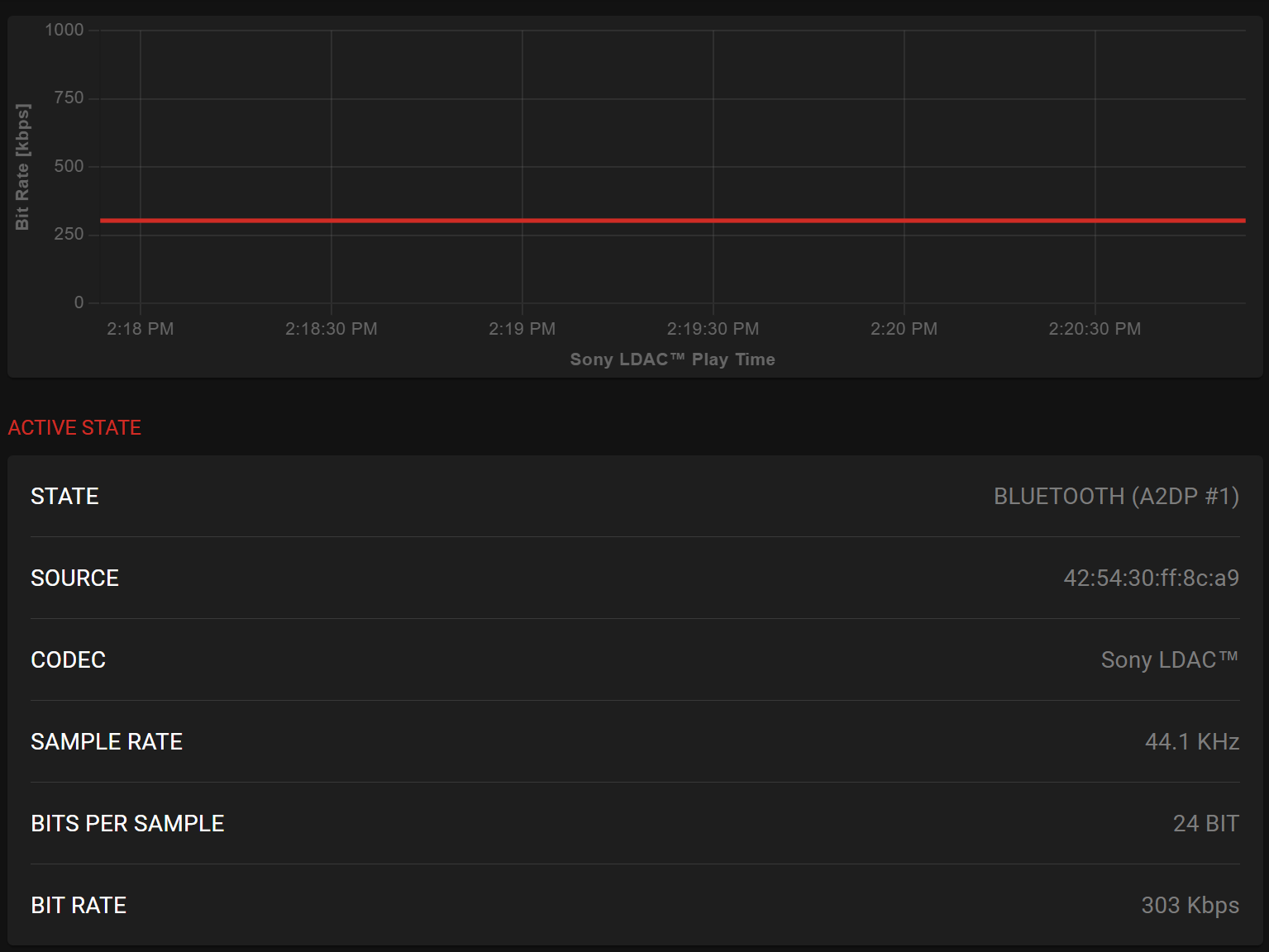
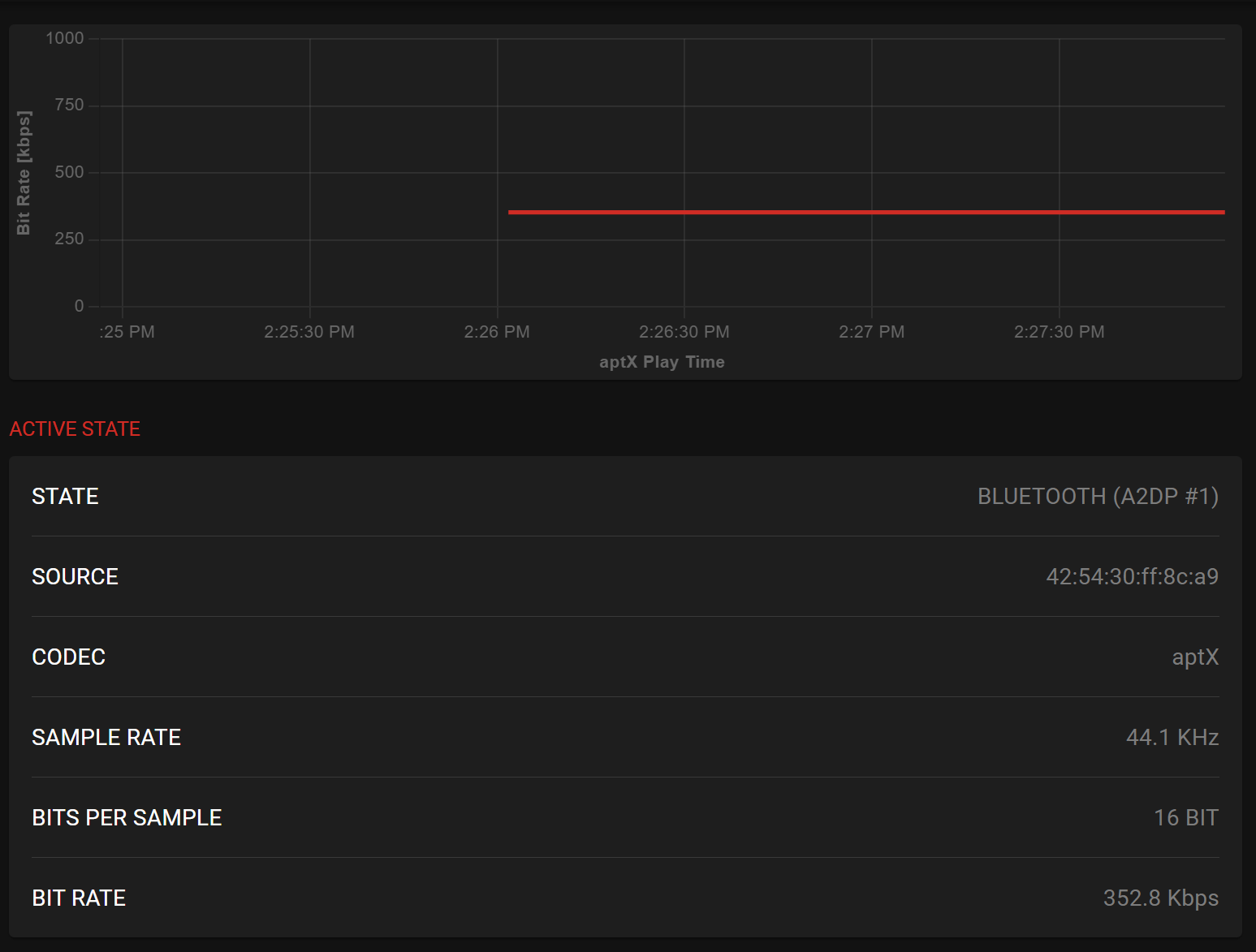
Using my Qudelix 5K to test Bluetooth codecs by pairing it with the F20 (as it has a very handy web app to visualize things like bitrate, etc), we can see that LDAC uses the “low quality mode” of 300Kbps. When testing aptX, I was getting 352Kbps, which is exactly in line with the aptX spec.
Using the F20 as a Bluetooth receiver (sometimes called Bluetooth DAC mode) is a nice bonus, though there are a few quirks. You can pair your phone or laptop to the F20, and send audio to it (for example, stream Spotify from your phone, and the F20 will receive that via Bluetooth and output to your wired headphones). This works, but I found that there is a slight latency in this mode. It’s fine for music, but not ideal if you try to use it for video due to lip-sync delay. Also, it only supports the SBC and LDAC codecs in this mode. Still, it worked perfectly fine for me, and adds to the value of the F20.
USB DAC Mode
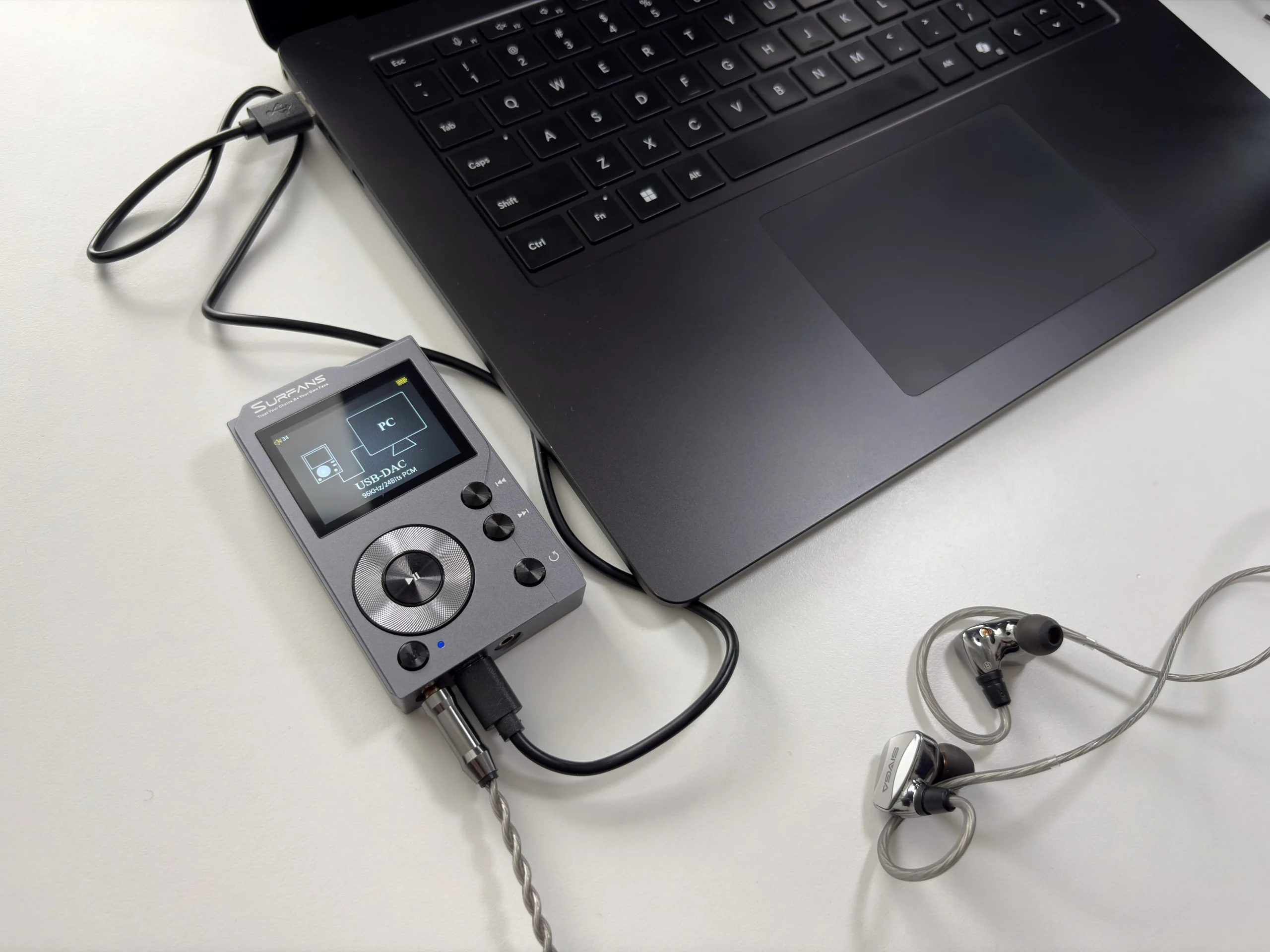
Another handy trick of the Surfans F20 is its ability to function as a USB DAC for your computer. This means you can connect the F20 to a PC or Mac via USB and use its internal DAC and headphone amp to play audio from the computer. In my experience, this worked flawlessly and easily, and it’s basically plug-and-play. On Windows 10 and above, no extra driver is needed. Windows immediately recognizes the F20 as a USB audio device, and I could route sound to it in the sound settings. There was effectively no latency or sync issue when using it this way (audio played through the F20 in real time).
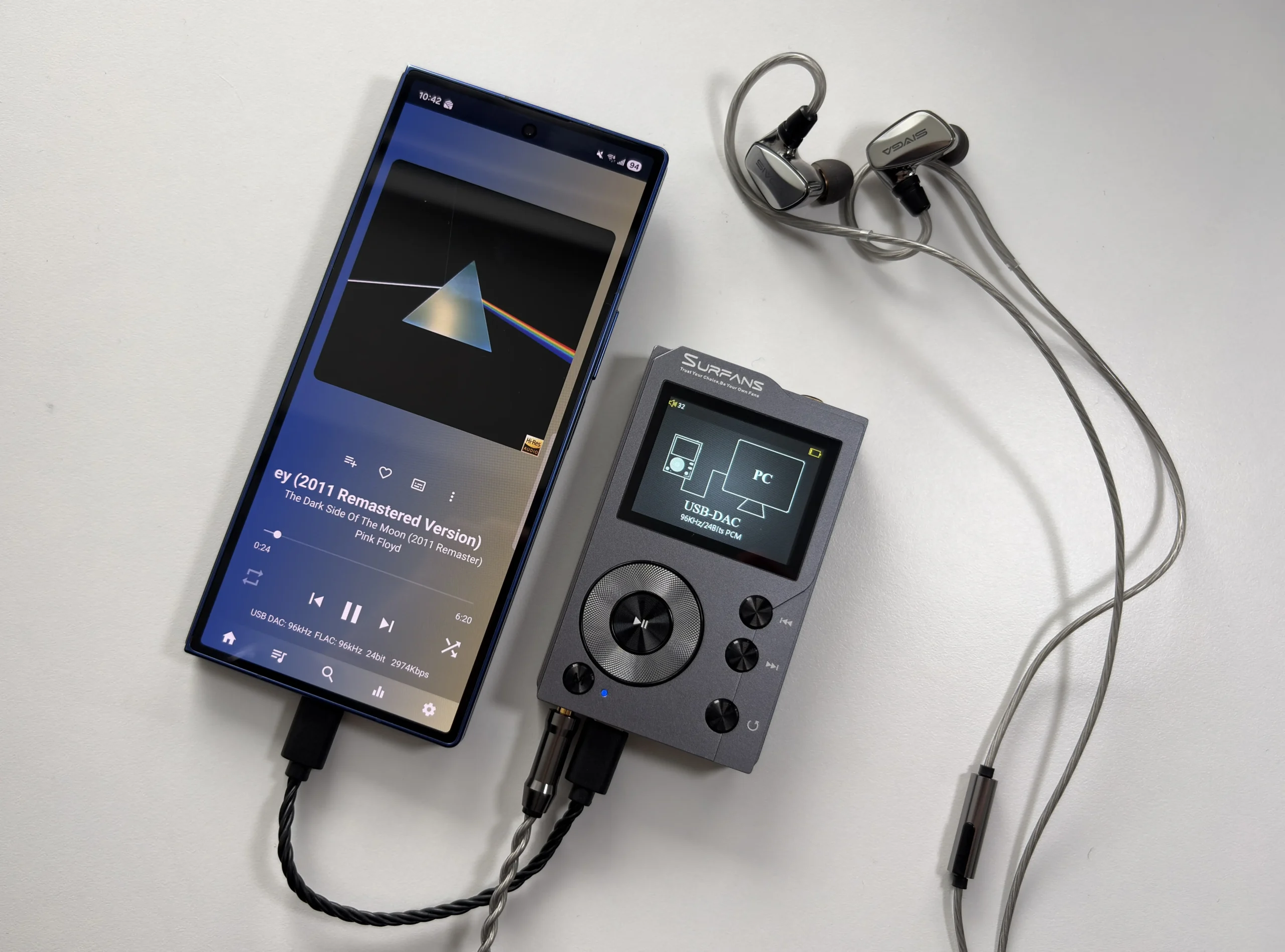
One thing to note is that while in USB DAC mode, the F20 is acting purely as a DAC/amp, so you control volume either via the F20’s volume buttons or in the PC’s software (they work concurrently). Also, you cannot browse the device or use it as a player in this mode, it essentially becomes an audio dongle. And yes, you can even use it with your smartphone as a dongle DAC/Amp.
Battery Life
Surfans claims up to 12 hours of continuous playback on the F20, and this is a reasonable ballpark, depending on how you use it. In my real-world use, I found the battery life to last between 10 and 11 hours of playtime on a charge for typical listening (FLAC files, 35% volume on headphones, occasional screen on for browsing). With Bluetooth enabled, I’m getting 7-8 hours of playback time. Essentially, it’s enough for a full day of commuting or a longer flight if you’re careful, but heavy users will need to top up more frequently.
The F20 uses a 1500mAh rechargeable lithium battery. Charging is done via the USB-C port. It doesn’t support any kind of quick-charge tech that I’m aware of, so a full charge from empty takes roughly 2.5 hours. You also cannot charge the device while it is turned off. Plugging in a power cable will power on the F20.
There also isn’t a battery percentage, just an icon on the top right of the screen with various battery levels depending on how much is left. It is mostly accurate, but I always found myself wanting to charge the F20 when there were a couple of bars left on the indicator.
Overall User Experience
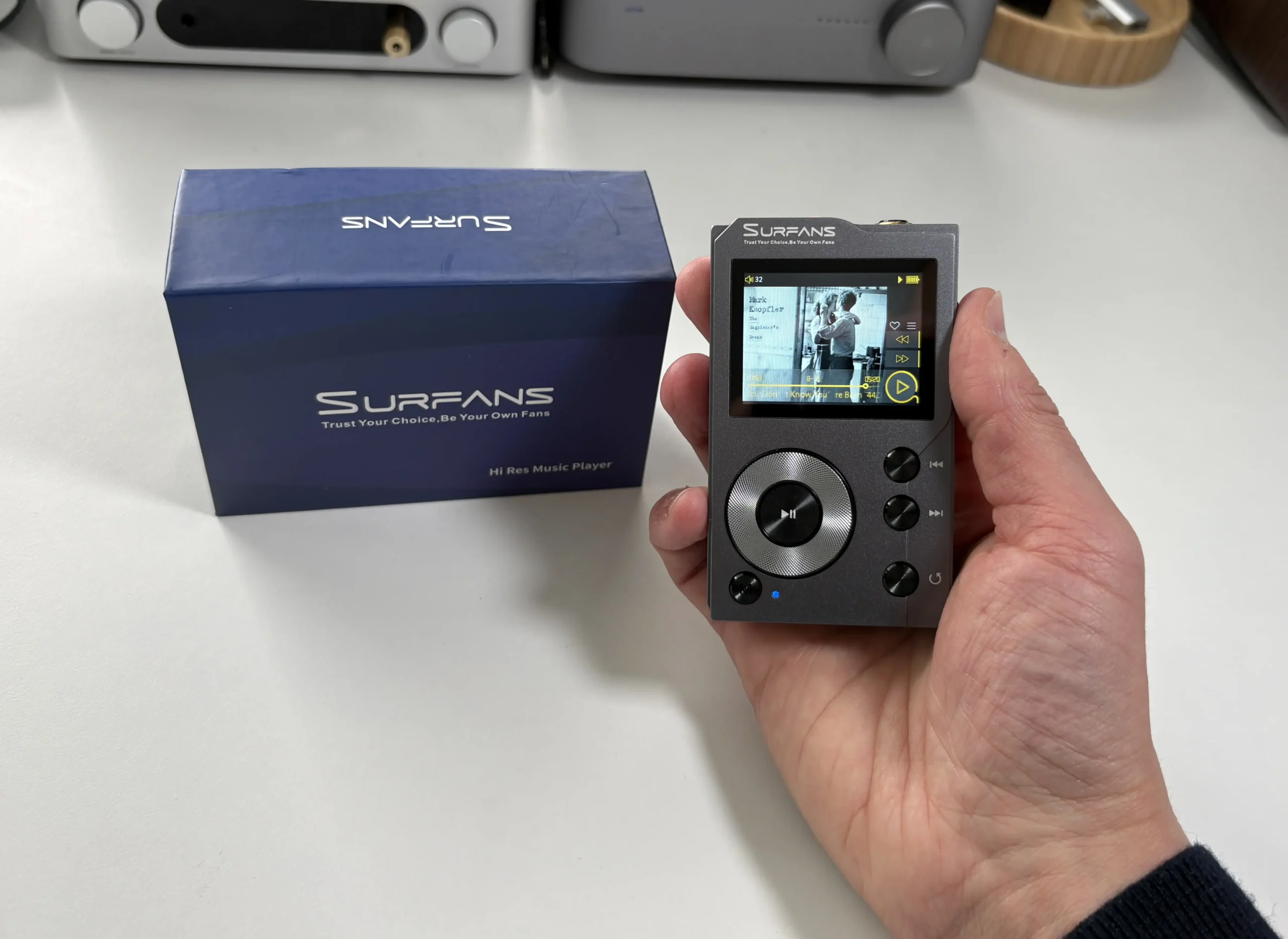
Using the Surfans F20 day-to-day has been a refreshingly focused experience, especially since it does not sport a touchscreen like one of my many other DAPs. In a world of multi-tasking smartphones, a dedicated music player like this forces you to slow down and just enjoy the music, and the F20 makes that fairly easy to do. The device powers on quickly and resumes playback where you left off (as long as you haven’t removed the card or let the battery fully die). It actually starts playing audio as soon as it is powered back on. All the physical controls mean you can operate it by feel, which I love to do. One problem here, though, is that none of the buttons functions when the screen is off. So, for example, skipping tracks or adjusting volume while it’s in my pocket during a walk is not possible unless I first press the power button to turn the screen on. Would be nice if there were an option to adjust this behaviour. The F20’s compact size also means it’s ultraportable, so it fits in any pocket or bag, and it’s light enough that you hardly notice it.
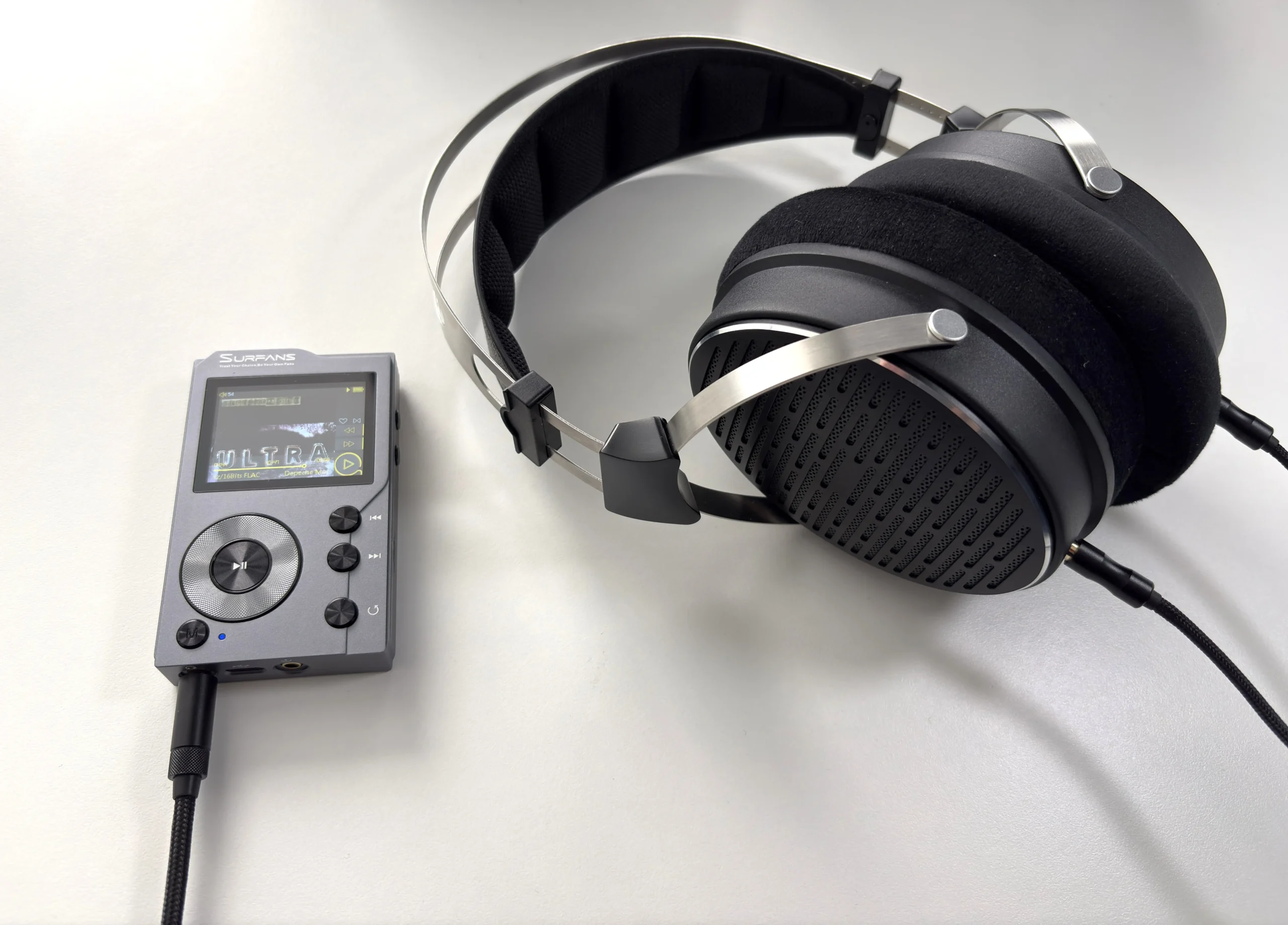
There are a few quirks that emerged in everyday use, owing to its simplistic software. As mentioned earlier, there’s no blind operation as the screen needs to be turned on in order to use the buttons. As well, it’s not great with very large music libraries. Since the primary way to navigate the device is by the scroll wheel, if you have hundreds of artists and albums, you will sometimes be scrolling for a while to get where you want to go. A search option would have helped immensely here. You might need to spend some time curating playlists or folders to navigate efficiently in order to avoid this issue.
Another everyday consideration is whether you listen to audiobooks or podcasts, the F20 lacks a bookmarking feature. It will remember the song and position, as long as you don’t change tracks. So for that use-case, it’s not very usable (pretty much all non-Android DAPs are like this, though).
Lastly, the screen’s brightness control is not very granular. You have basically four levels, and none of them felt ideal to use (either too bright or too dim).
On the positive side, the no-frills approach means the device is very stable and responsive in its limited scope. There’s no lag when navigating menus, and playback is rock-solid and reliable. Album art (if embedded in files) shows up in the Now Playing screen, albeit in a small size due to the screen. The volume steps (0-100) allow fine control, and high-gain mode gave me extra headroom when using power-hungry headphones.
Output Power
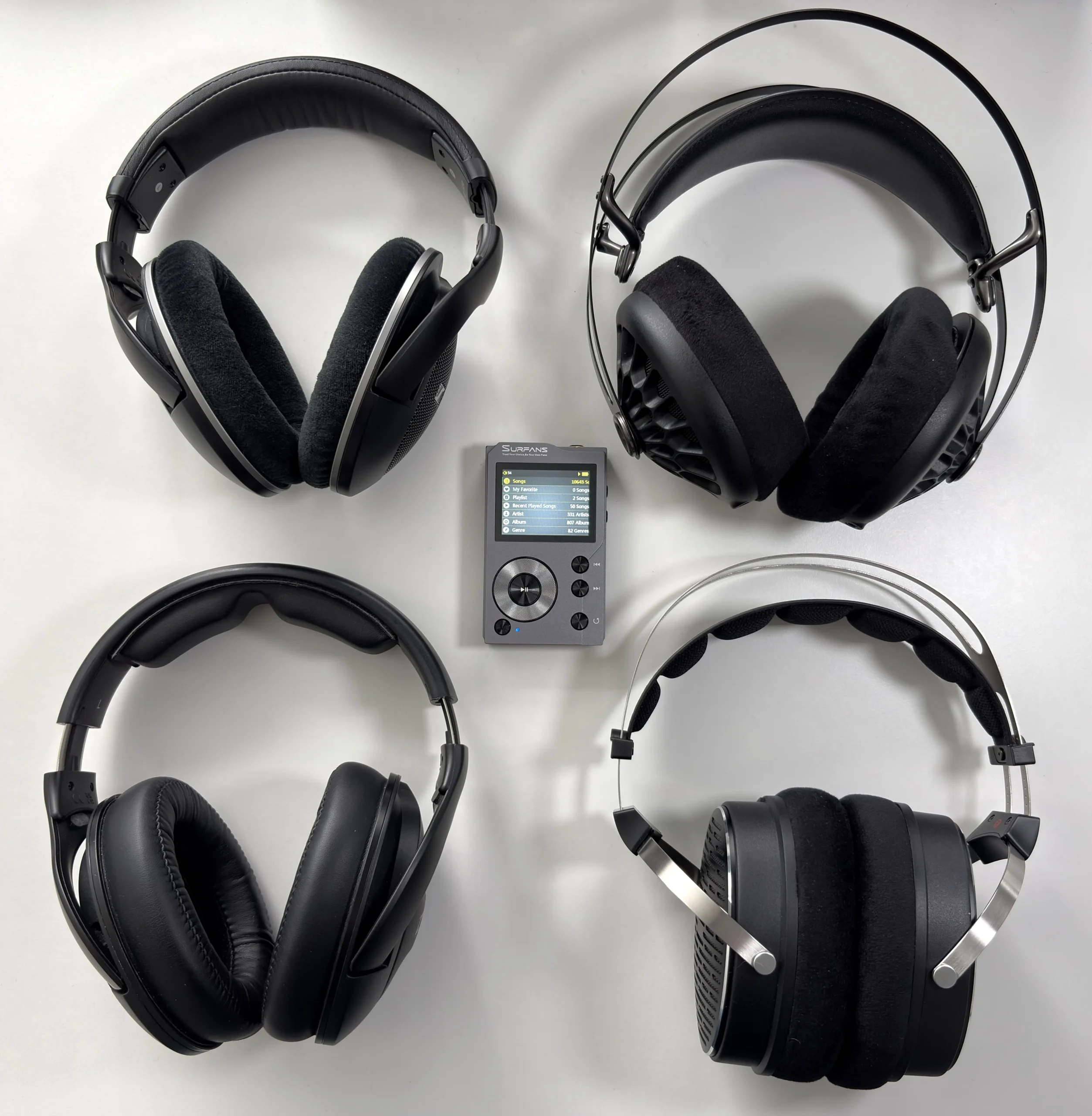
One area where the Surfans F20 really surprised me is its output power and driving capability. This little player packs more punch than you’d expect from its size and price. The built-in headphone amplifier is rated for 70mW at 32 ohms, and in practical terms, it means it can drive a wide range of IEMs and headphones. During my tests, the F20 had no trouble driving the likes of the Sennheiser HD 620S, Focal Azurys, Meze 105 AER, and even the HIFIMAN Edition XV, with plenty of volume headroom to spare. The Edition XV did sound a little thin in the bass and midrange, so it might not be an ideal pairing here.
The F20’s amp has a relatively high output impedance that results in some inherent background hiss, which means it’s not the best match for low-impedance IEMs. With most of my IEMs, I could hear a faint hiss in quiet passages or between tracks. In my use, the hiss is a constant low-level white noise that doesn’t vary with volume, indicating it’s the amp’s noise floor. Generally speaking, the higher the impedance rating, the less noticeable the hiss.
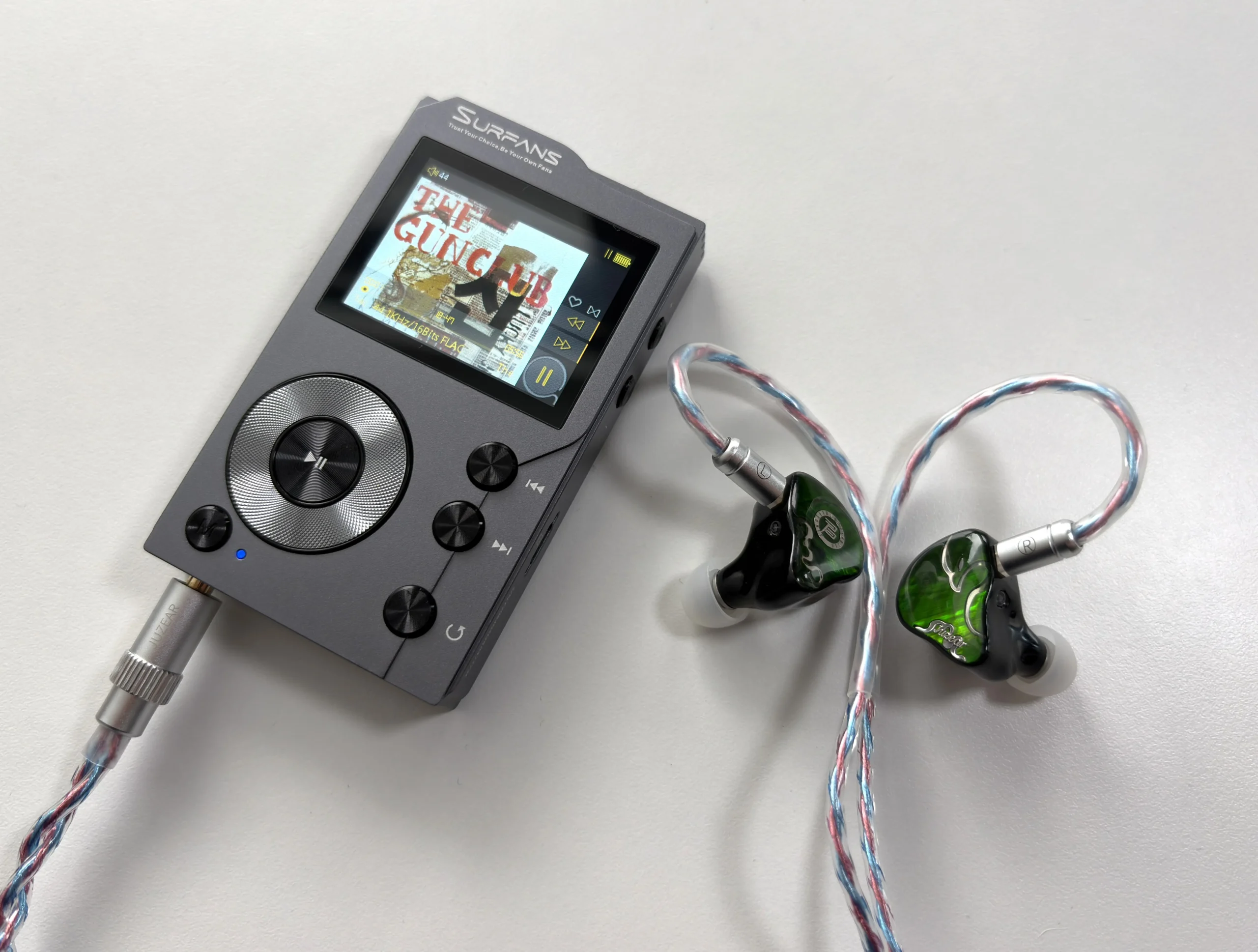
IEMs like the Campfire Audio Iris, Simgot EA1000, and 7Hz Timeless II exhibited the loudest background noise to me, while the ZiiGaat Horizon, DUNU DN242, Kefine Klean, and Sivga Que UTG still had some hiss, but it was much less noticeable. The Juzear x Z Reviews Defiant exhibited virtually no background noise, and would be my recommended IEM to use with the Surfans F20.
With anything roughly 32 ohms and above, especially full-size headphones, this hiss becomes negligible or inaudible. But if you primarily use something similar to the IEMs I noted above, you might be annoyed by the background noise on this device. One potential fix is to use an impedance adapter if you really want dead silence.
Sound Quality
Headphones and IEMs used for this review:
- FiiO JT3
- Focal Azurys
- Juzear x Z Reviews Defiant
- Kefine Klean
- Meze 105 AER
- Sennheiser HD 550
- Sennheiser HD 620S
- Simgot EA1000
- Sivga SM100
- Sivga Que UTG
- ZiiGaat Horizon
Bluetooth headphones and TWS earbuds used for this review:
- EarFun Air Pro 4+ (aptX, LDAC)
- Sennheiser HDB 630 (aptX)
- Sony WH-1000XM5 (LDAC)
Links to my music playlist used for the majority of testing:
Spotify: https://open.spotify.com/playlist/6QSIhuCBDAUyoWGcyxPeN8?si=c0a4eb6bd3e3421e
Apple Music: https://music.apple.com/ca/playlist/hifi-oasis-audio-testing/pl.u-lKWlcjy04xp
Qobuz: https://open.qobuz.com/playlist/39521747
Tidal: https://tidal.com/playlist/503485c7-7f3d-43f0-b904-4b9a89c33875
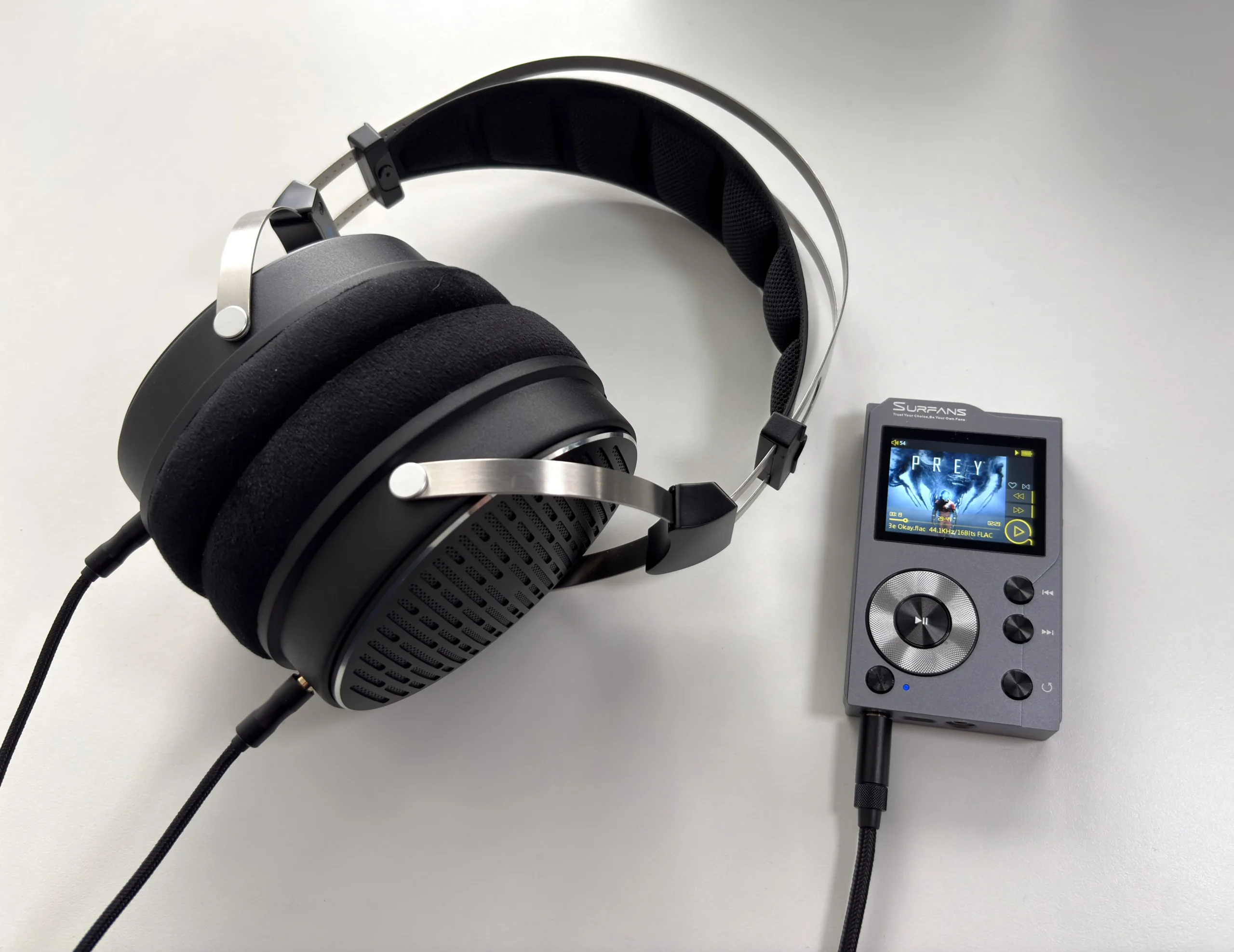
On to the most important part: sound quality. In a word, the Surfans F20 sounds terrific for its class. The overall sound signature is natural and detailed, with a slight touch of warmth. It doesn’t aggressively color the music, which is a good thing, and I found that it presents songs in a balanced way without any frequency glaring out of place.
The tonal balance is largely neutral, maybe leaning just a hair warm in the bass. Earlier versions of the F20 were reported to sound warmer and smoother, but newer units (possibly due to updated DAC hardware) are pretty neutral and open in character. In either case, this is not a thin or analytical-sounding player. The music has body and is easy on the ears over long listening sessions.
Otherwise, that’s pretty much all you need to know here. I don’t spend a lot of time dissecting the minute details of the sound profile of budget DAPs, as in this price bracket, companies are not re-inventing the wheel, so to speak. What you’re getting with the F20 is a solid implementation of the ESS ES9018K2M DAC, meaning your main limiting factor for sound quality is not the DAP, but the IEMs or headphones you are using.
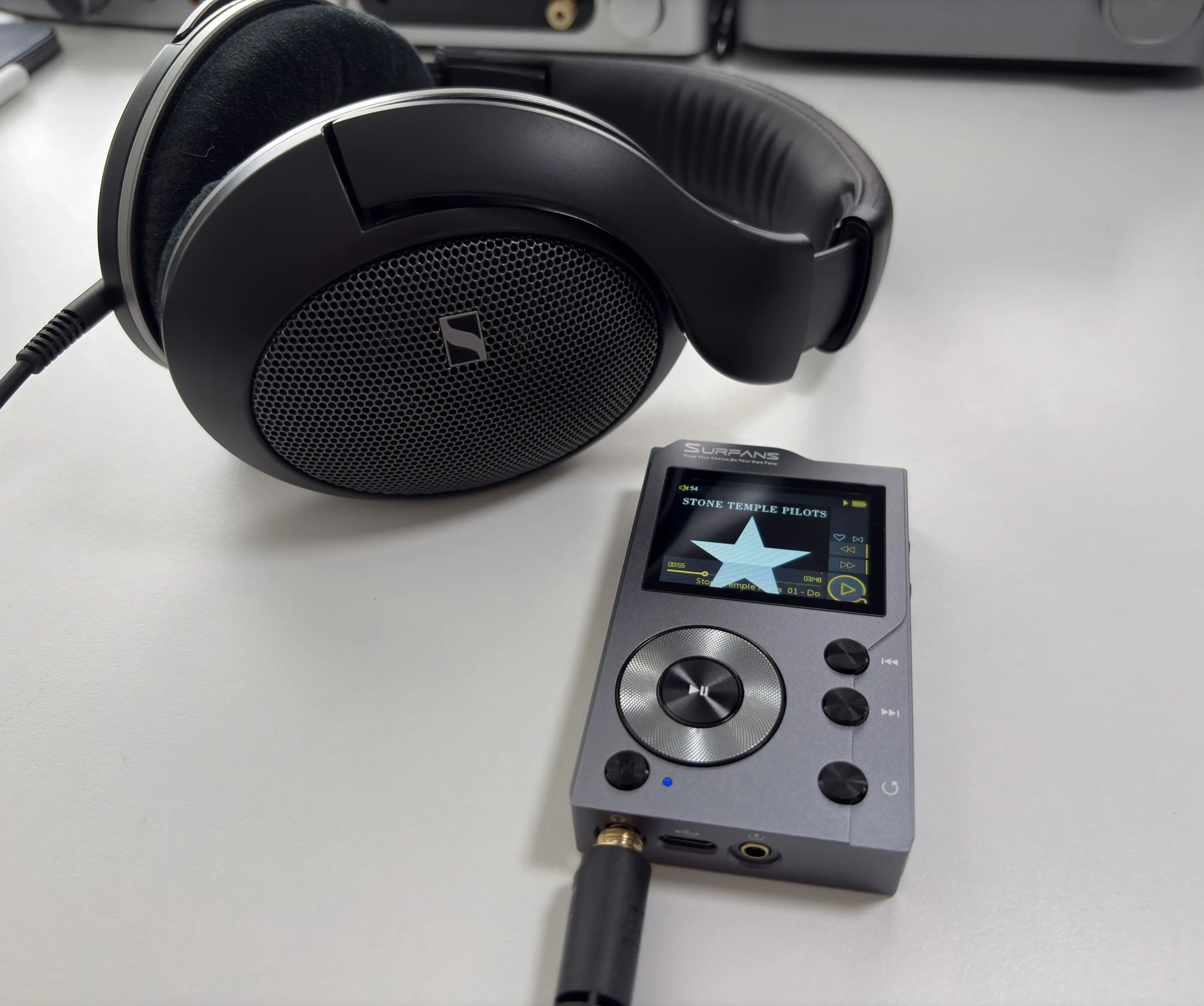
If you’re looking for IEMs to pair with the F20, I’d recommend the Juzear x Z Reviews Defiant, as I did not hear any background hiss when using them. Some cheaper options are the Sivga SM100 or Que UTG, as well as the Kefine Klean.
For headphones, the FiiO JT3 and Sennheiser HD 550 both perform extremely well with the F20 and are reasonably priced. You can even step up to the Meze 105 AER without losing the qualities that make that headphone special.
Rockbox Support
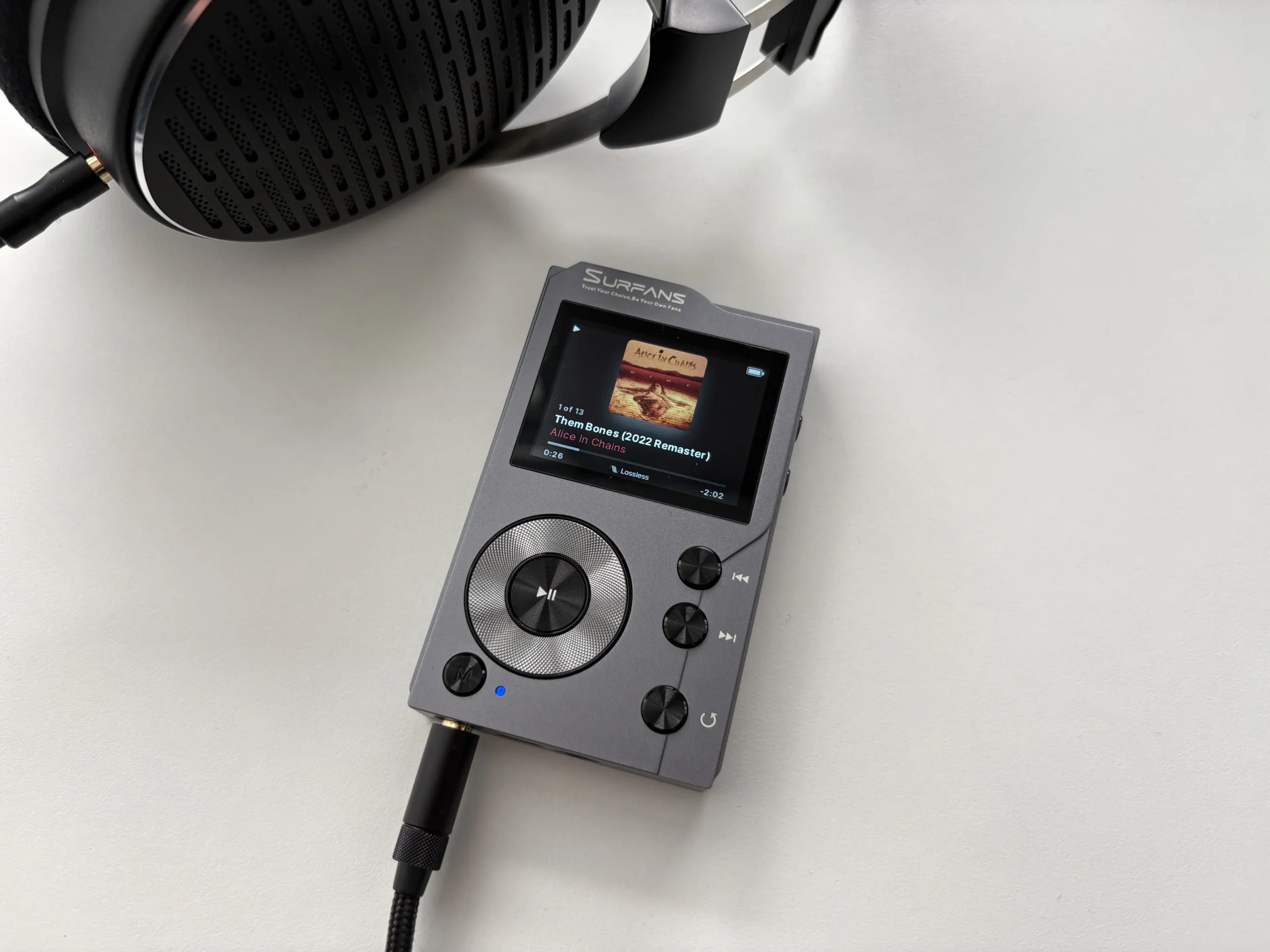
I wasn’t sure if I was going to touch on this or not, but given how often the question comes up whenever the Surfans F20 is mentioned, I thought I would at least offer some surface details. Yes, there is a Rockbox port for the Surfans F20. If you don’t know what Rockbox is, it is essentially a custom firmware replacement for older and budget audio players. Commonly, you will see this on the iPod Classic as it allows for support of FLAC files, and many other modifications.
The reason to install Rockbox on your F20 is simple: it eliminates all of the issues that you would have with the stock music player and software. With Rockbox, gapless playback works perfectly, I can use the Album Artist tag for browsing the music library, it supports importing M3U playlist files, and it properly displays albums with multiple discs (shows the tracks in the proper order). The best part, too, is that you can still easily boot into the F20’s original software.
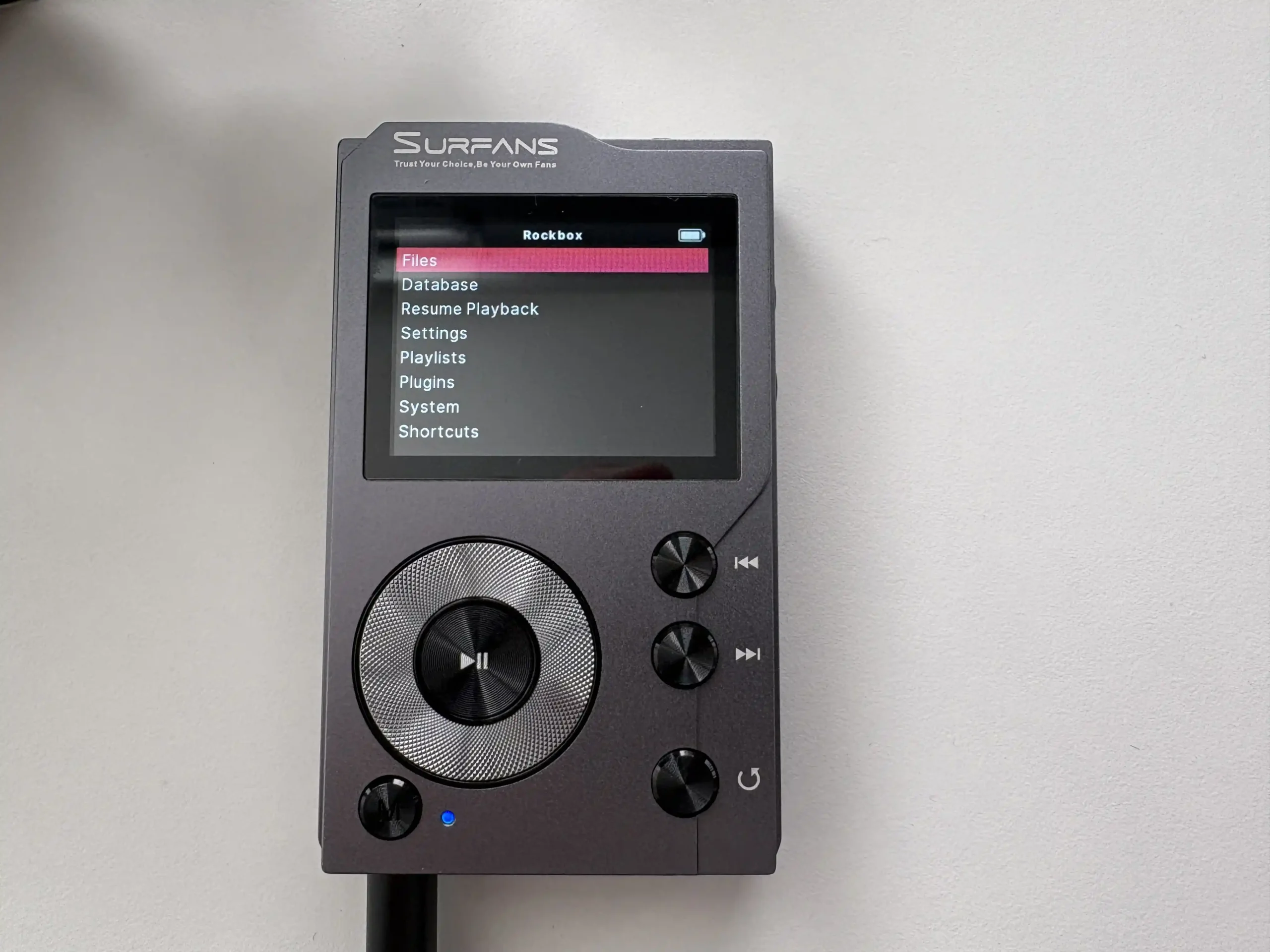
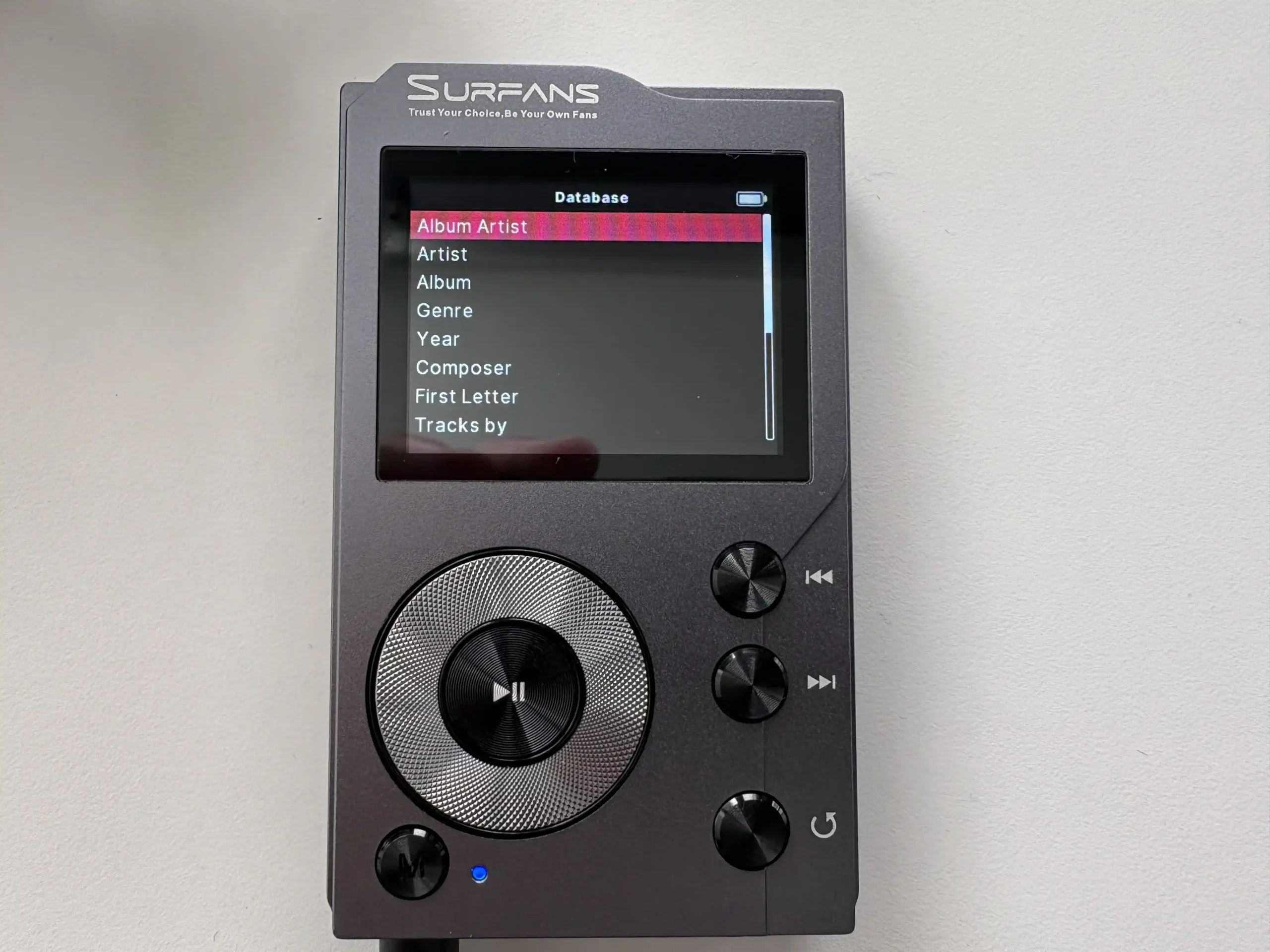
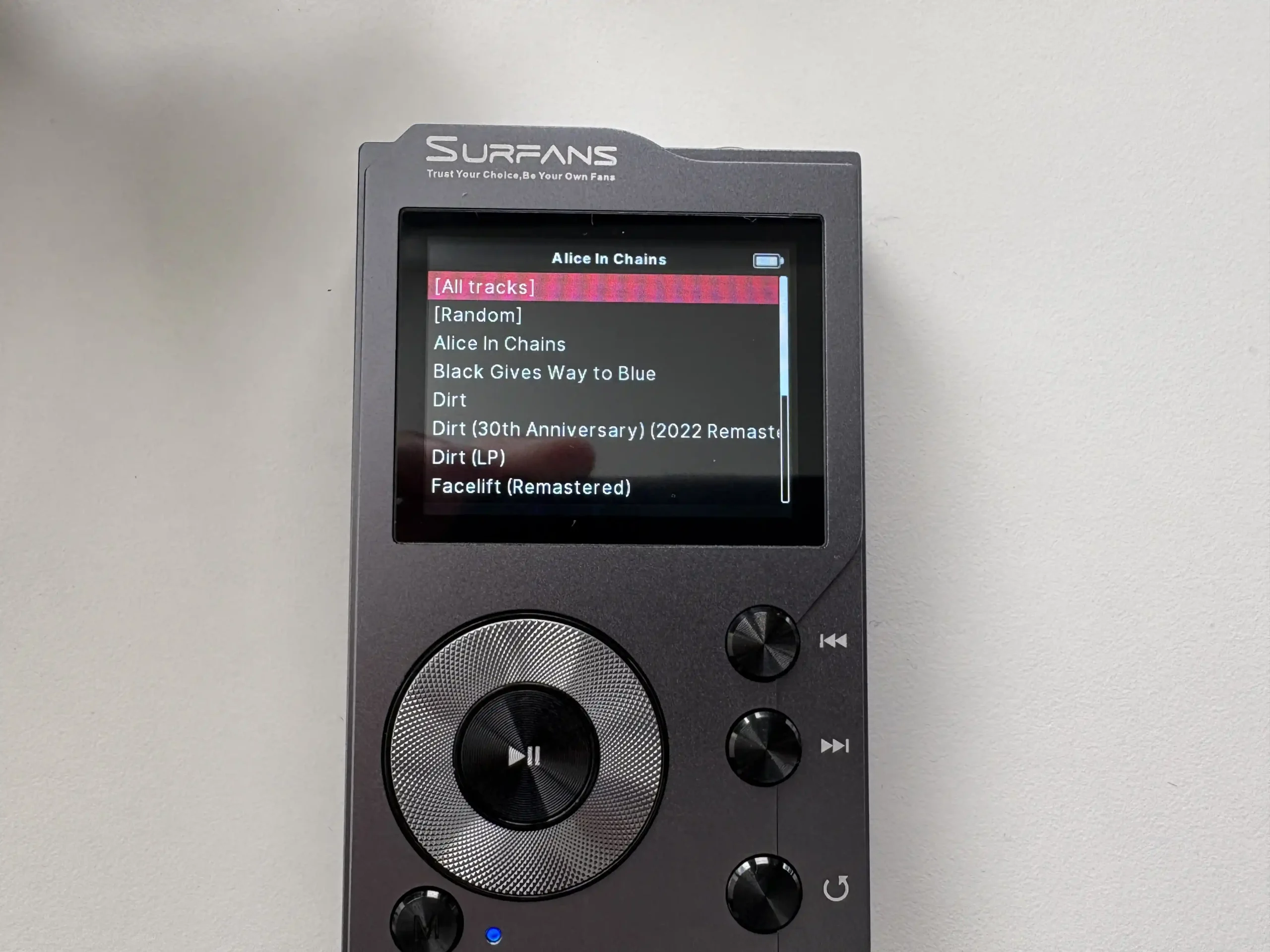
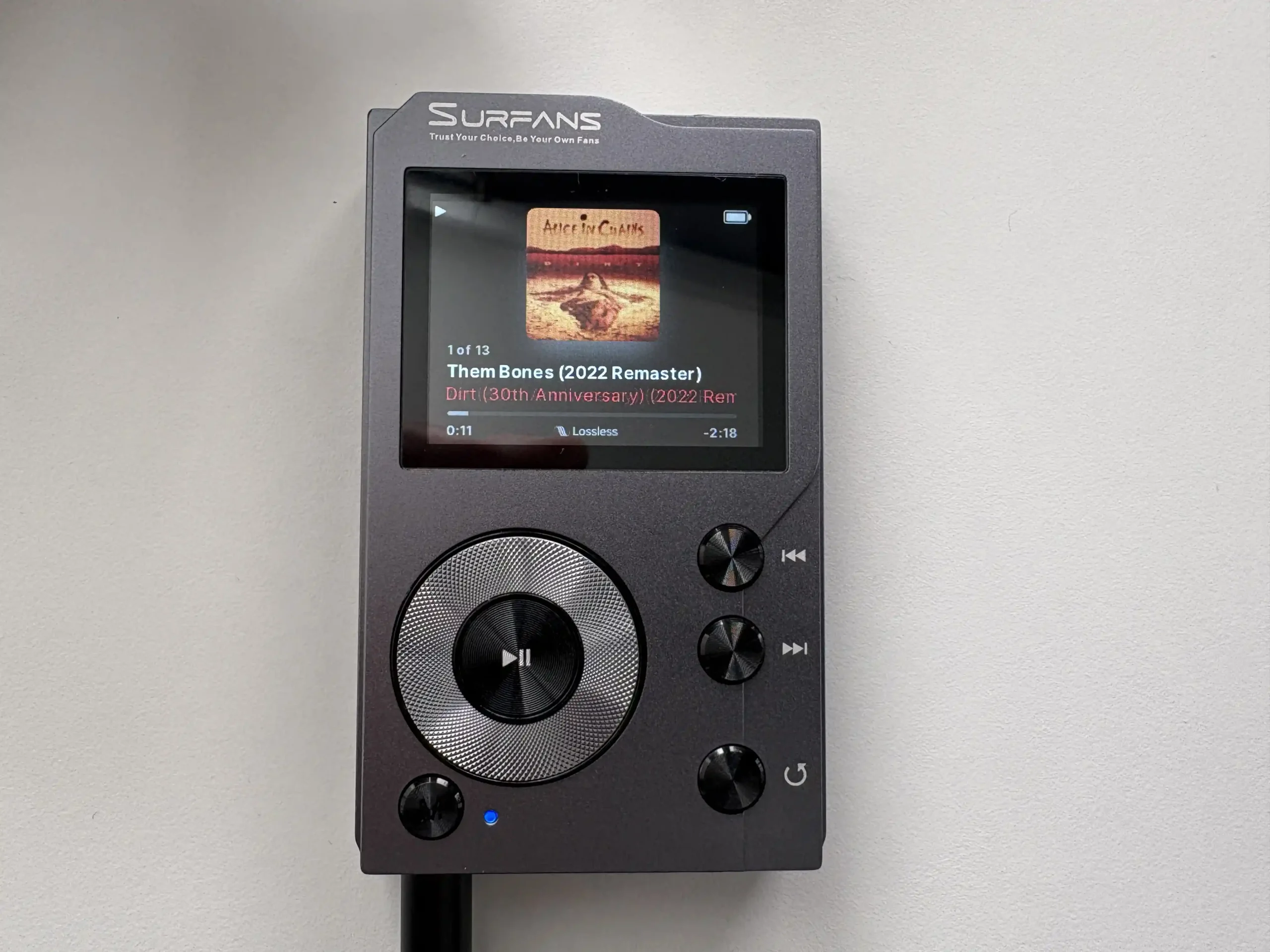
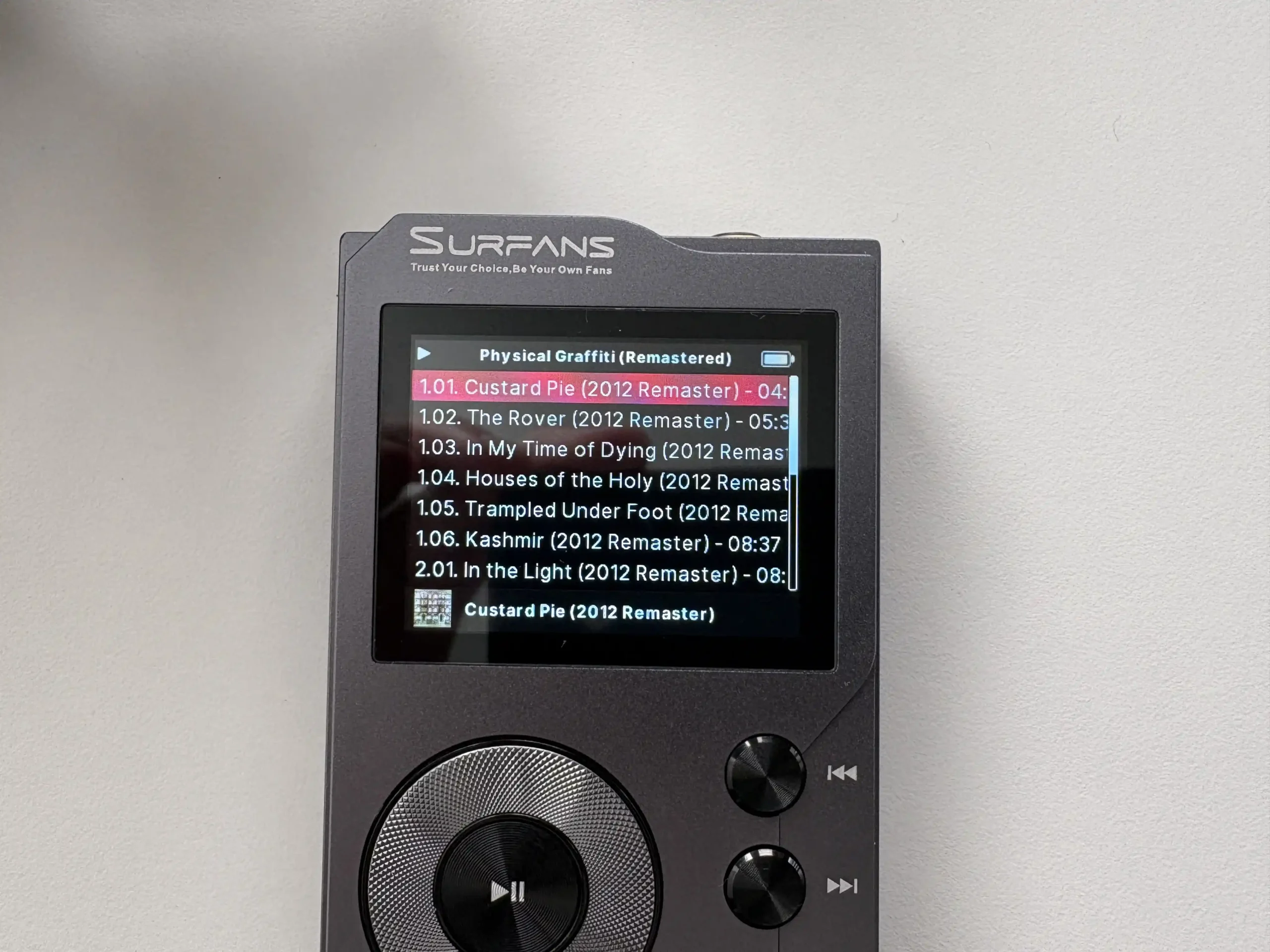
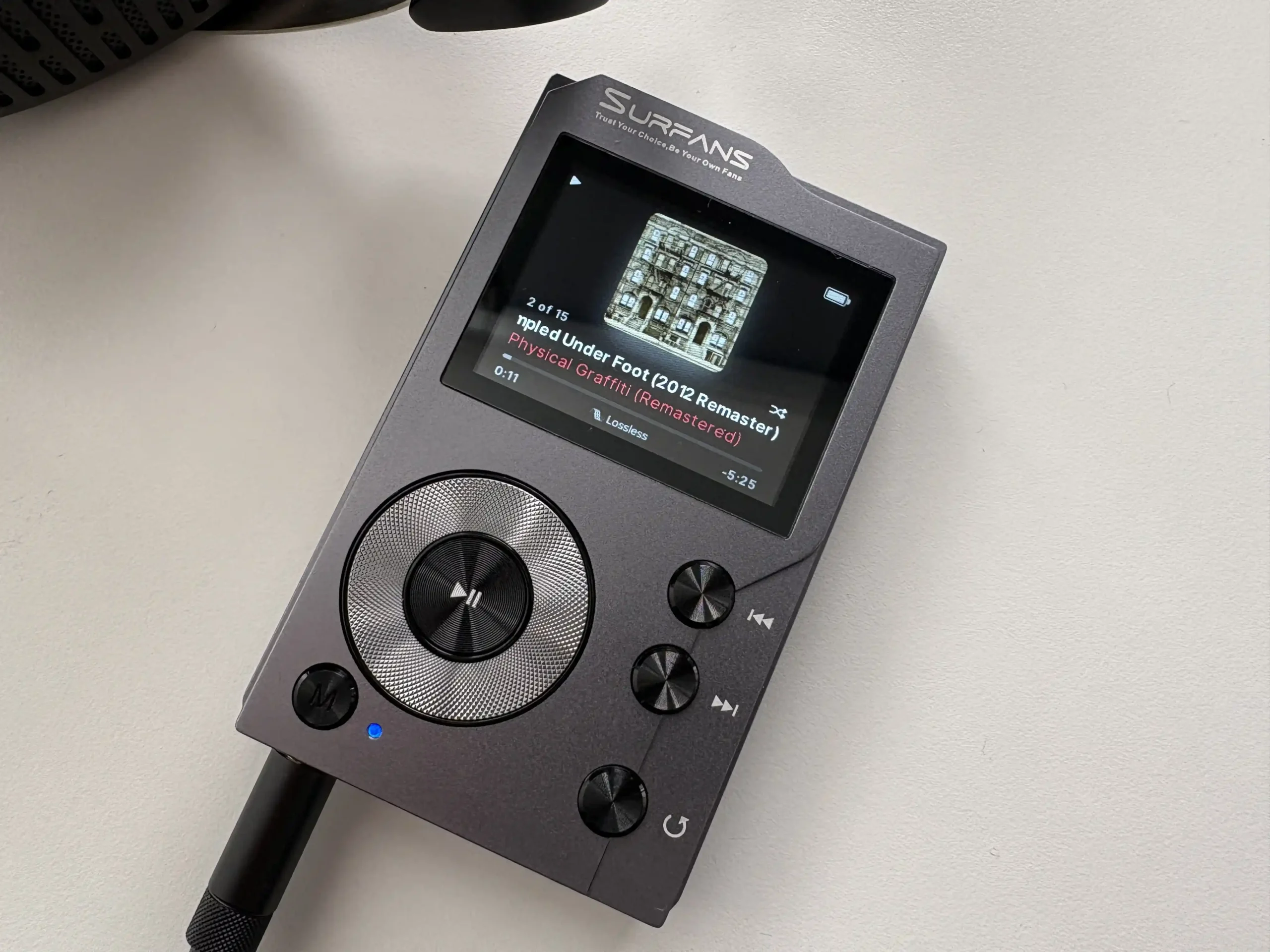


The downsides of using Rockbox are that you lose Bluetooth and USB DAC functionality. To some, it might be a small price to pay. Overall, using Rockbox is a great experience on the Surfans F20, much better than I actually thought it would be.
I’m using the NightPod theme, which I think looks fantastic. My only issue with Rockbox is that, by default, the power button is used to lock the buttons instead of turning off the screen. I haven’t been able to find where to change that behaviour, so if anyone knows, please feel free to comment below.
Final Thoughts
After spending considerable time with the Surfans F20, I can confidently say it offers tremendous value for money and is a unique device in today’s DAP market. This is a DAP best suited for music lovers who prioritize sound quality and practical features (like USB DAC functionality) over a modern design. For under $125 USD (often around $100 on sale), you get a solidly built, great-sounding DAP with versatile features, a combination that’s hard to find elsewhere. It’s a great choice if you’re looking to upgrade from using your phone + dongle, or if you want an affordable backup to a higher-end DAP that you can take on the go without worry.
Of course, there are drawbacks to acknowledge. The user interface, while simple, ends up being too simple as it lacks features that many audiophiles have come to enjoy (sorting by album artist, displaying albums within the artist view, proper sorting of multi-disc albums, Now Playing screen is something you will either love or hate). Bluetooth, while functional and mostly reliable, lacks compatibility with Apple AirPods, and with LDAC, you’re limited to the lowest bitrate. The F20’s 2-inch screen can feel cramped compared to most DAPs. Battery life is just average, so heavy users might need to charge more frequently. And the device has quirks like no bookmark support for audiobooks and podcasts. The last thing, which might even be a deal breaker for some, is the background hiss with IEMs. Given the price bracket and purpose of the F20, these are all points to consider depending on your use case.
In the end, the Surfans F20 has won me over by doing exactly what it set out to do: deliver hi-res, lossless audio enjoyment in a portable package that’s affordable and user-friendly. It’s a device that can please an audiophile on a budget, or anyone who just wants to step up from basic audio players without getting into complicated, expensive gear. For pure sound per dollar, the F20 is a standout digital audio player. It’s not perfect, but its benefits heavily outweigh its limitations in everyday use.


If you’re looking for a DAP and the Surfans F20 doesn’t suit your needs, I encourage you to take a look at my constantly evolving DAP guide: https://www.hifioasis.com/advice/the-best-digital-audio-players-daps/
Buy from Amazon: https://amzn.to/3MscgdR
Buy direct from Surfans: https://www.surfans.net/products/surfans-f20
The above links may be affiliate links. All commission earned through them goes directly to maintaining this site and bringing you more audio reviews.
I’m not always able to cover all the details of a product, both hardware and software, in our reviews. If you have any specific questions about this product, please feel free to leave a comment or contact me directly.
Be sure to check out our excellent Buyer’s Guides, as well as our other Reviews.
HiFi Oasis Verdict
HiFi Oasis Verdict-
Design & Build Quality8/10 Very good
-
Sound7/10 Good
-
Features/Accessories6/10 Normal
-
Value8/10 Very good
Pros
- Natural, balanced sound with a slight warmth
- Surprisingly strong output power for the size
- Compact, pocket-friendly design
- Solid CNC aluminum build
- Features like Bi-directional Bluetooth and USB DAC functionality
- Physical controls allow easy one-handed operation
- Stable, responsive performance with quick boot and playback resume
- Bluetooth is generally reliable, especially when using aptX compatible headphones/TWs earbuds
- Rockbox support
- Excellent value for money
Cons
- Background hiss with many low-impedance / sensitive IEMs
- No search function, making large libraries tedious to navigate with the scroll wheel
- Gapless playback is inconsistent
- Bluetooth quirks (low-bitrate LDAC mode, Apple AirPods compatibility issues)
- Buttons don’t work when the screen is off
- Average battery life
- Bluetooth receive functionality limited to SBC and LDAC
- 15,000 track limit


Regarding your mentioned problem with ROCKbox:
You can configure the display to turn of when the buttons are locked in the ROCKbox settings.
Settings > General Settings > Display > LCD Settings > Backlight on Lock > Off
Just tested this and it works perfectly, thank you!