




Disclosure: I’d like to thank the developer of Discs for providing an unlock code for this review. All thoughts and opinions are my own, and the developer had no say or input on the contents of this review.
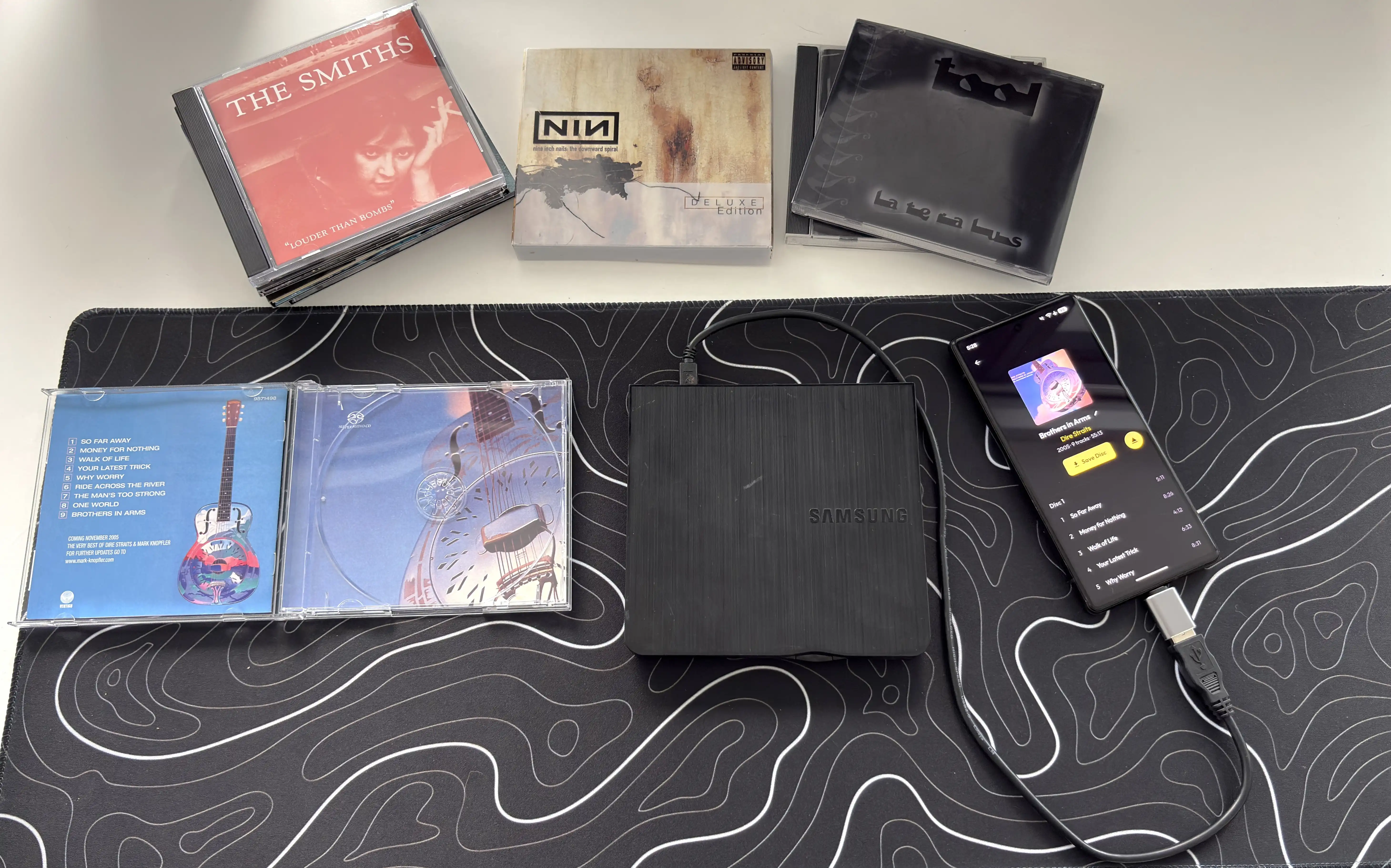
“Discs: CD Ripping & Music” (which I will shorten to “Discs” for simplicity) is one of those apps that feels like it should have existed years ago. For anyone with a shelf full of CDs, a modern Android smartphone, and no easy way to bridge those two worlds, the idea is immediately appealing: plug an external USB-C CD drive into your smartphone (or Android DAP), insert a disc, and rip the album directly to the internal storage or microSD card.
CDs still sound great, but the hardware ecosystem around them has mostly disappeared. Laptops no longer have optical drives, cars no longer have CD players, and streaming services have become the default for everyday listening. But for people who still care about ownership, lossless audio, or have music that is not available on streaming services, CDs are still very valuable.
Not everyone has a computer, either, or keeps their music library organized on one, instead relying completely on a mobile device. This is where Discs comes in. It rips CDs directly to FLAC or AAC, pulls metadata and album art, organizes the files into a browsable music library, supports gapless playback, works with Android Auto, supports Google Cast, and can even sync music to digital audio players. The app works on Android 8.0 and up, and ChromeOS, and it offers two free album rips before requiring a one-time $10 USD purchase for unlimited CD ripping and media player sync.
So, let’s get into it and see if Discs can deliver on the promise of ripping CDs to your Android smartphone.
Key Features
- App Name: Discs: CD Ripping & Music
- Platform: Android and ChromeOS
- Play Store Link: https://play.google.com/store/apps/details?id=com.telepheedi.discs
- Website: https://discsmusic.com/
- Developer: telepheedi LLC
- Price: Free to download, two free CD rips, then a one-time $10 USD unlock
- Android Auto Support: Yes
- Google Cast Support: Yes
- Minimum Android Version Supported: 8.0
Setup and Requirements
The basic setup is simple. You need an Android smartphone, tablet, or DAP with USB-C (running at least Android 8.0), an external USB-C CD drive, and the Discs app. I tested the app with several different Android devices to see how the experience was across different hardware configurations and OS versions:
- FiiO JM21 (Android 13)
- FiiO M21 (Android 13)
- Google Pixel 6 (Android 16)
- HiBy R4 (Android 12)
- iBasso DX180 (Android 13)
- Samsung Galaxy Fold 7 (Android 16)
- Shanling M3 Plus (Android 13)
- Sony NW-A306 (Android 14)
- Sony NW-WM1AM2 (Android 11)
- Sony NW-ZX707 (Android 14)
- Surfans F20 Pro (Android 12)
For CD drives, I have an external Samsung CD/DVD writer (model SE-218) that I’ve been using for over 10 years now, but I also wanted to see how Discs performed with one of the many generic external CD/DVD drives available. So, I ordered the PeroBuno External CD/DVD Drive (link) to see how it performs.
The PeroBuno drive I ordered has a Y cable with both USB-A and USB-C connections, making it easy to use with USB-C devices. My Samsung SE-218, though, uses a mini-USB to USB-A cable, so I needed to use a USB-A to USB-C adapter to be able to connect it to my devices.
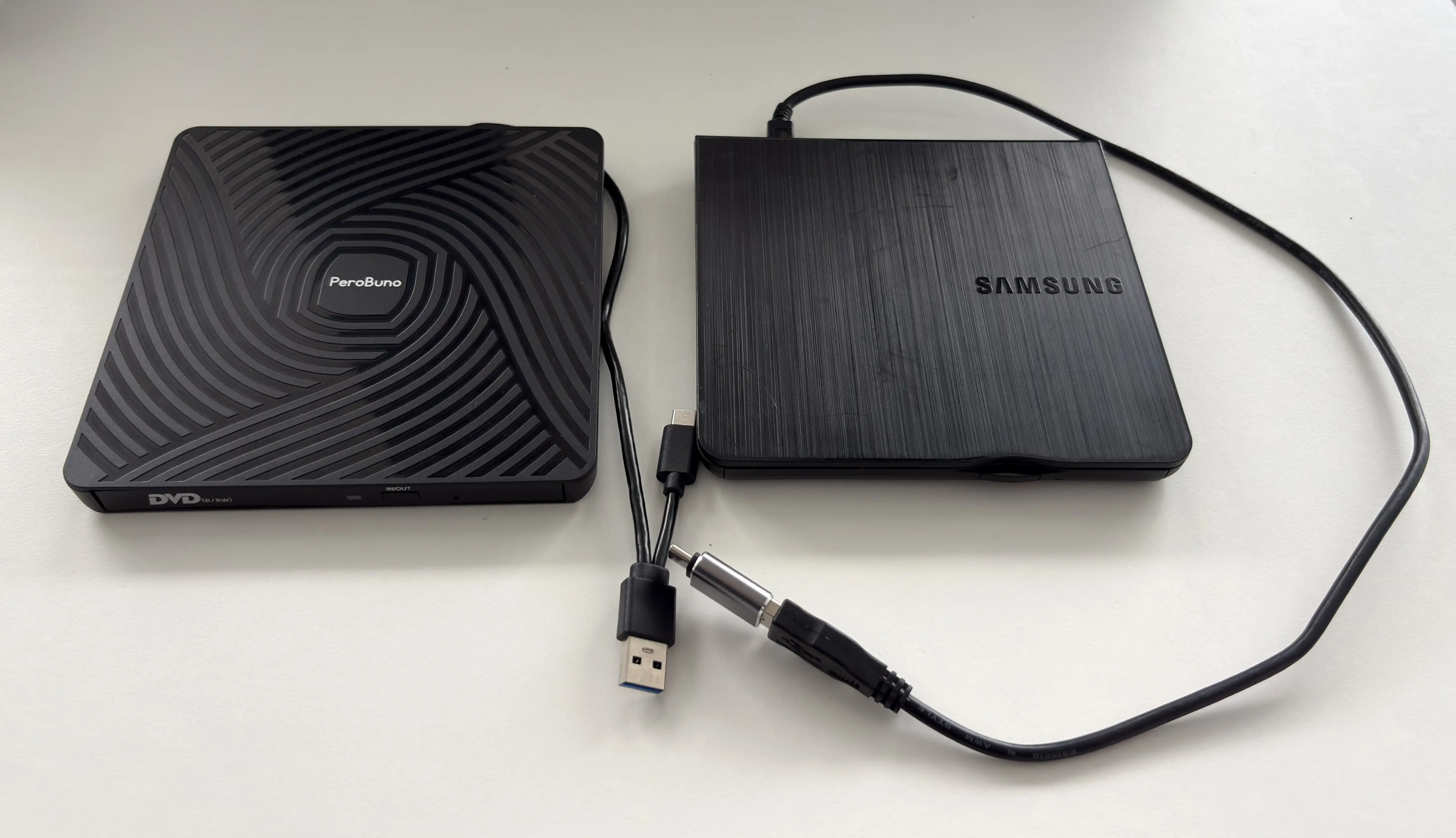
The Discs website notes that cheap bundled adapters can cause issues, so a reliable USB-C drive or high-quality adapter is important. This is worth emphasizing because it is probably the biggest “it depends” part of the experience. The app can be simple, but the results can still be inconsistent depending on your device, adapter, cable, and drive.
That’s the hardware setup. On the software side, there are some configuration options to take a look at. When you first open the app, there are a few steps to swipe through where the app tells you what it is, asks you to enable notifications (handy for knowing when CD rips finish or there are errors), and asks you where you want to store your ripped CDs. I opted to create a folder on the root of the internal storage of each of my test devices called “CD Rips”.
App Settings
At this point, you can connect a CD drive and start ripping, but first, let’s look at what settings are available within the app.
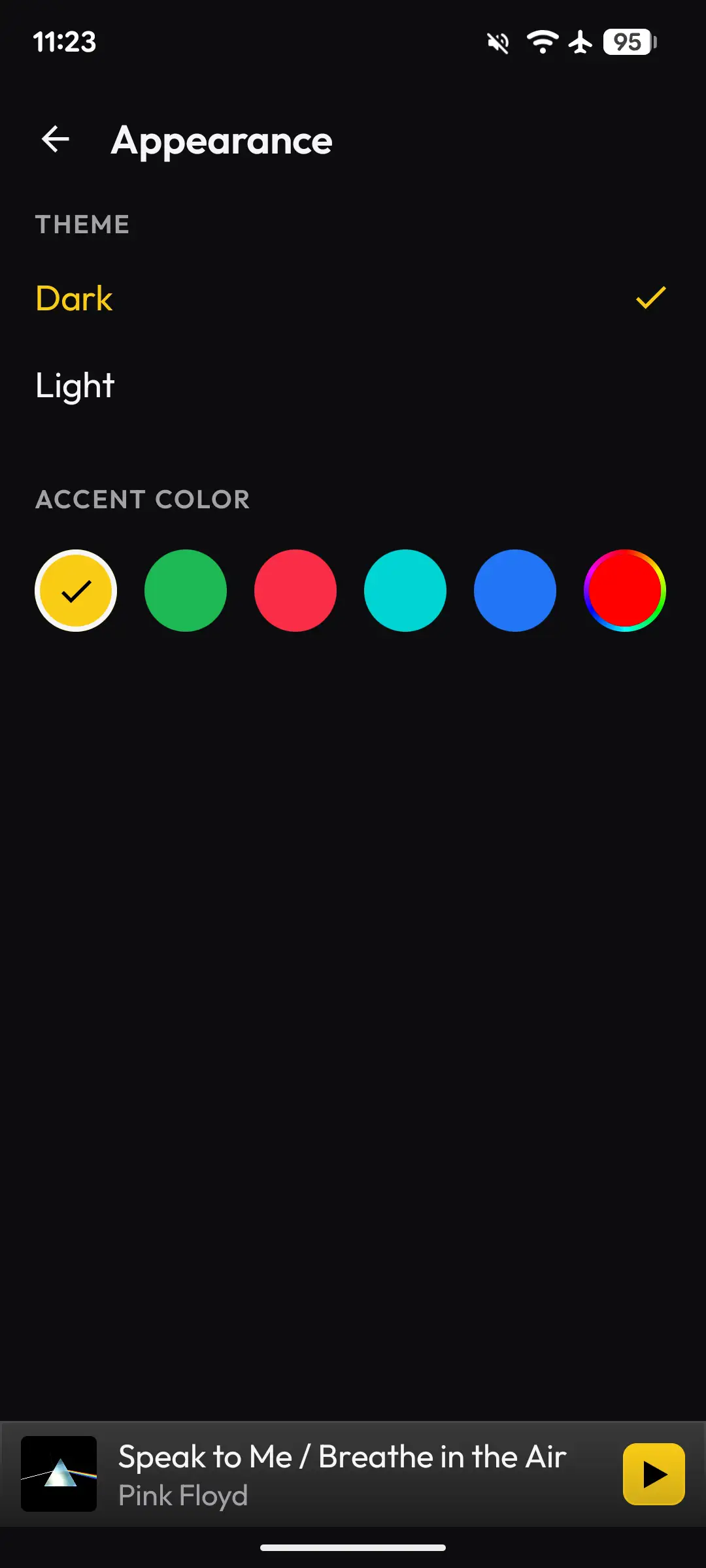
Appearance settings:
Ripping settings:
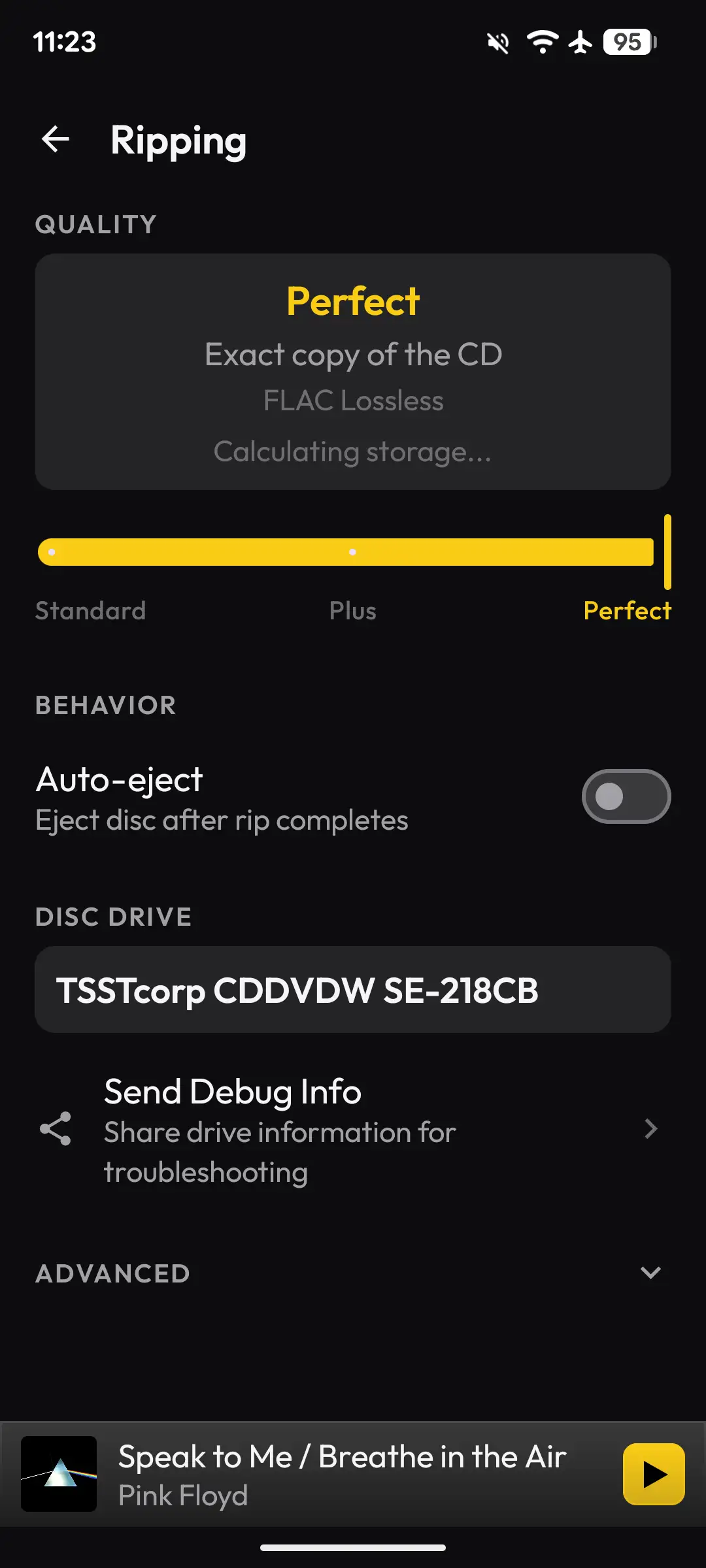
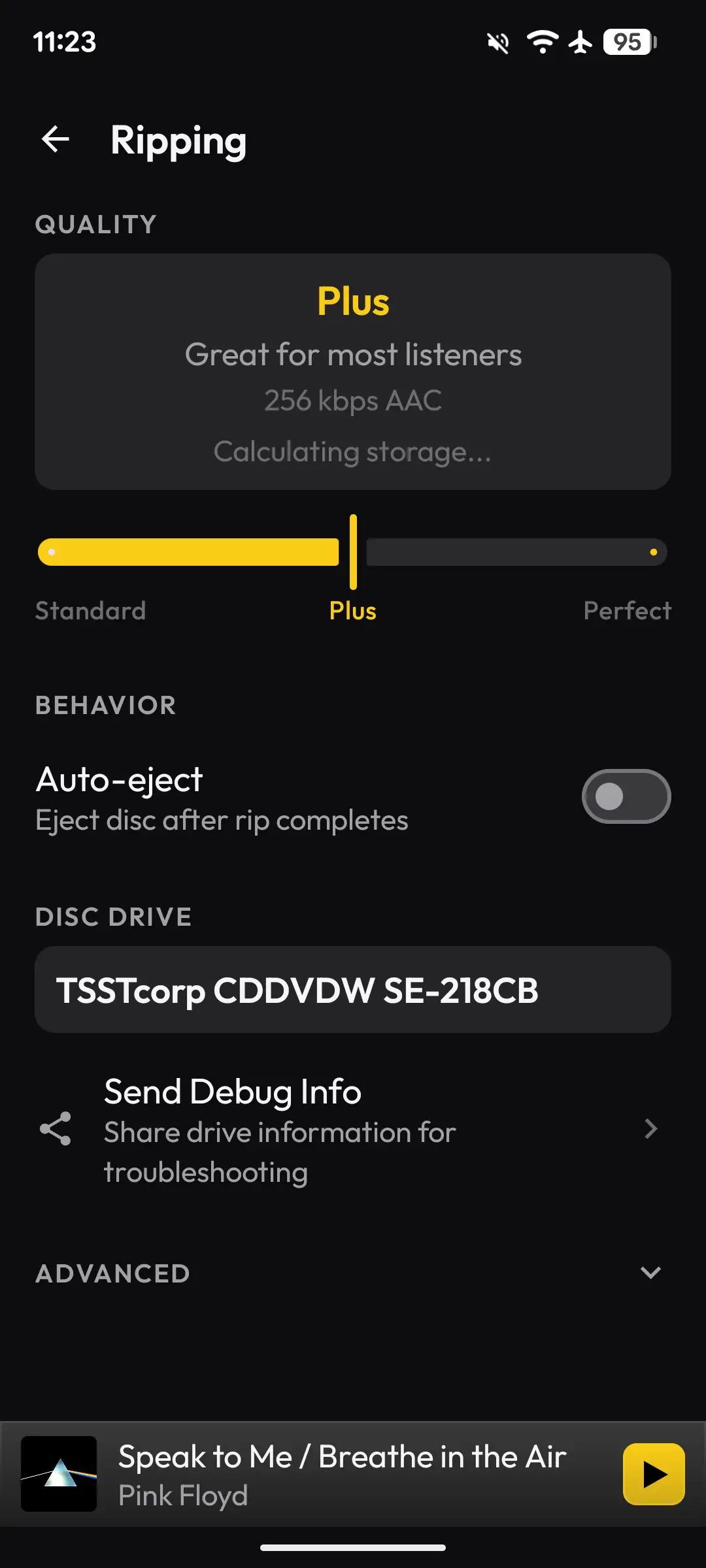
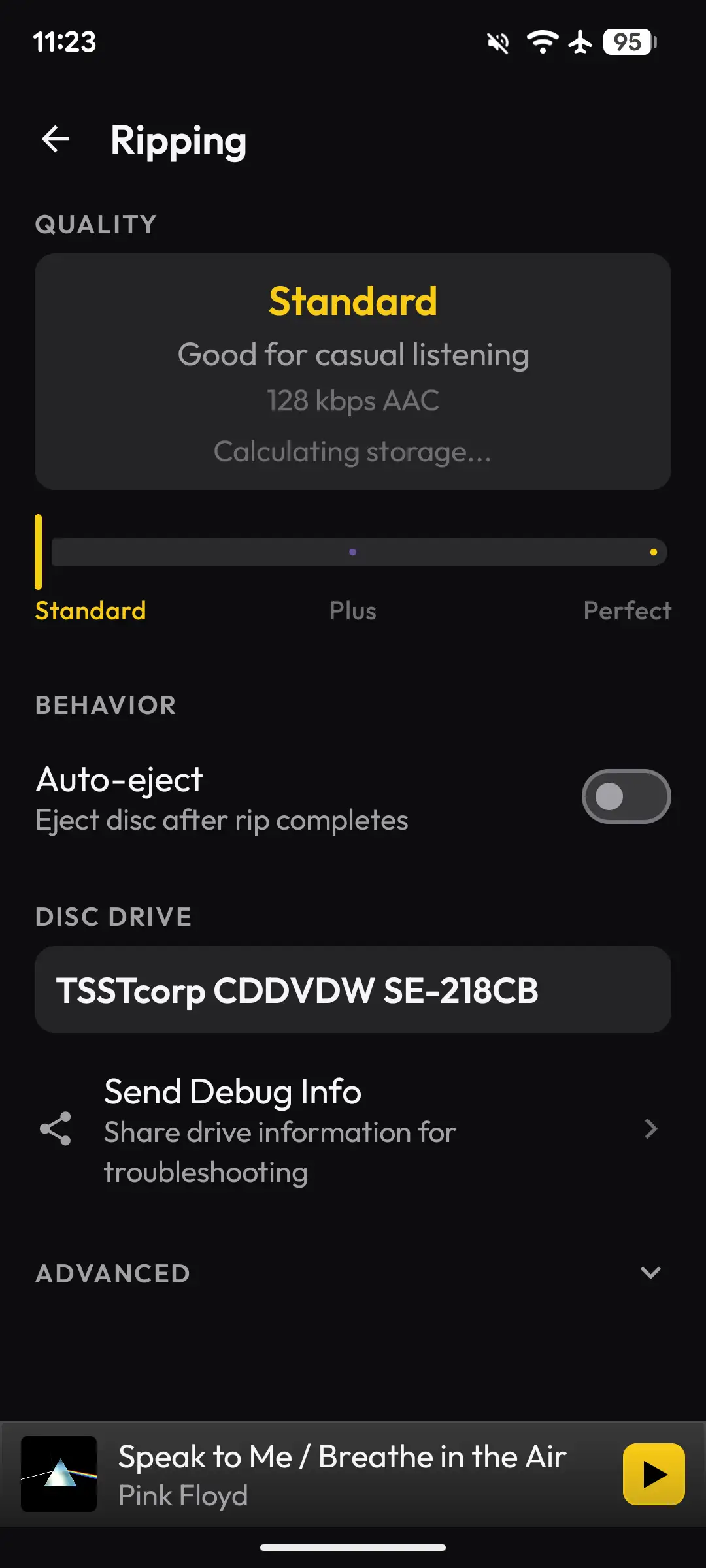


The meat of the settings is located here. For CD rip quality, you have three options:
- Perfect (FLAC)
- Plus (AAC 256kbps)
- Standard (AAC 128kbps)
If you are extremely storage-constrained, it’s nice to have the AAC options, though I imagine most users will choose FLAC. One notable omission here is ripping to WAV. Some people may be used to ripping their CDs to WAV and then either converting them to FLAC or making a copy of the WAV files, converting the copy to FLAC, and keeping the original WAV files for archival purposes. Given the use case of the app, I see no issue with not including WAV support, but it does need to be noted just the same.
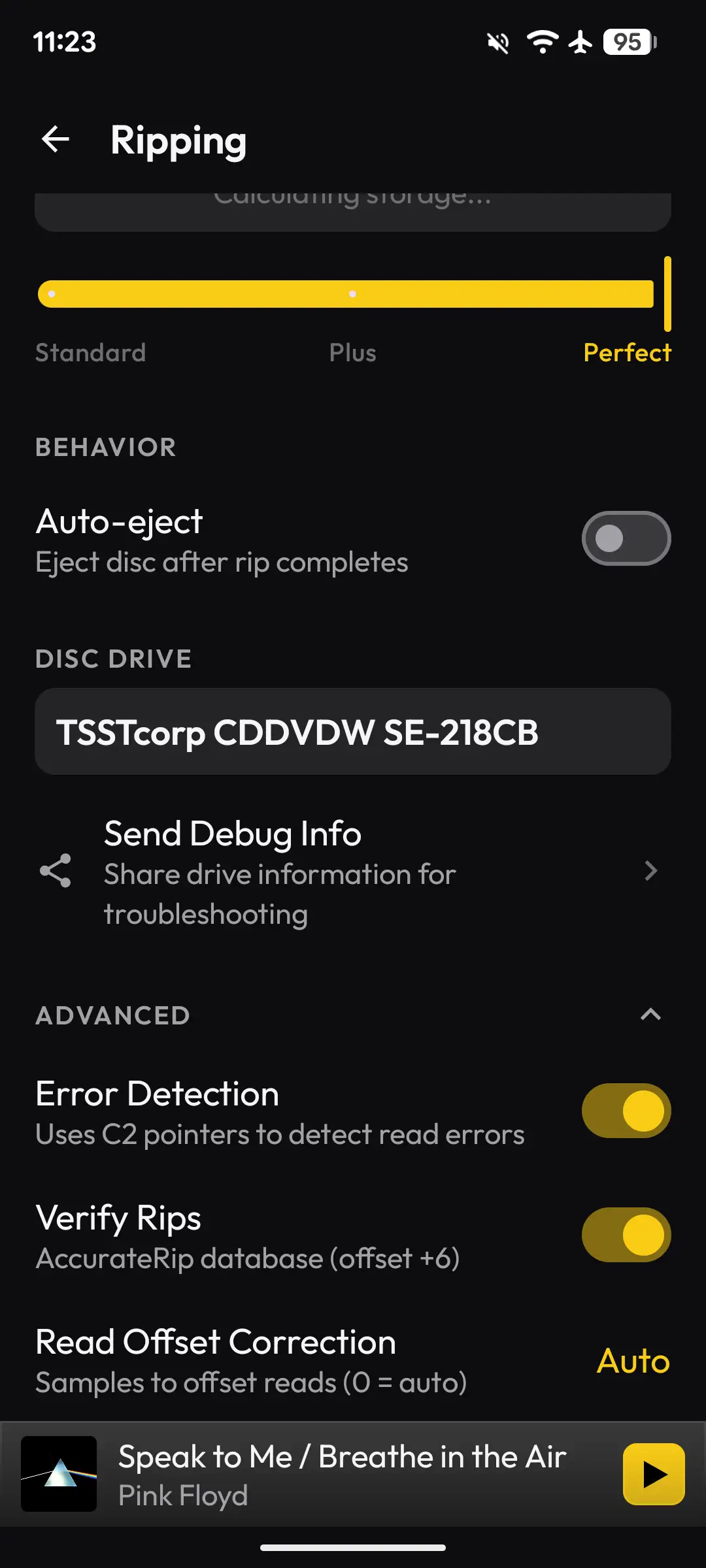
You also have Auto-eject and Error Correction settings, as well as a Verify Rips option. By default, this option is off, but I would encourage most users to do a little bit of research and enable this when they’re comfortable with the concept.
Anyone who has used Windows programs like EAC (Exact Audio Copy) and dBpoweramp most likely already knows what AccurateRip is, but for those who don’t, it is essentially a database of verified CD rips that are considered perfect copies of the disc. The Discs app will attempt to verify the disc you ripped against the AccurateRip database to verify the integrity of the files. You can find more info about AccurateRip here: https://accuraterip.com/
Storage settings:
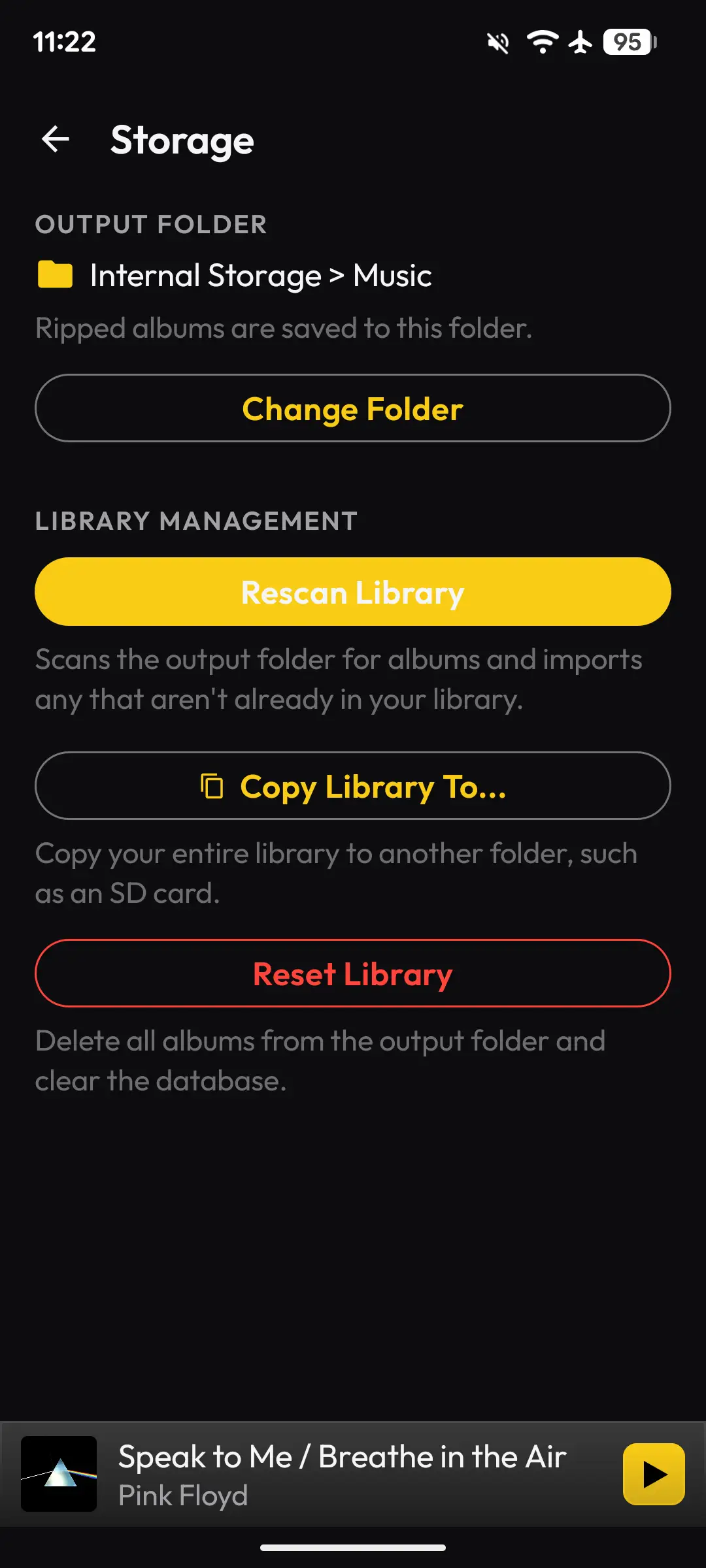
Here is where you can change the folder the CD rips are saved to. You can also rescan the folder to import existing music, so that you can use Discs as a music player (more on this later). The “Copy Library To” option allows you to copy everything in the “Library” to another folder or microSD card.
CD Ripping Workflow
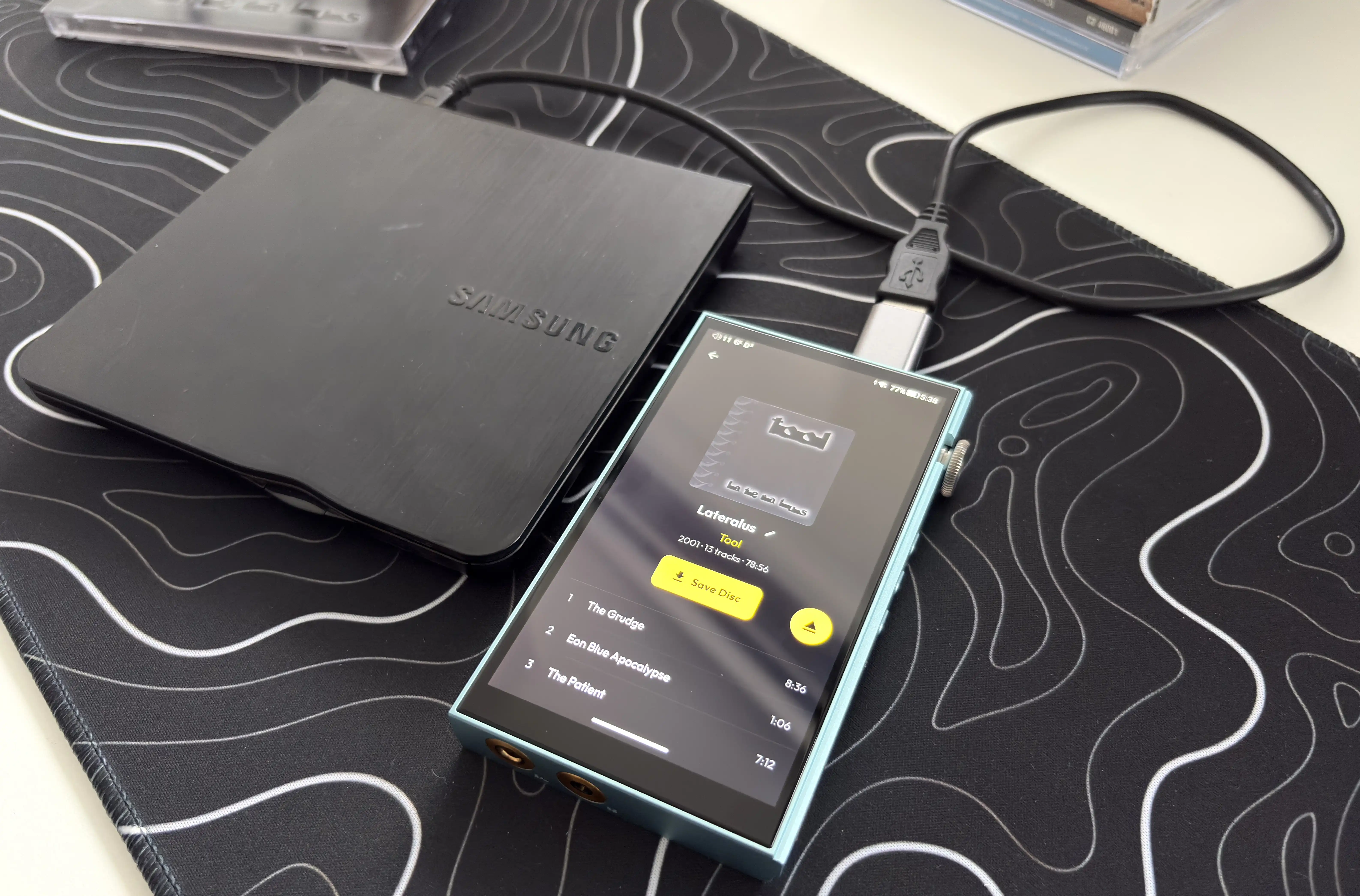
The core CD ripping workflow is straightforward. You connect the USB CD drive to your smartphone, insert a CD, and Discs will detect it. From there, it looks up the album title, artist, track names, and album art automatically (if available). You tap “Save Disc”, and the app reads each track, encodes it to FLAC, tags it, and saves it to your device’s storage.
Discs removes most of the friction that usually comes with ripping CDs. The app handles ripping, encoding, metadata, artwork, and library organization. It is not trying to be the most advanced archival ripping tool available, instead, it’s trying to make ripping CDs feel modern and accessible again.
I tested using about a dozen of my own CDs, which included HDCDs and SACDs (to ensure the CD layer of the SACD can be read and ripped).
The Results
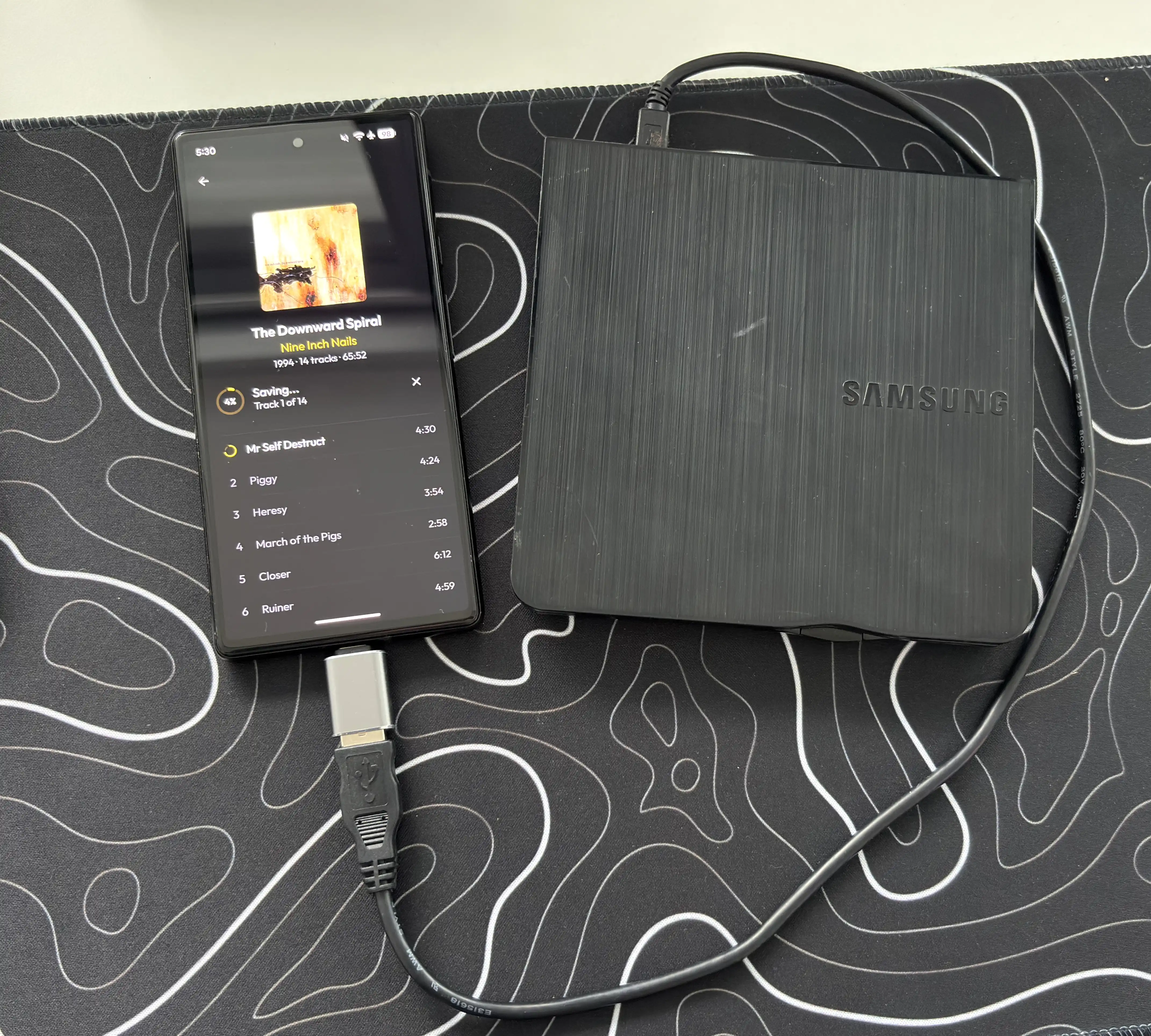
Discs worked incredibly well at ripping CDs. The app was able to rip all of the CDs I used, and populated the metadata (Artist name, album name, track titles, album art) accurately for most of them. The time taken to rip the CDs was also roughly the same as using Exact Audio Copy on my computer, and the actual CD rips themselves played flawlessly. Even gapless albums, such as Pink Floyd’s Dark Side of the Moon, were kept gapless.
Both external CD players I used, the Samsung SE-218 and PeroBuno External CD/DVD Drive, were recognized by Discs as external CD drives, and when I ripped the same album using each drive, the resulting files were identical, not only to each other, but also to copies ripped to my computer using Exact Audio Copy.
The Verify Rips (AccurateRip) feature also worked well in my testing.
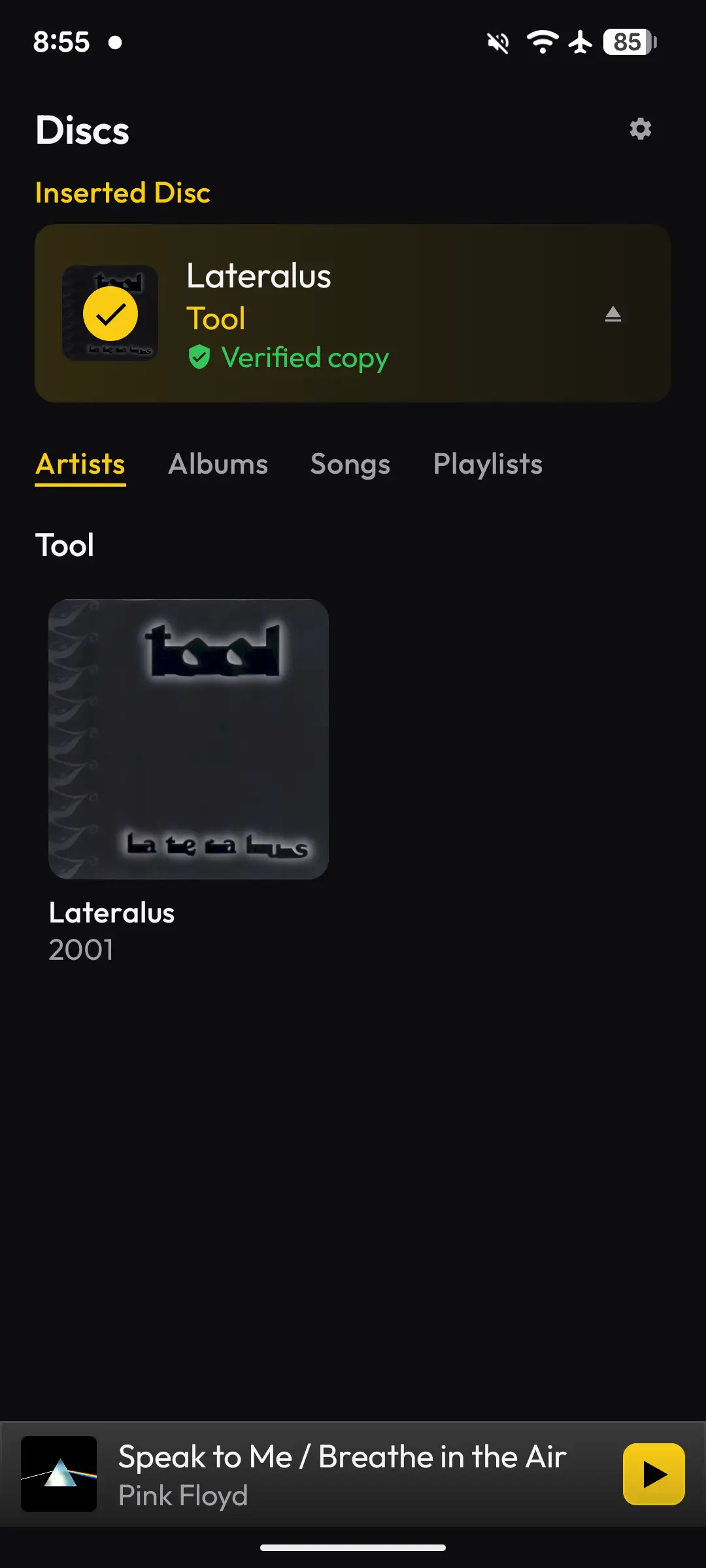
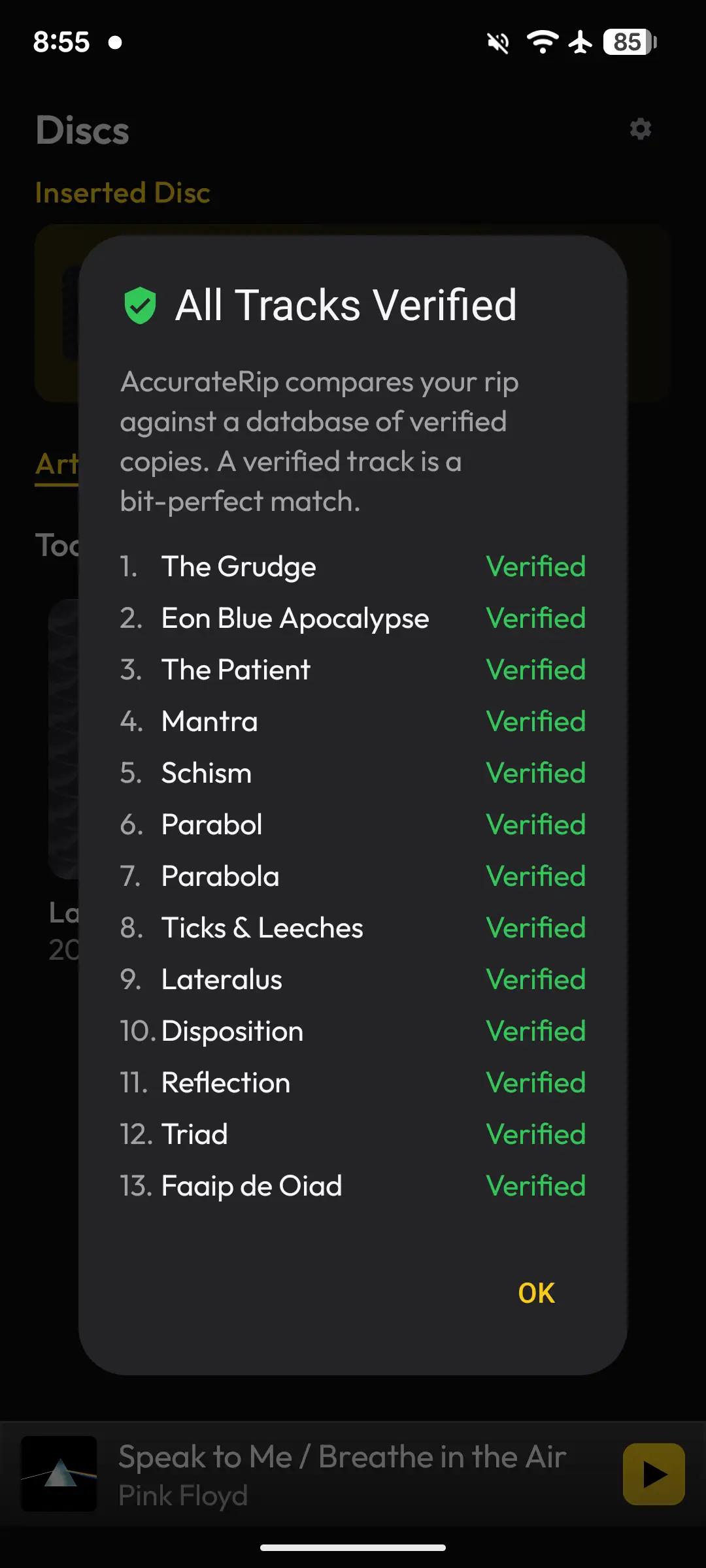


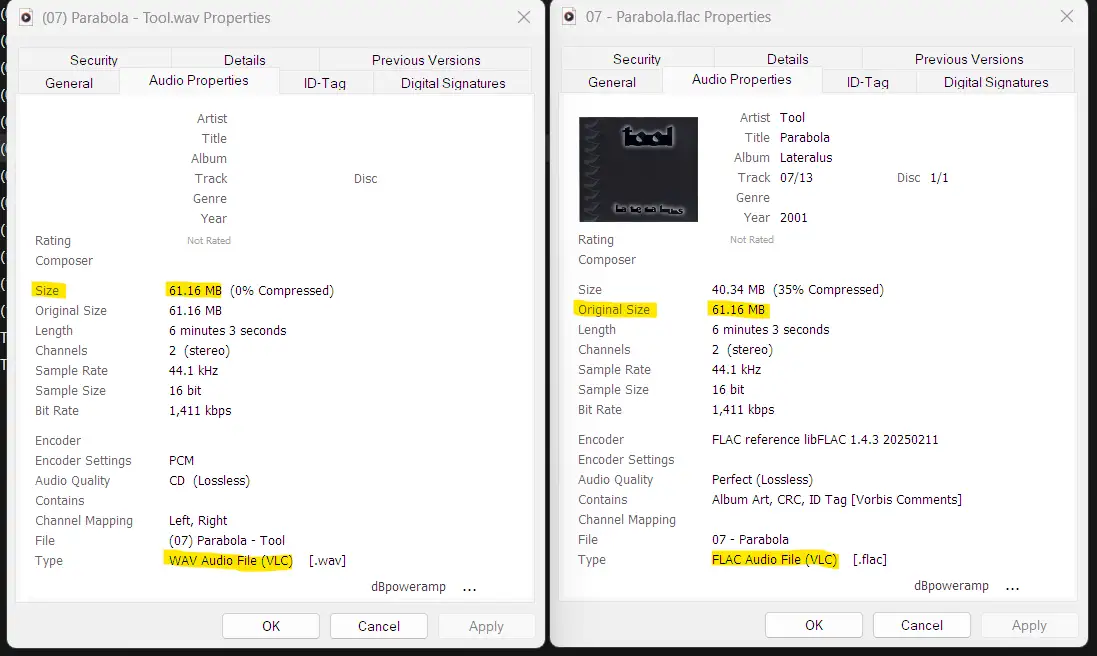
If we look at the track “Parabola” from Tool’s Lateralus (an album I ripped to WAV by Exact Audio Copy on my computer) and compare the file size of it to the “Original Size” value of the ripped FLAC version from the Discs app, they are a perfect match. We want to look at the Original Size value, as a FLAC file is still lossless, it’s just a compressed version of a WAV file, so the Original Size of the FLAC file should match the size of a WAV file (you can also convert the FLAC file to WAV and compare the file size).
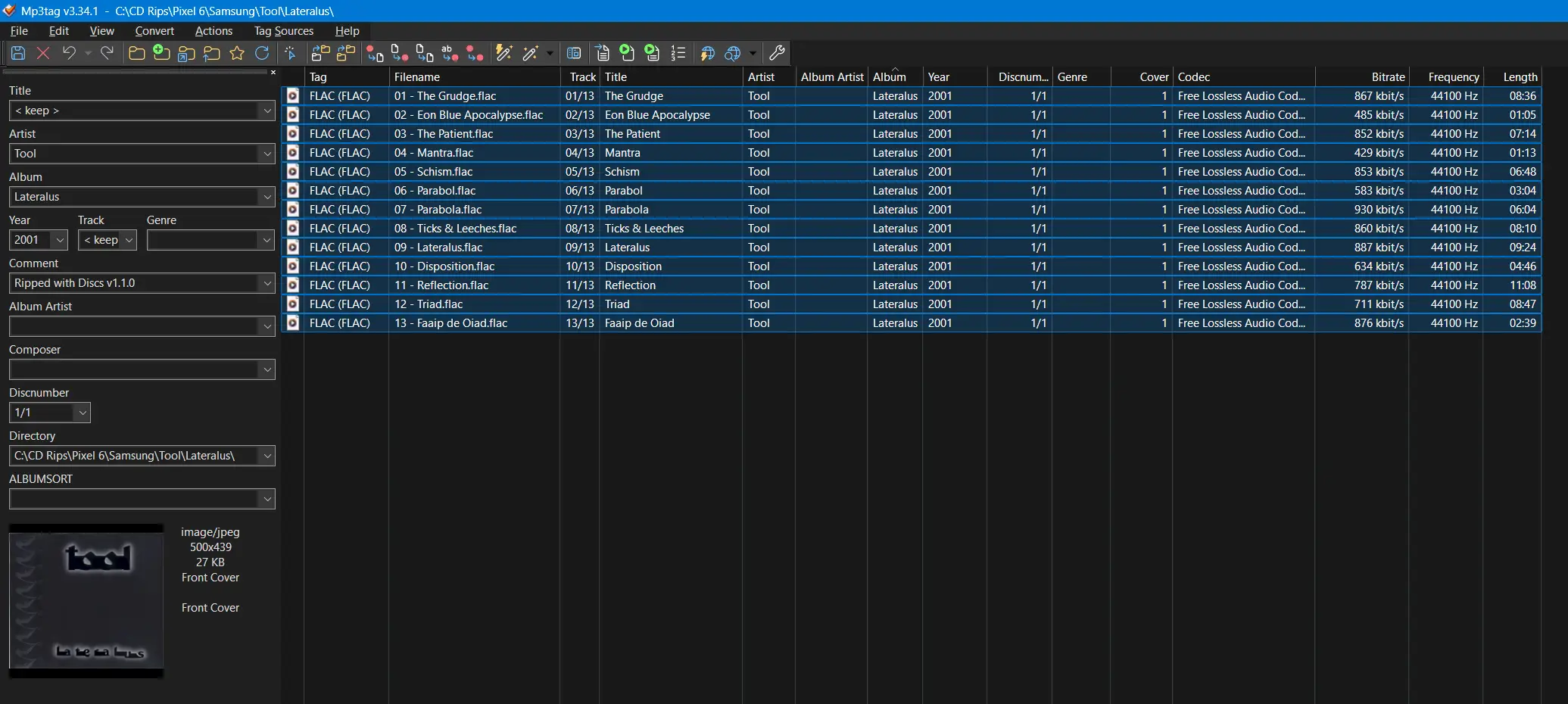
And for those interested, this is an example of the metadata that gets populated by Discs:
I didn’t test every CD in my collection, just a handful, but there were a few CDs for which Discs could not retrieve the metadata for:
- Failure
- Location Lost (this album was released less than a month ago, so I won’t fault the app too much for this one)
- Fantastic Planet
- The Smiths
- Louder than Bombs
The CDs did still rip perfectly, I just had to manually add the metadata for them afterward.
On the device side of things, the app worked with every one of my test devices mentioned previously, but where I ran into issues was with the external CD drives. My Samsung Galaxy Fold 7 would not stay connected to either of my external CD drives, no matter what cable or adapter I used (the disc would spin up, then the connection to the drive would be lost). I believe this is because Samsung restricts the power output of the USB-C connection, and I have suspected this before, as I’ve previously had issues using my Fold 7 with various USB-C dongle DACs (some would just not be detected at all).
The Surfans F20 Pro, a budget Android DAP, would reboot after ripping a few tracks with my Samsung SE-218 drive. I turned off battery optimization, which did help, as I was able to rip entire CDs, but after ripping two CDs, the device would reboot while doing the third one. The PeroBuno CD drive simply was not detected at all, and the disc drive would not even power on. Most likely, the power output of the USB-C port is somewhat limited on this device.
My Sony NW-WM1AM2 worked perfectly with the Samsung SE-218 drive, but would not detect the PeroBuno drive. It seems that the PeroBuno drive requires slightly more power than the Samsung drive, which means some devices (like this one) simply can’t power it adequately.
None of these issues is related at all to the app, but it’s still worth mentioning, and it is why you get two free CD rips before needing to purchase the app, allowing you to test your hardware beforehand.
Syncing to DAPs
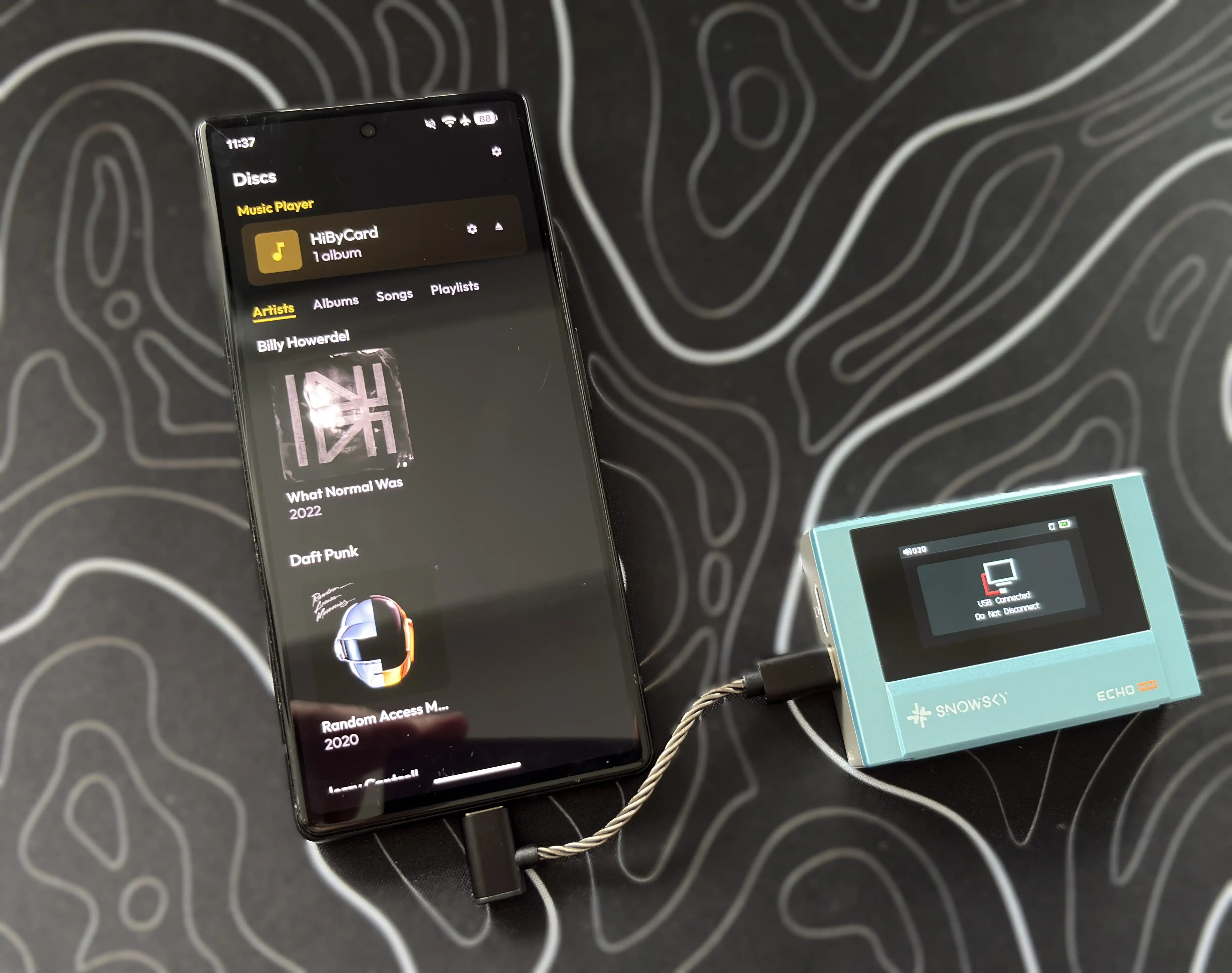
Discs can copy the ripped music files between your Android phone and digital audio player, as long as the player supports USB mass storage mode. The Discs website specifically mentions DAPs such as the Snowsky Echo Mini, Innioasis Y1, and HiBy R1, while also noting that most standalone DAPs that mount as USB drives should work. Digital audio players running Android, as well as iPods, are not supported, as they connect via MTP (media transfer protocol).
This is actually an interesting addition because it turns Discs into more than just a smartphone-based CD ripper. It can become part of a complete physical media to DAP workflow without even needing to touch a computer.
How does this actually work? First, you rip the CD to your Android device, then connect your DAP via USB-C (or insert a microSD card, if applicable). There should be a prompt within the app asking you if you want to use the attached device as a music player. Tap the checkmark, browse to the location on the connected device you want to copy files to, and then you’re good to go. You can literally drag albums to the attached device’s storage within the Discs interface (tap and hold on an album for a moment, then drag it to the top of the screen where the device is shown). Discs will copy the files to the device, showing a progress bar of the copy.
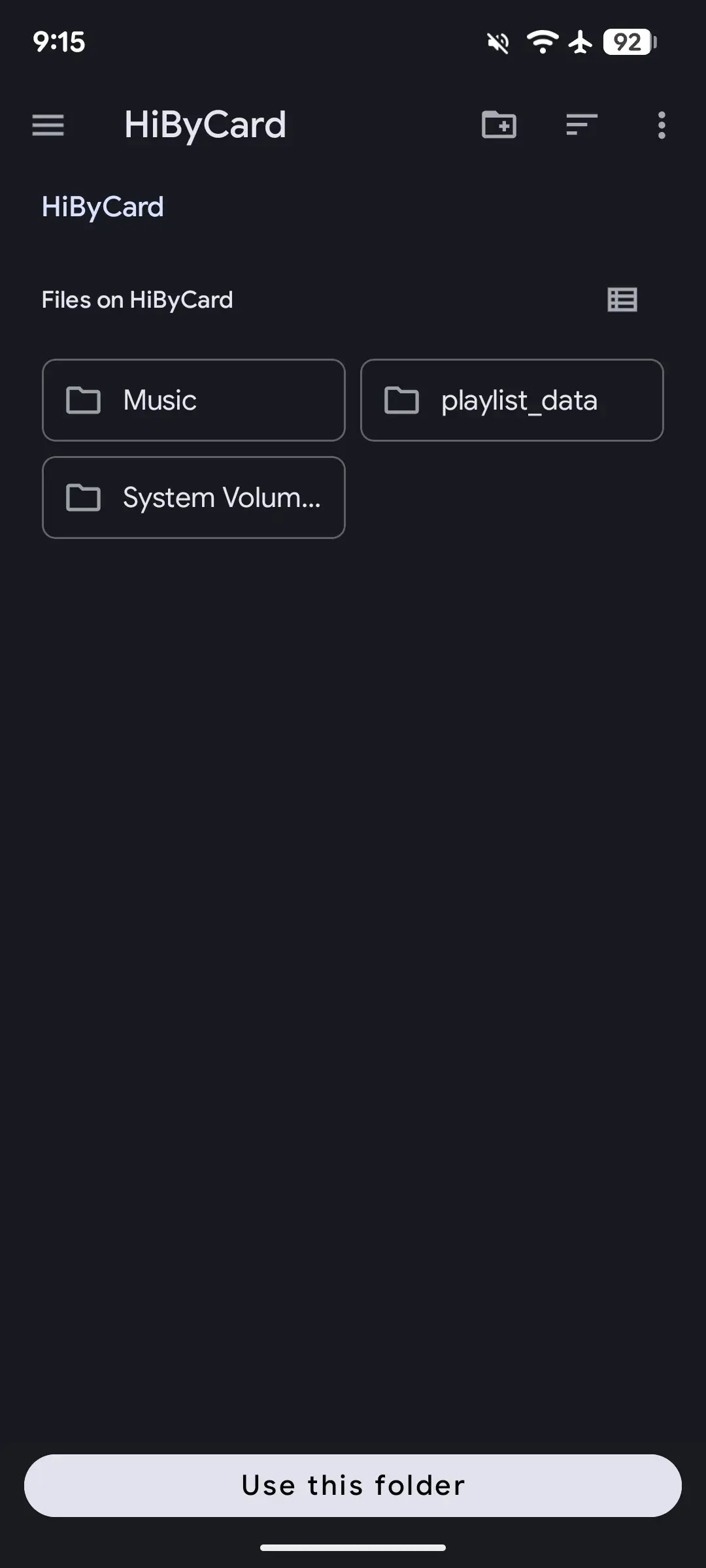
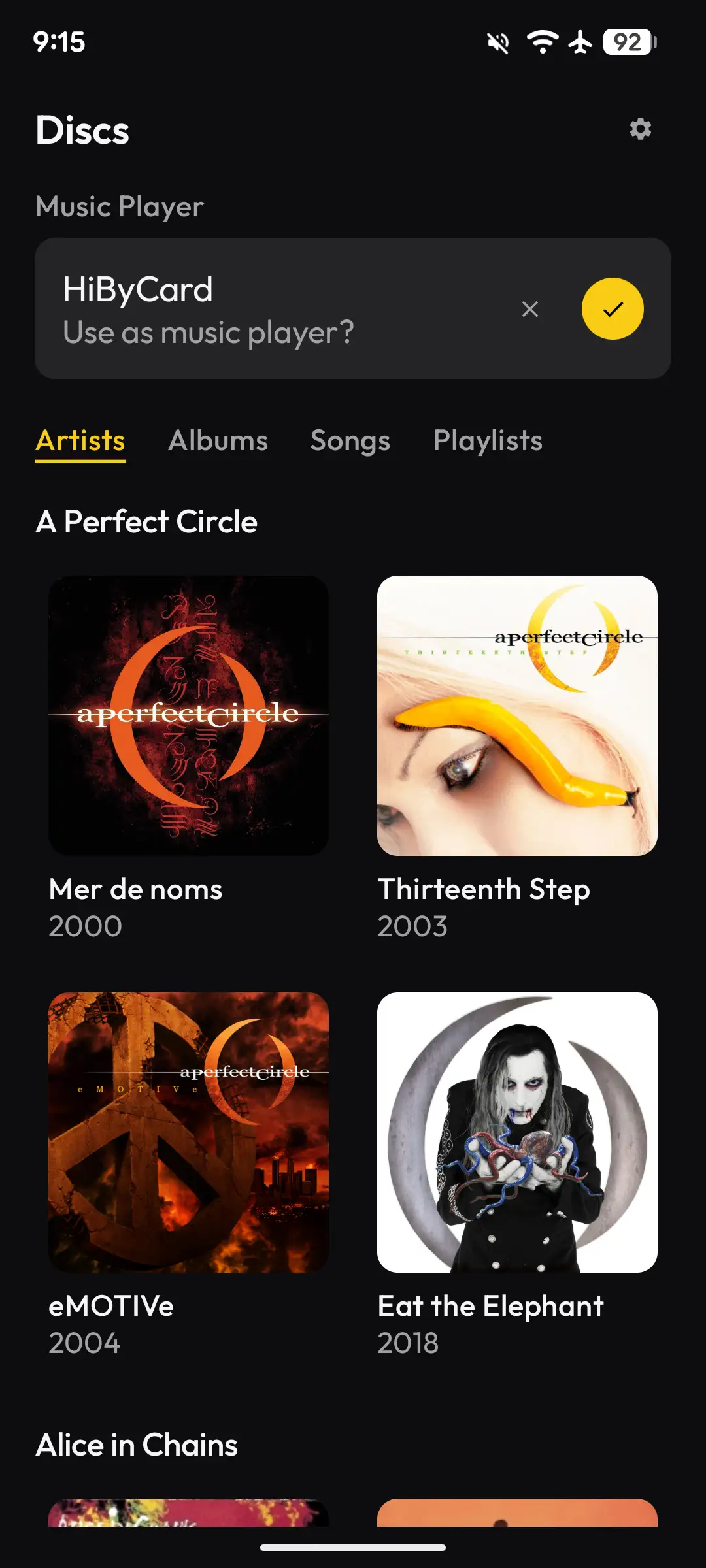
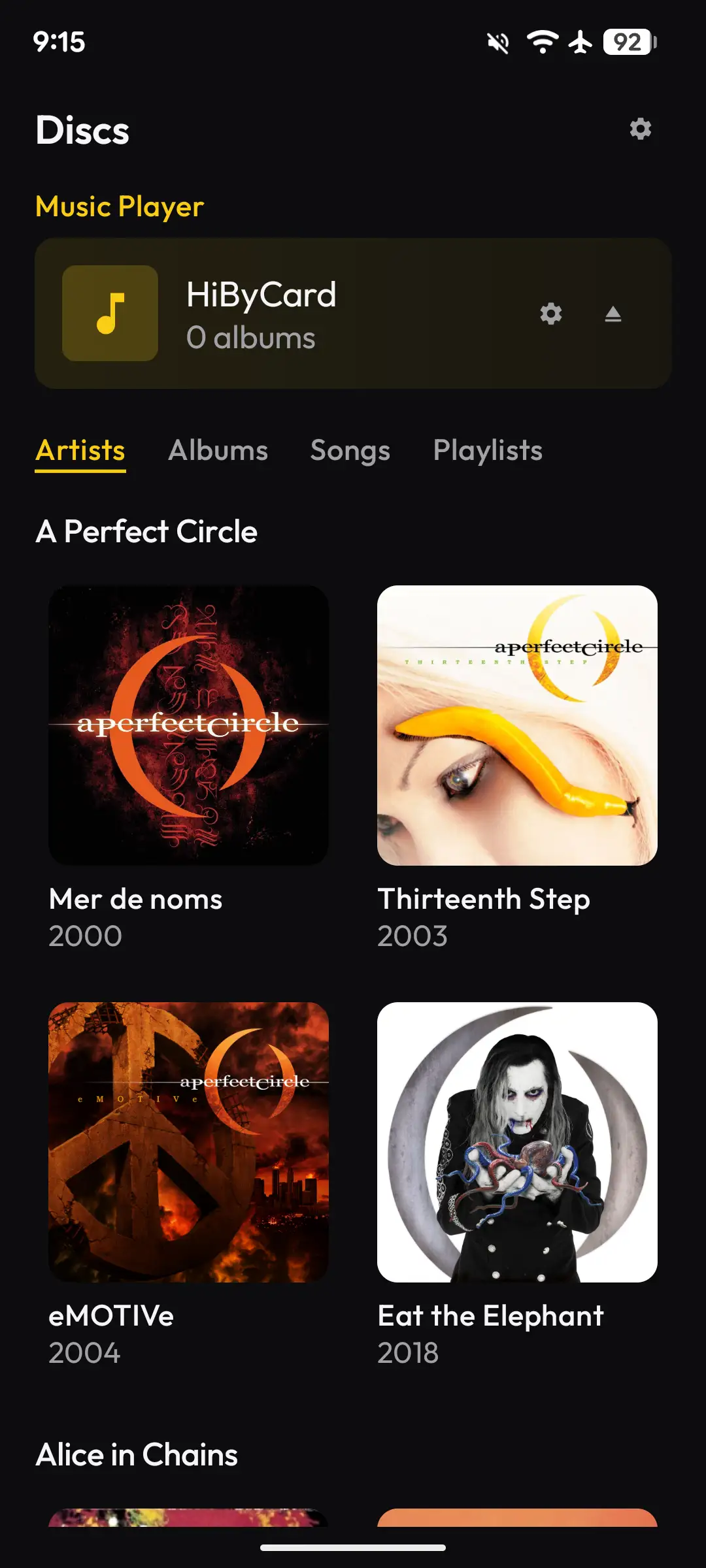


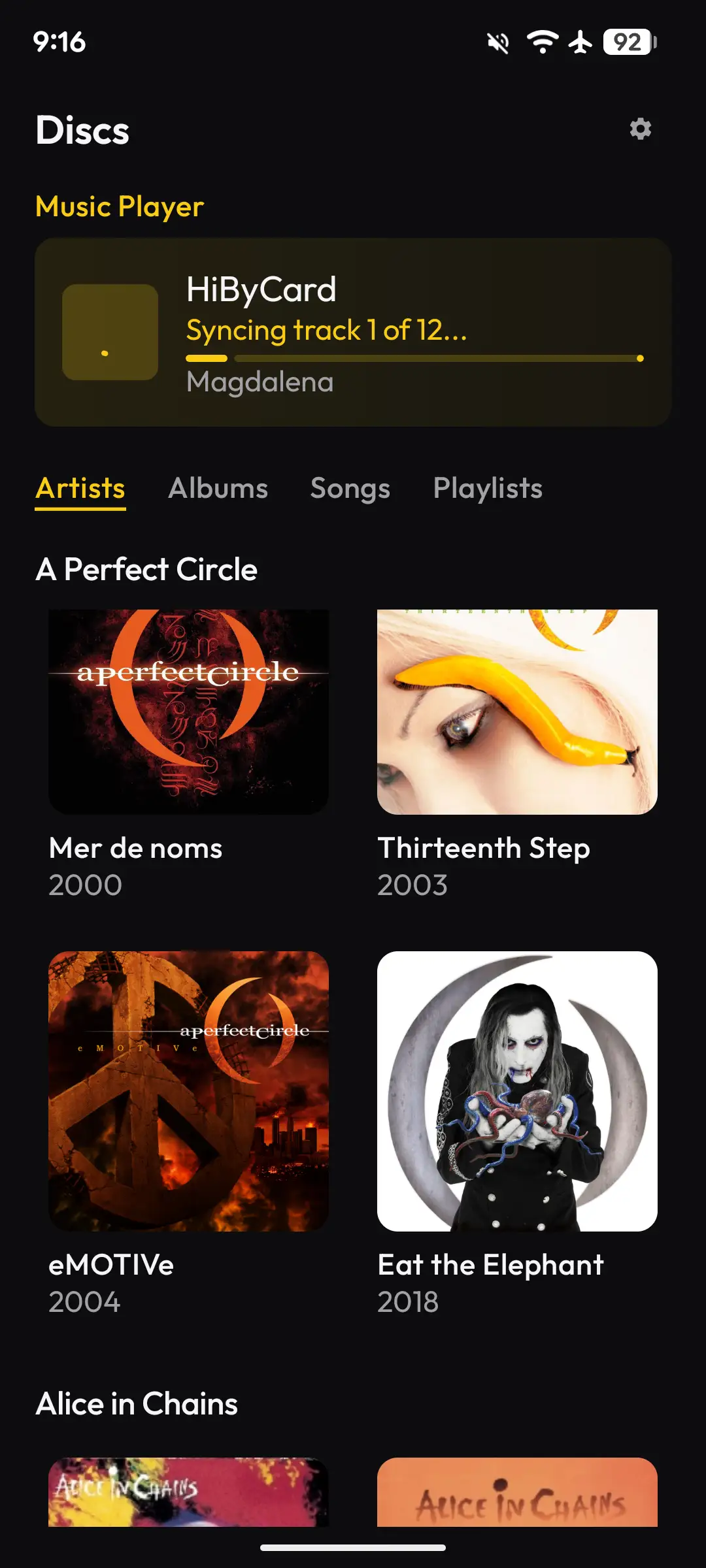
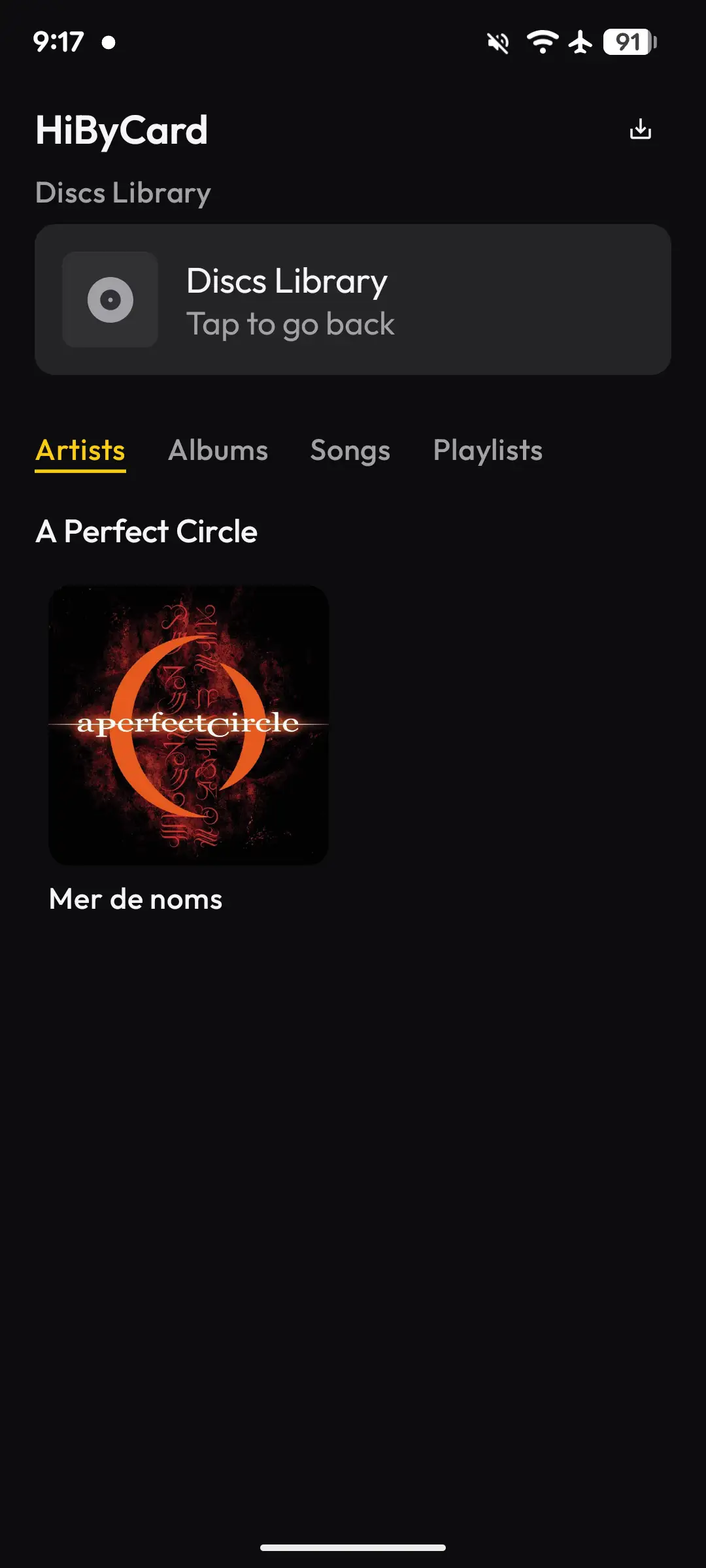
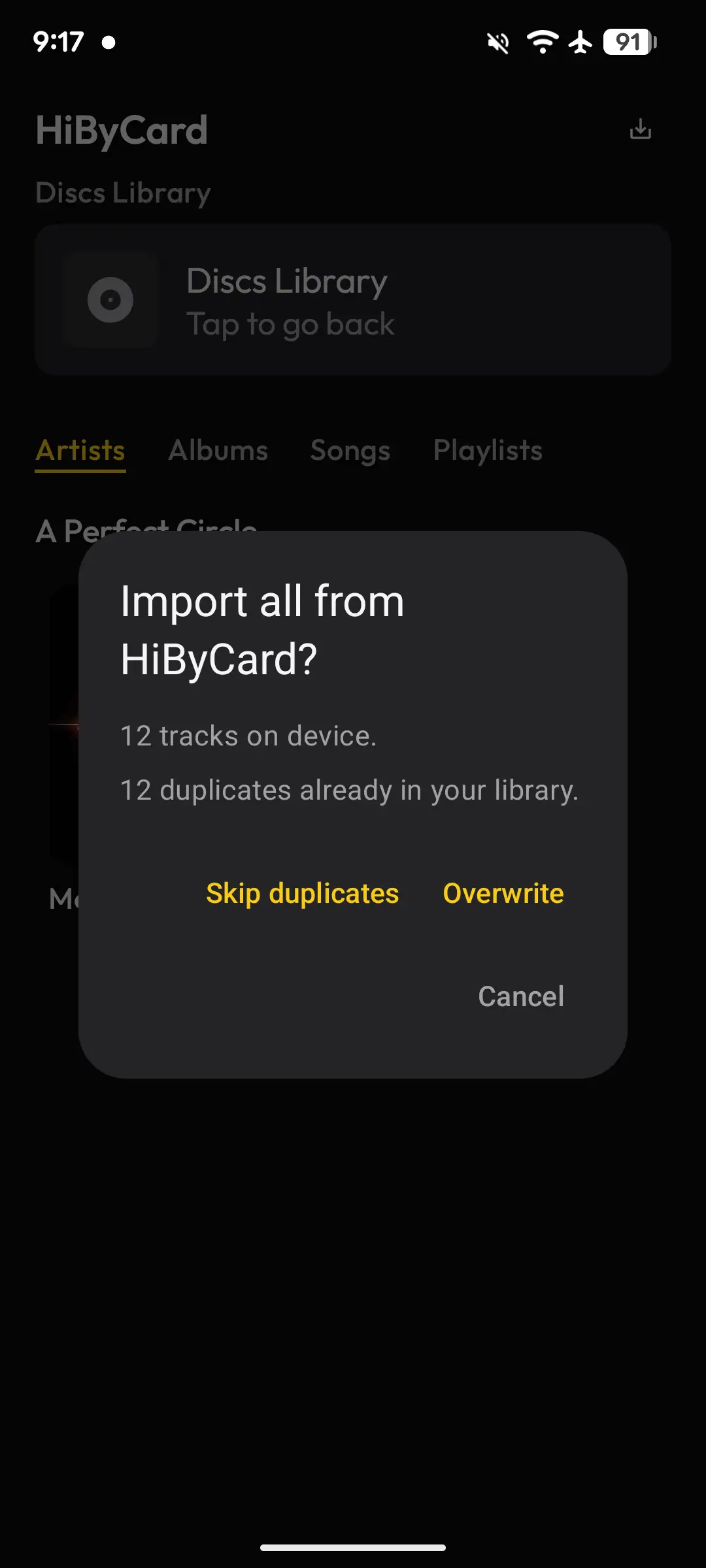


You can also do the reverse by tapping on the attached device within the Discs app and dragging albums to your Android device. There’s also an “Import all” button on the top right if you want to copy everything. It even detects duplicate tracks so that you aren’t re-copying music to your library.
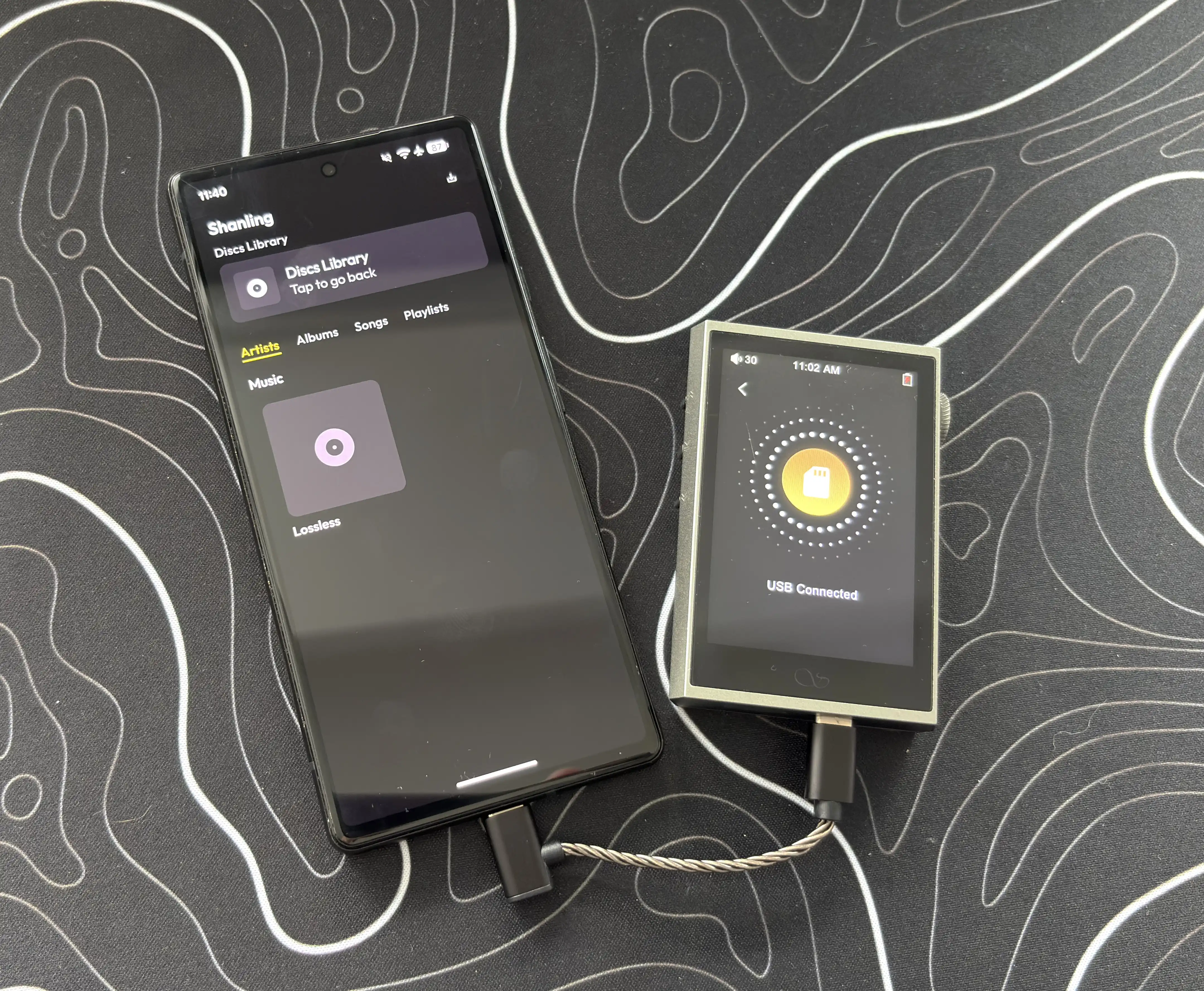
Alternatively, you can use a file browsing app on your Android device to manually do this by copy/pasting albums between your phone and the player. The goal here is to get your music from your Android device to your DAP, and both of these methods achieve this, though doing it within the Discs app is the best way, in my opinion.
I tested this functionality with the HiBy R1, HiBy R3Pro II, HIDIZS AP80 PRO MAX, SnowSky Echo Mini, and SnowSky Disc. All of these devices worked perfectly, as they all have options to be seen as USB mass storage devices.
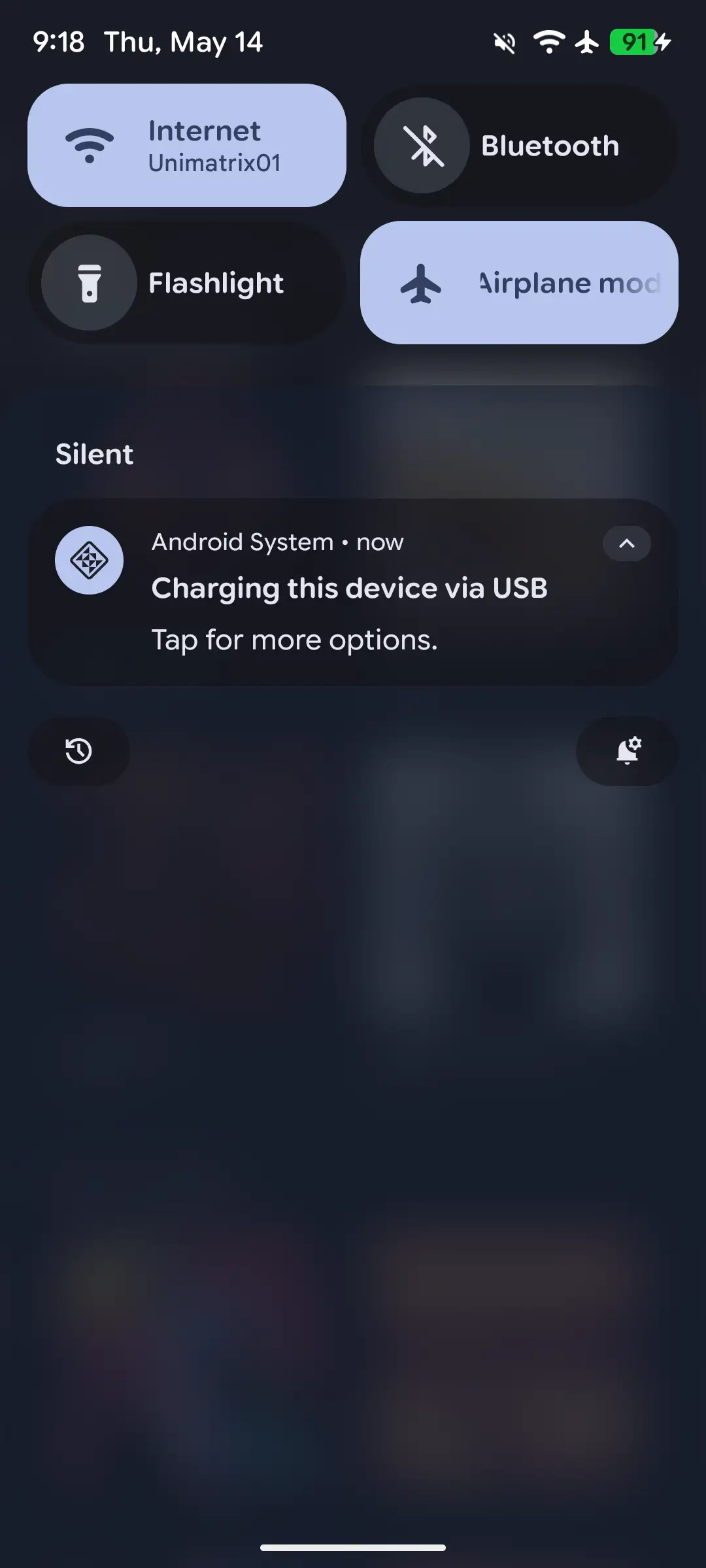
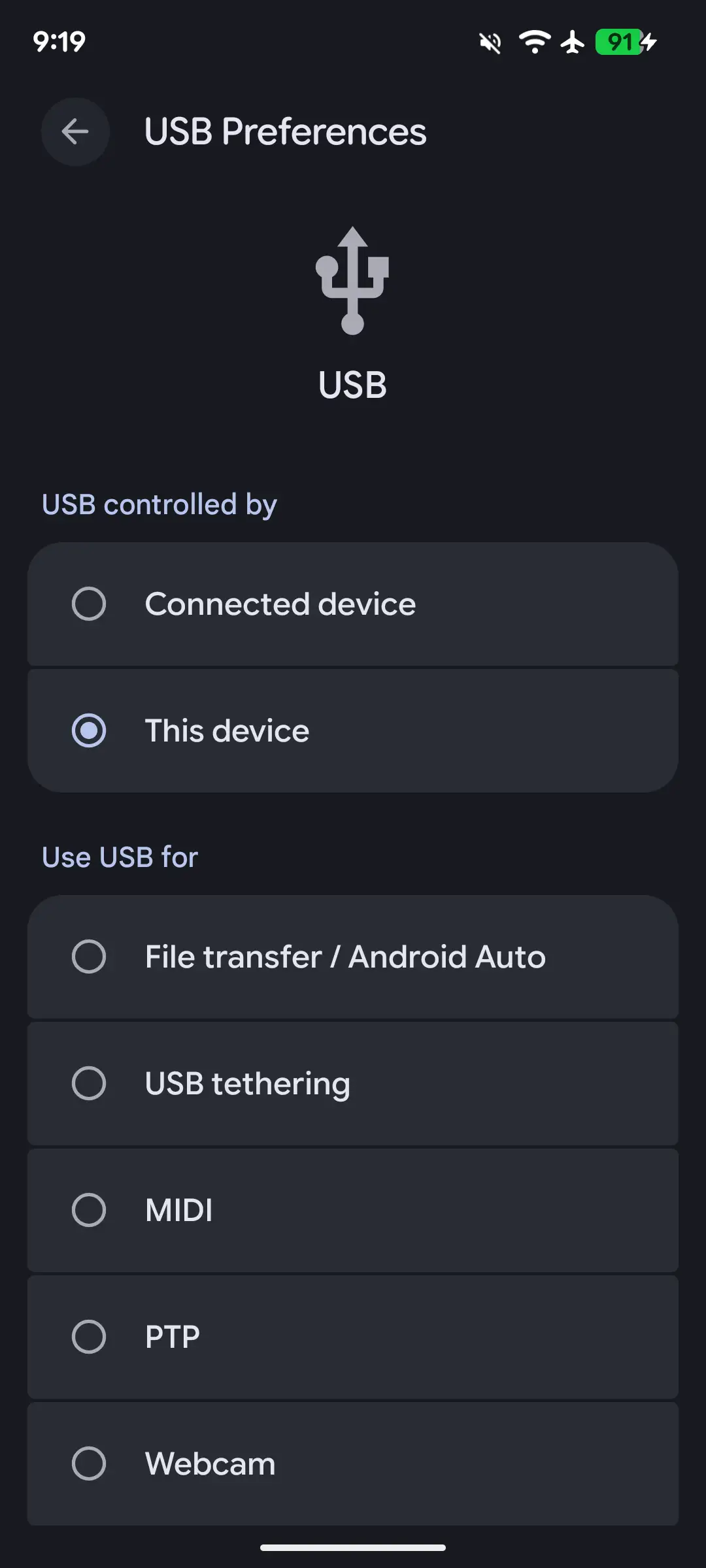
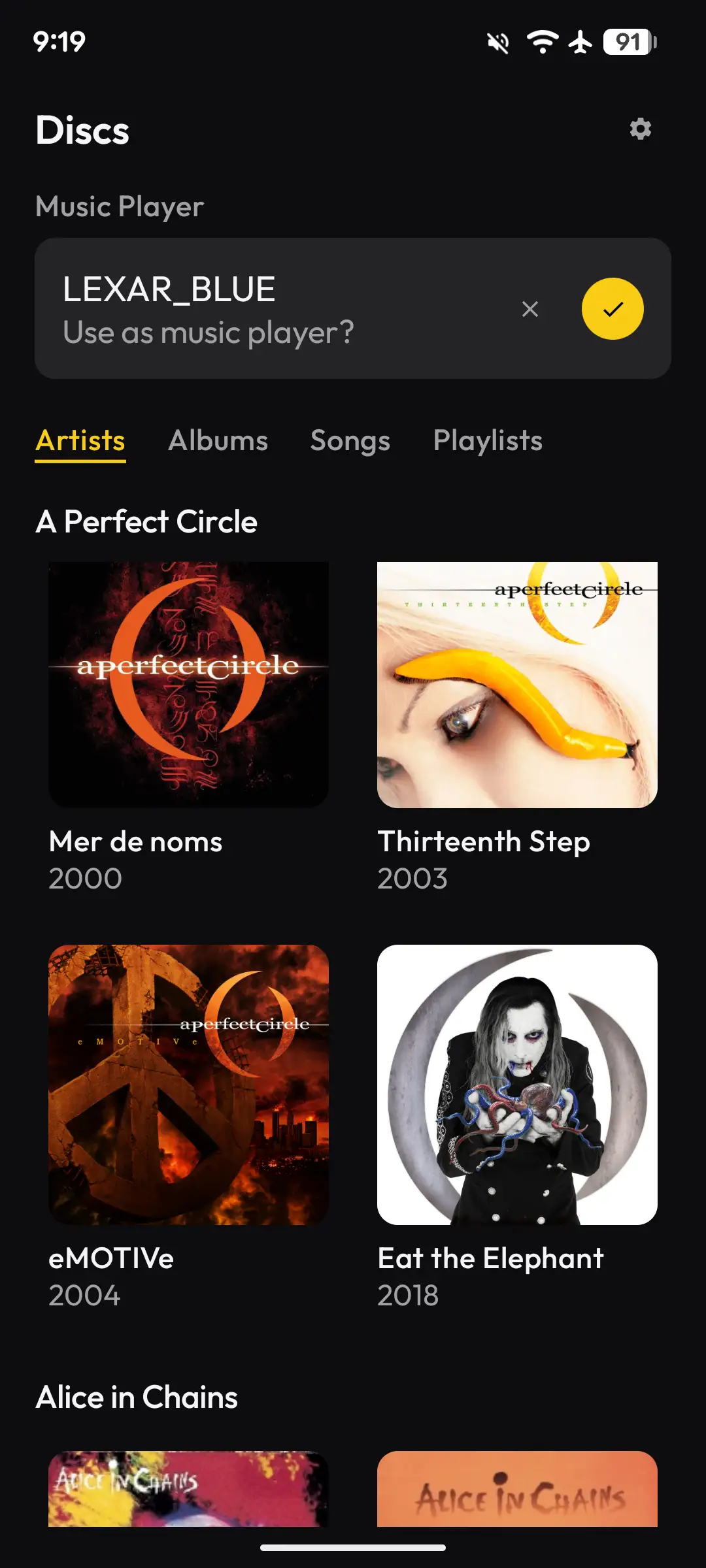


Some caveats to all of this. The SnowSky Echo Mini and SnowSky Disc were detected by my Android device right away after selecting USB data mode on both devices. The HIDIZS and HiBy devices (all running HiBy OS) required some additional steps. Once connected, I needed to access the USB Preferences from the notification shade and change the USB control option to “Connected device”. After this, Discs was able to see it. Also, within Discs, you will be prompted to access the USB storage (typical Android prompts when connecting devices).
Music Playback
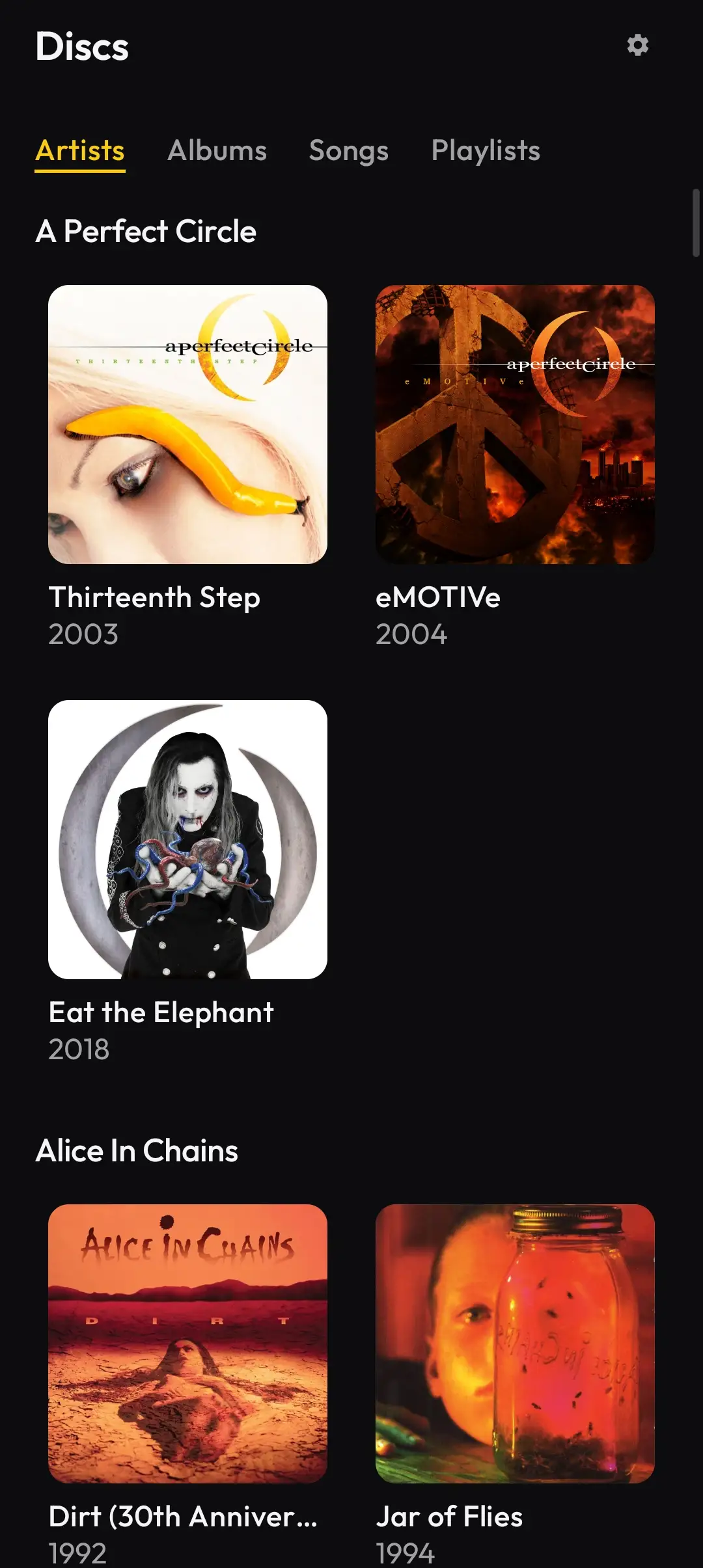
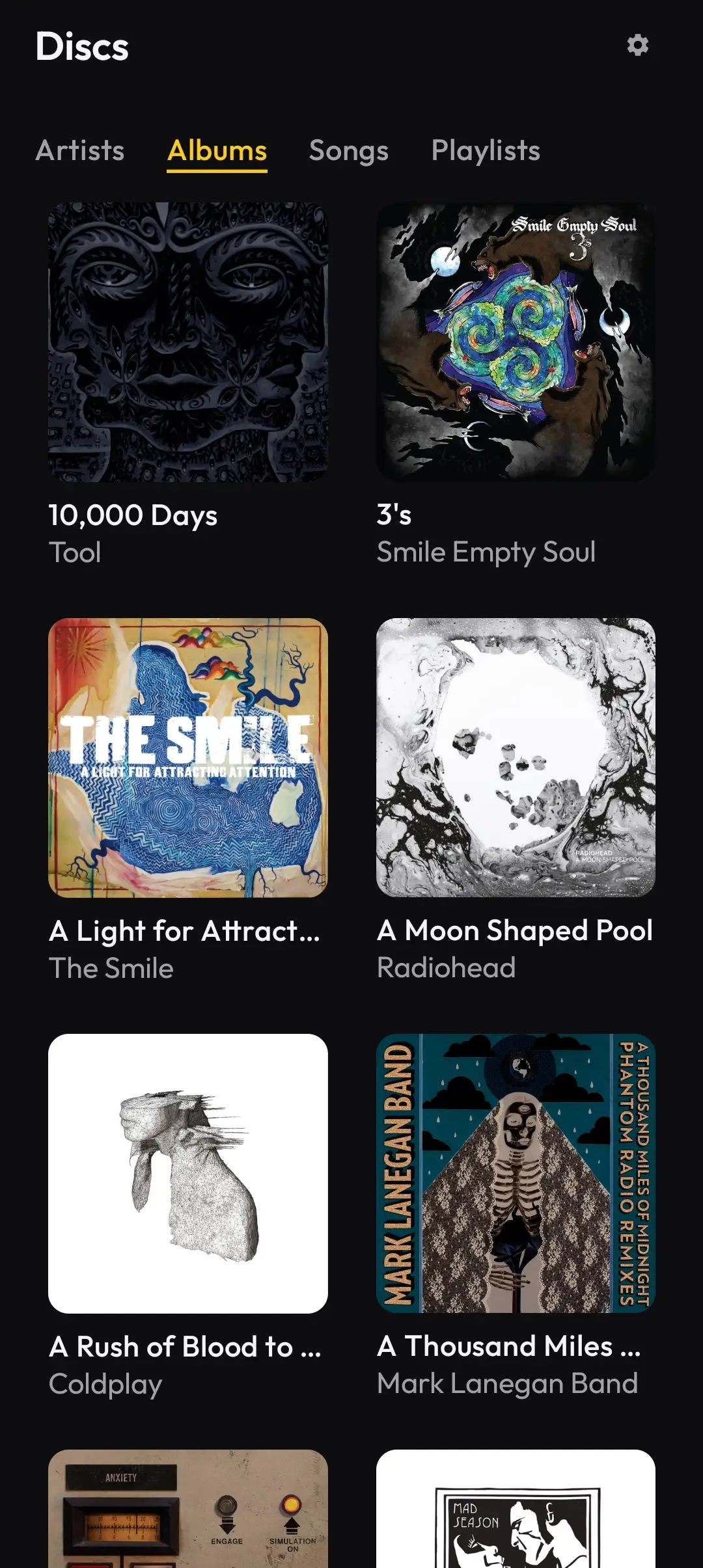
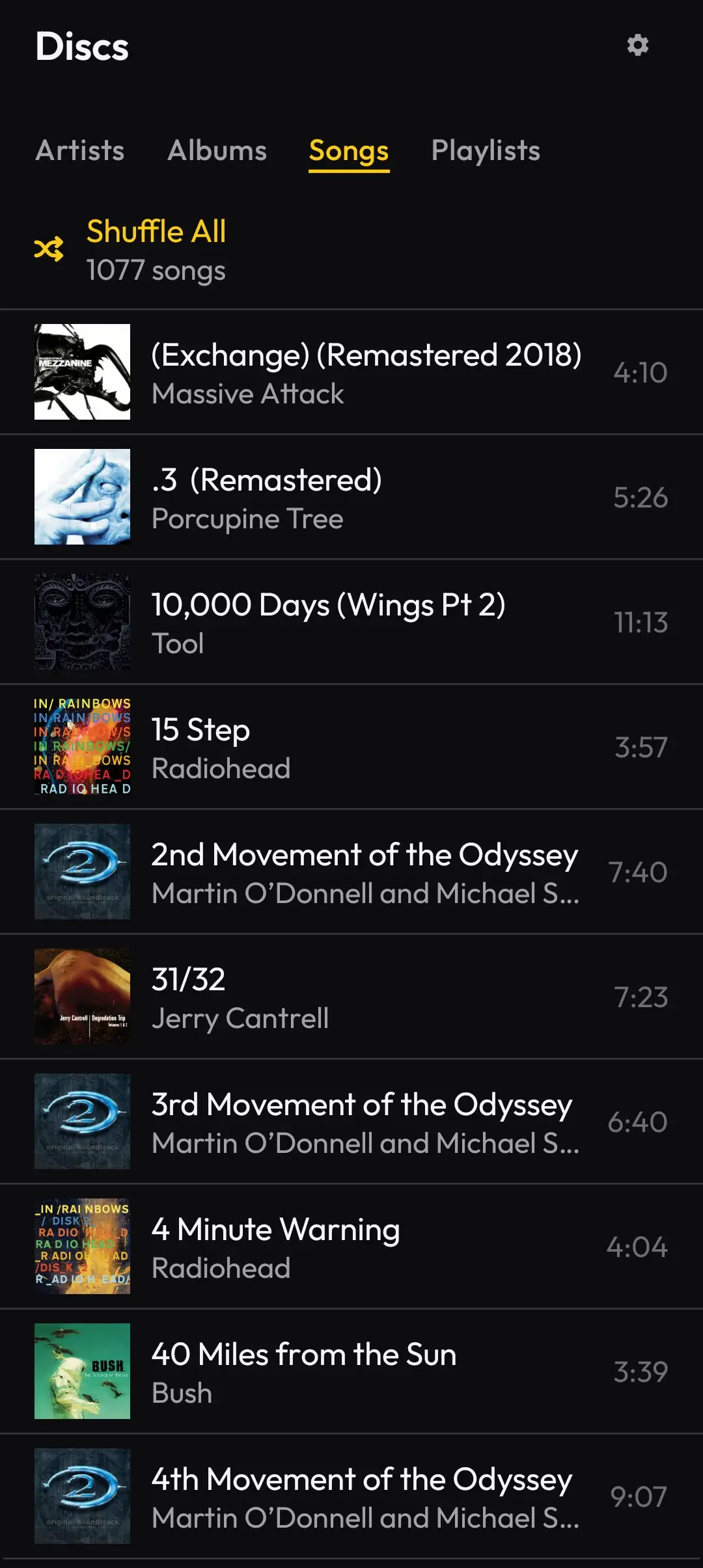


The Discs app is also a music player, allowing you not only to play the CDs you ripped, but also files you’ve copied to your device. It even has support for M3U playlists. The interface is fairly minimalist in that it shows only the bare minimum of information, which I really like, but it also lacks any amount of customization (which I’m sure will come at some point).
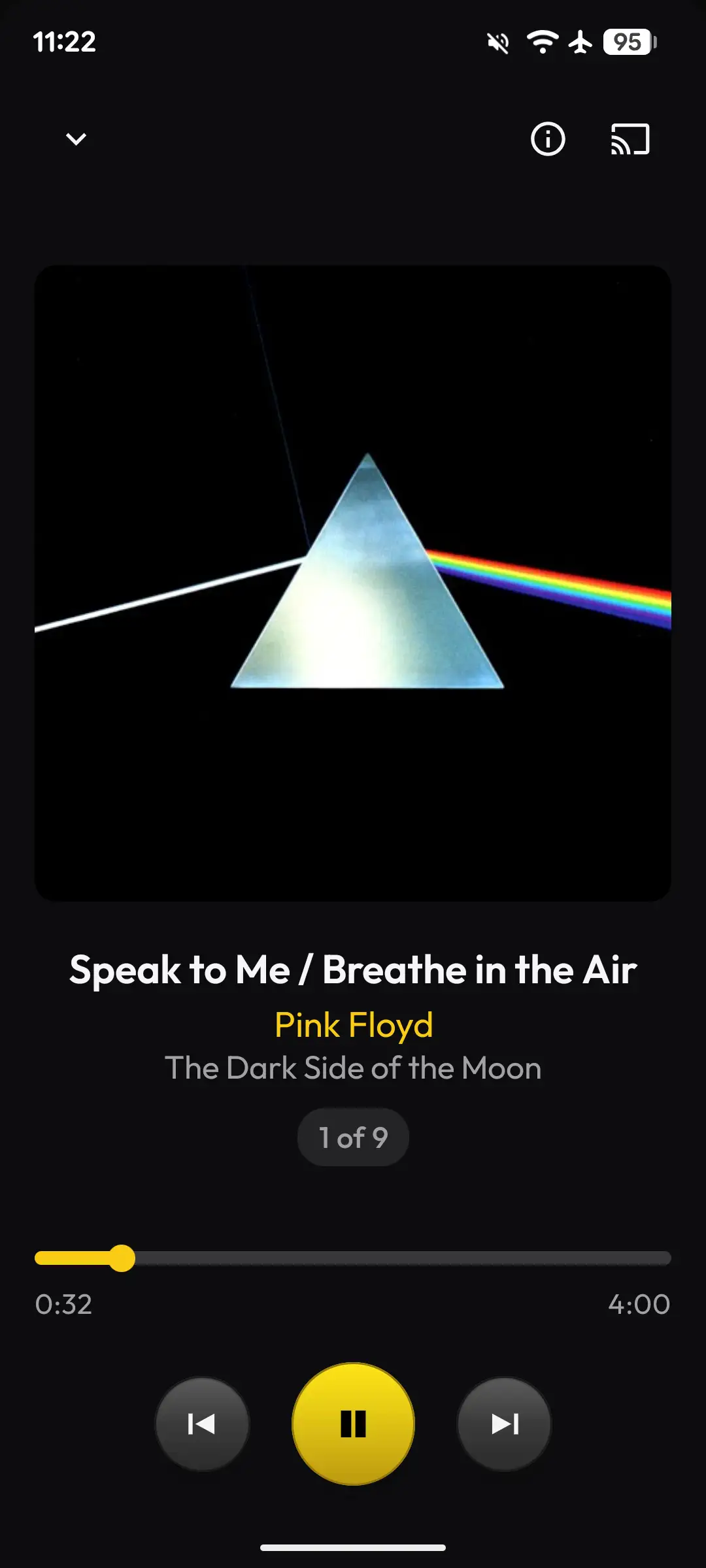
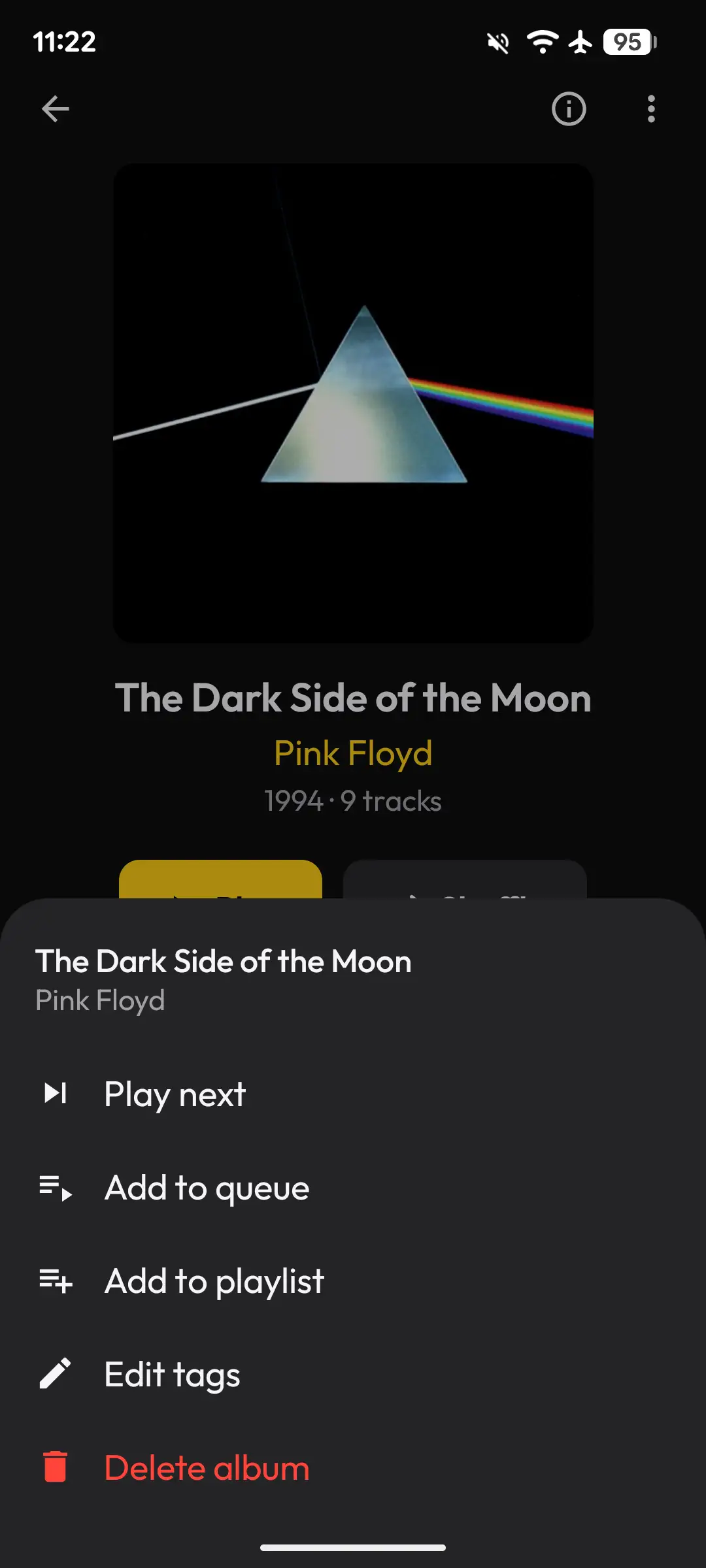
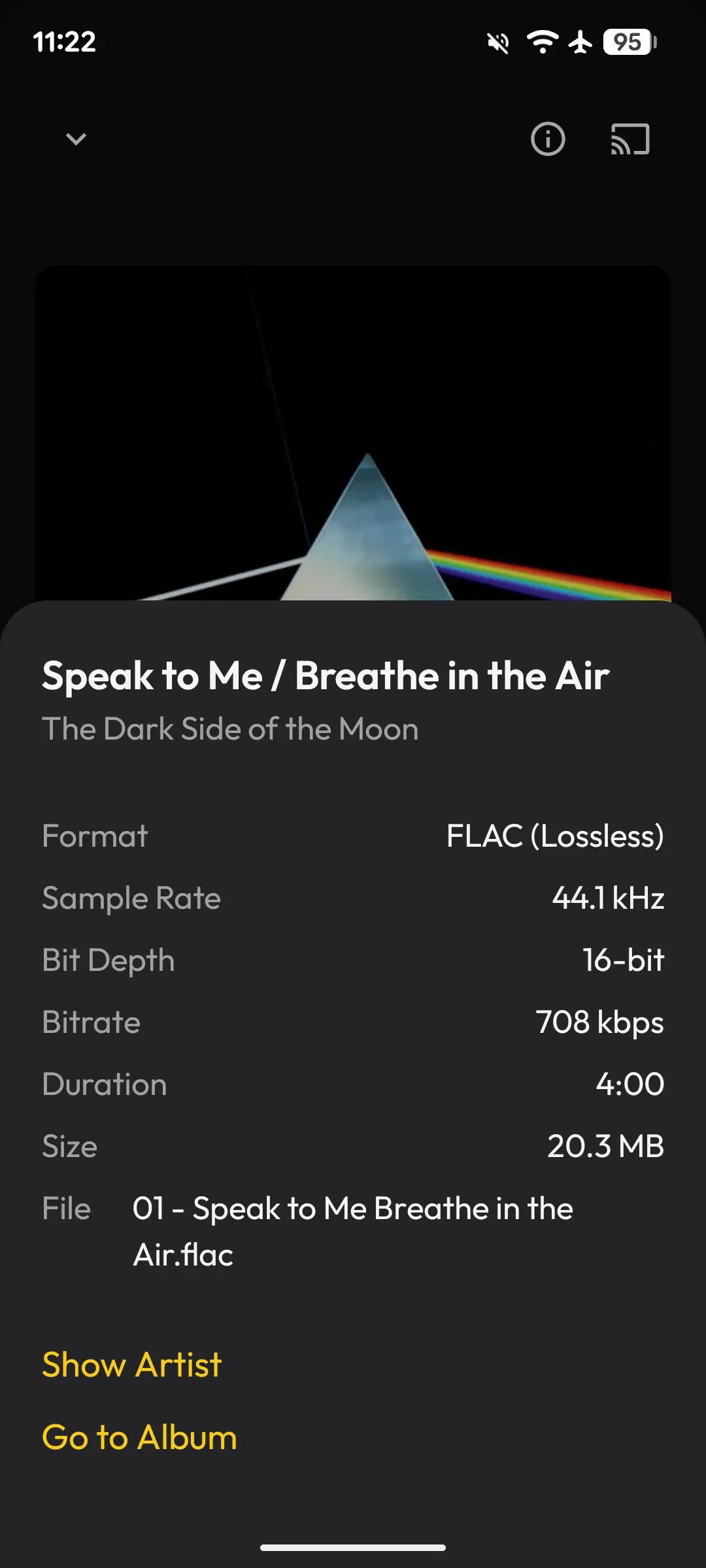


Still, all the basics are there, and the Now Playing screen is beautiful in its simplicity. I love the layout and the fact that you can tap on the Artist or Album name to bring you to their respective locations in the library. Swiping up or tapping the track number brings up the queue and provides toggles for shuffle and repeat. With a few improvements and additions, I could see this being a solid music player in its own right.
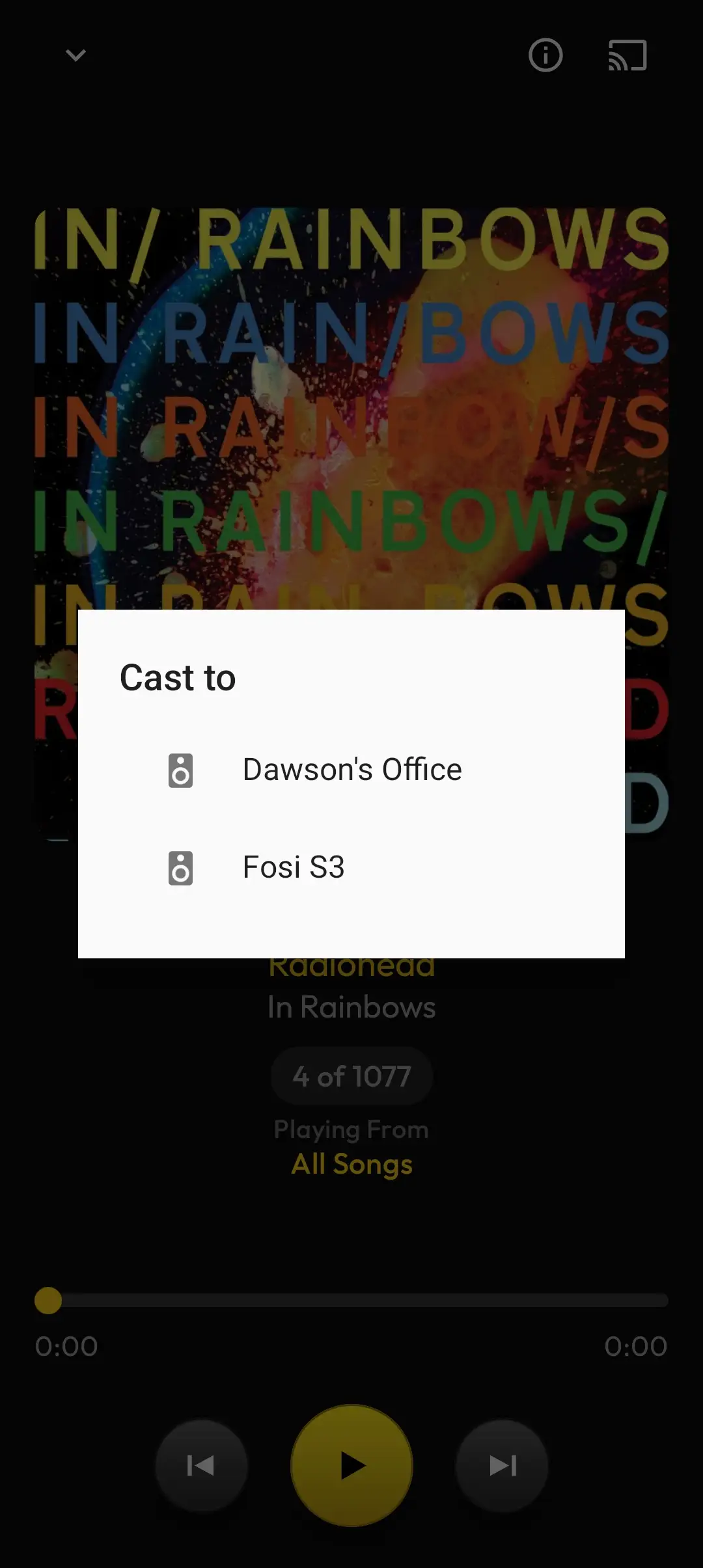
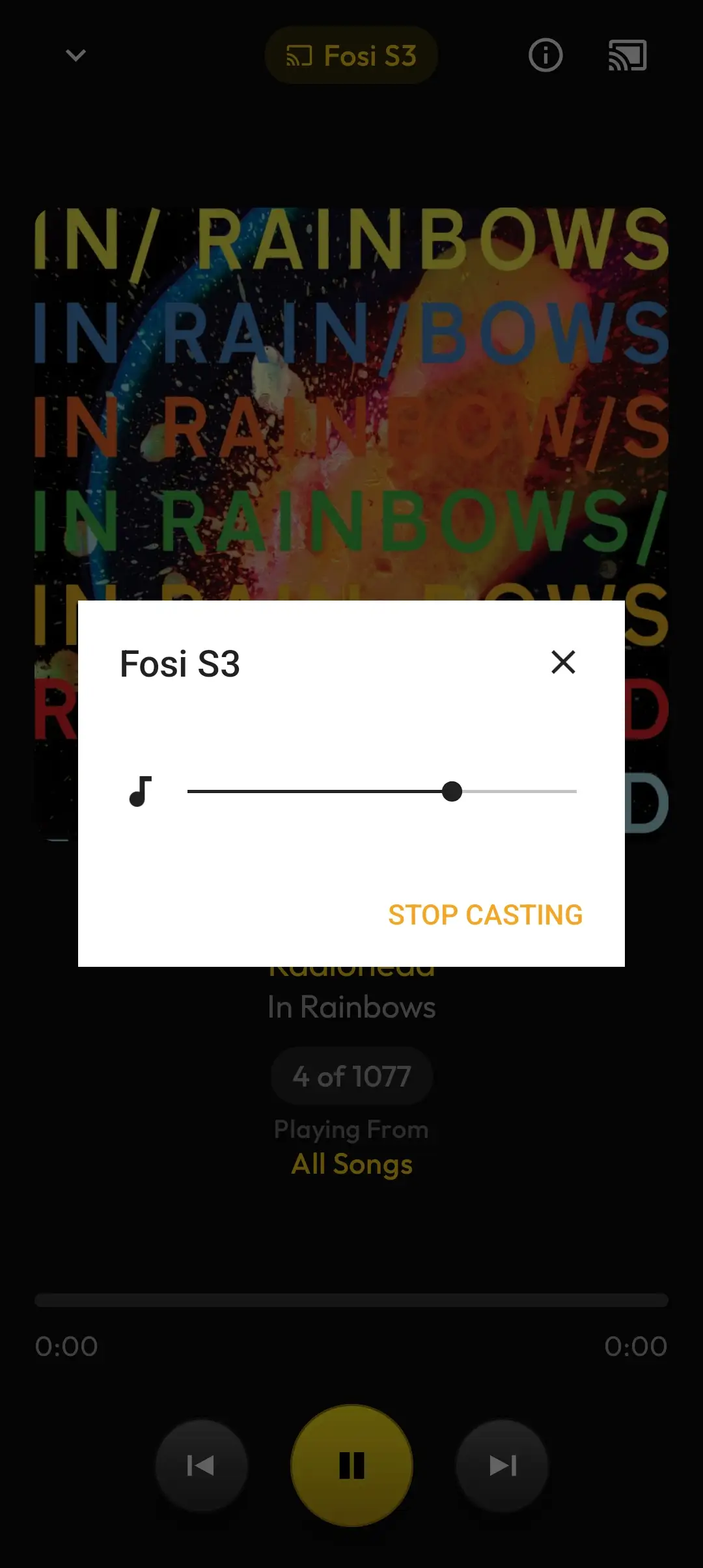
The app also has Google Cast support, which worked well with my Fosi S3 streamer.


Final Thoughts
The “Discs: CD Ripping & Music” app is one that seems so obvious in its concept, yet hasn’t existed until now. There have been Android-based CD ripping apps in the past, but they were always limited to a specific CD drive. Discs has near universal compatibility, while adding in some quality of life features as well.
The best thing about Discs is that it modernizes the entire CD ripping workflow. You can rip a CD directly to your Android smartphone or DAP in FLAC, get metadata and album art automatically, listen to the CD rip in the same app, play it in the car through Android Auto, cast it at home via Google Cast, and even copy it to a dedicated music player. That is a far more complete experience than I ever expected from an Android CD ripping app.
The pricing also feels very reasonable to me. The two free album rips are enough to test whether your phone, CD drive, and adapter work properly. After that, it’s a one-time purchase of $10 USD. The value is there, especially compared to using pricier or complicated desktop computer ripping tools.
The app itself is nearly perfect in function. I would like to see an option that allows you to choose which service you’d like to use for pulling metadata from, but otherwise, there’s really nothing for me to complain about.
The only real obstacle one can face is hardware compatibility, but the majority of Android devices and external CD drives should work just fine. If you’re going to invest in an external USB CD drive, I would recommend sticking with a name brand for the best experience (Asus, Dell, LG, Samsung, etc).
For listeners fully committed to only digital media, Discs is probably unnecessary. But for CD listeners and collectors who want a cleaner way to rip CDS, as well as build and manage a local FLAC library on a mobile device, Discs is an easy app to recommend.

Get “Discs: CD Ripping & Music” on the Google Play Store: https://play.google.com/store/apps/details?id=com.telepheedi.discs
I’m not always able to cover all the details of a product, both hardware and software, in my reviews. If you have any specific questions about this app, please feel free to leave a comment or contact me directly.
Be sure to check out my Buyer’s Guides, as well as my other Reviews.
HiFi Oasis Verdict
HiFi Oasis Verdict-
Functionality9/10 Amazing
-
Ease of Use8/10 Very good
-
Features9/10 Amazing
-
Value9/10 Amazing
Pros
- Simple, modern CD ripping workflow directly on Android
- Rips to FLAC, AAC 256kbps, or AAC 128kbps
- Ripped files matched Exact Audio Copy results in testing
- Accurate metadata and album art retrieval for most CDs
- Gapless playback worked properly
- Can sync music to compatible USB mass storage DAPs
- Works as a clean, minimalist music player
- Two free CD rips make hardware testing easy
- Reasonable one-time $10 USD unlock price
- Supports Android Auto and Google Cast
Cons
- Hardware compatibility depends heavily on the phone, CD drive, cable, and adapter
- Some Android devices may not provide enough USB-C power for external drives
- Metadata retrieval failed for a few albums
- No option to choose a preferred metadata source


